


If you're running a lot of polls throughout your meeting or event, Slido Dividers can help give you a clear, organized view of your agenda. They’re perfect for when you have multiple speakers, multiple presentations or multiple topics.
Dividers allow you to separate your polls into different sections which can be displayed or hidden. This makes it easier to view the right polls, at the right time.
In this article:
How to add a divider
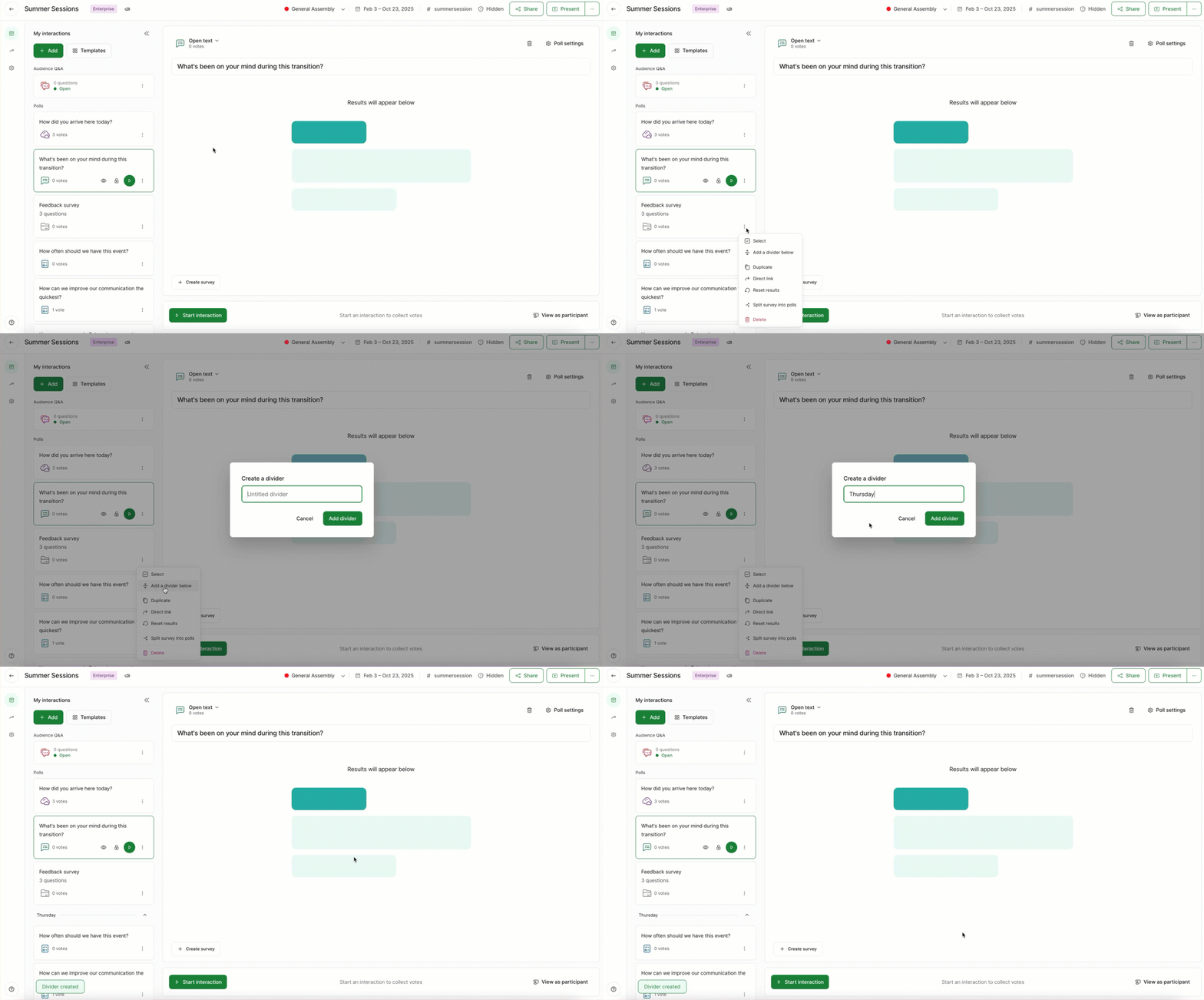
Dividers can be added when you have at least one poll. To do this:
- Select the three dot menu next to any poll in your interactions list
- Click Add a divider below
- Give your divider a name and hit Add divider
- Notice your divider appear underneath the poll
How dividers work
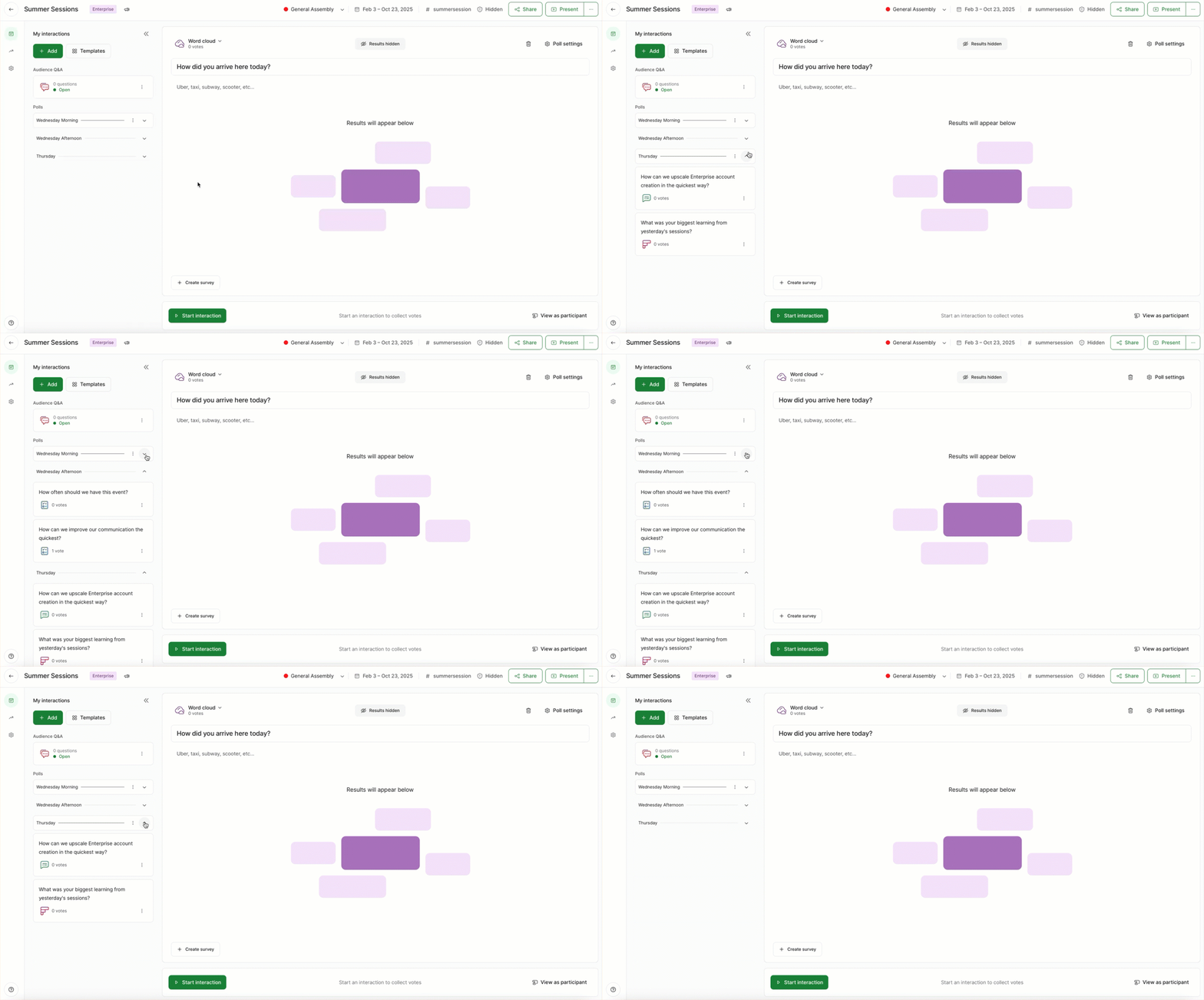
All polls placed underneath a divider can be collapsed or expanded using the arrow icon. This allows you to cleanly organize your polls in whatever way you need to.
And just like polls, you can drag and drop dividers wherever you need to in your interaction list.
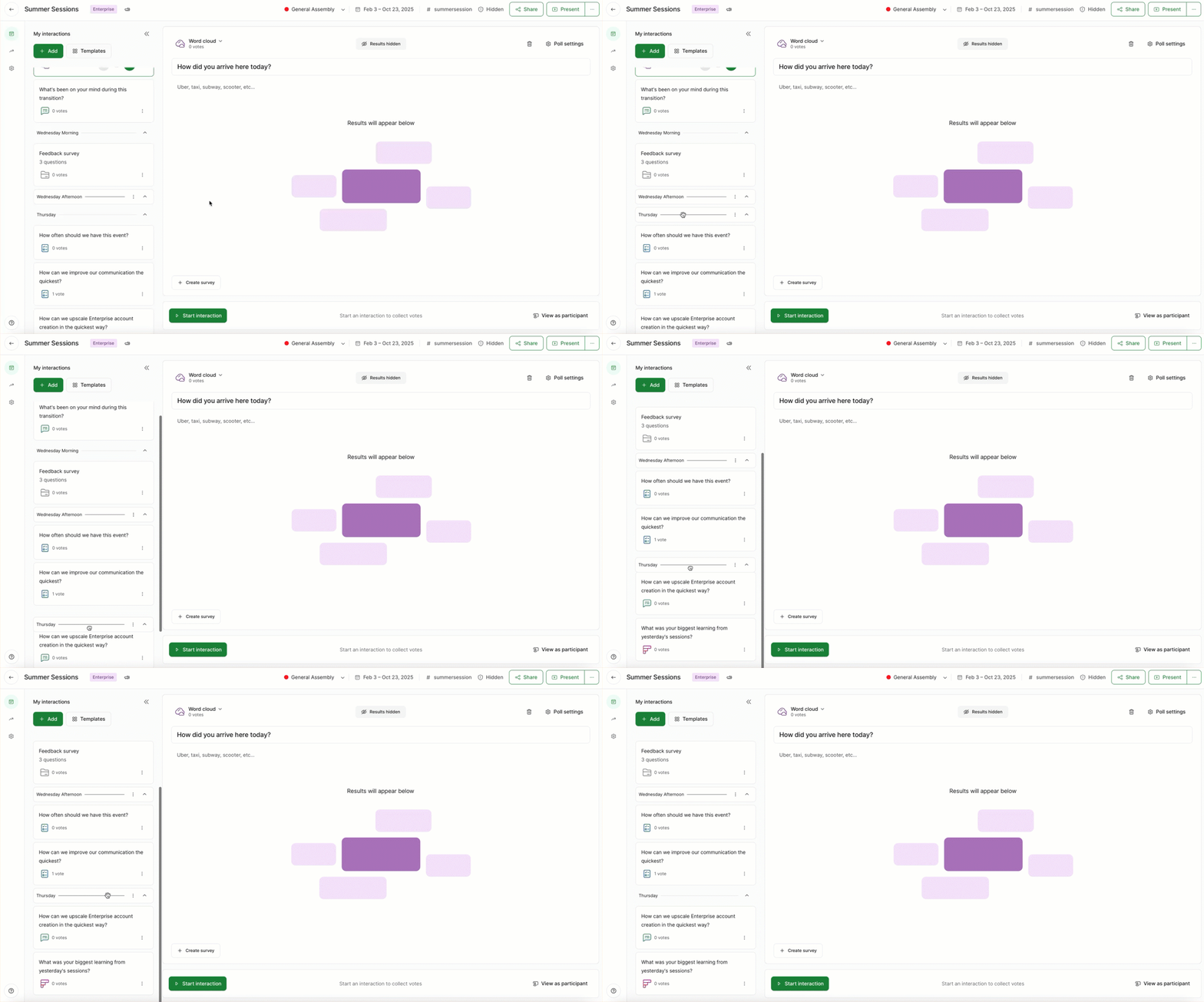
Note that moving a divider does not move the polls underneath it.
How to edit a divider
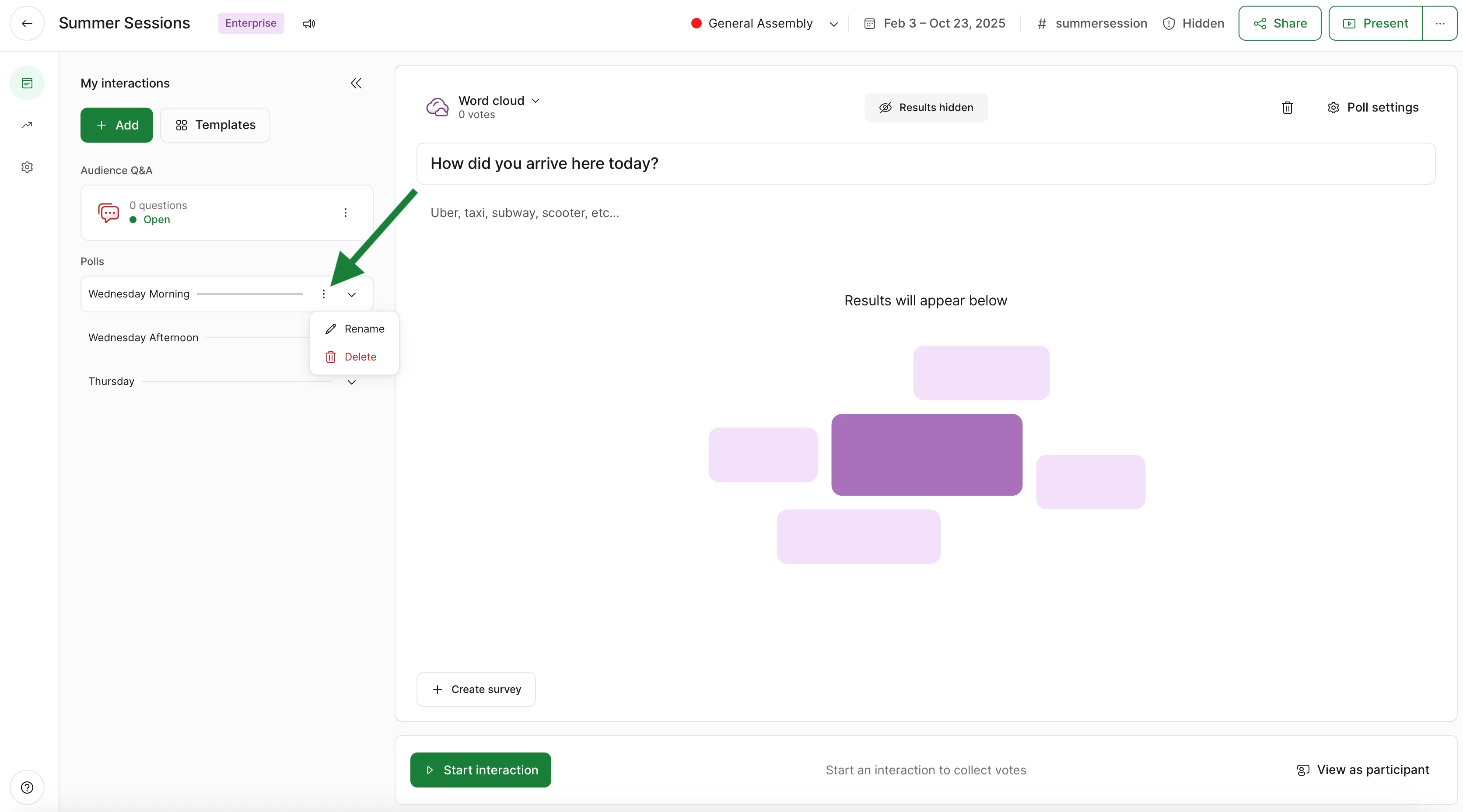
Any divider can be edited by clicking on its three dot menu. This allows you to edit the divider’s name or delete it.
Curious about more?