



Slido AI is here and we’re excited to show you what it can do for you. Now you can create customized polls based on the content of your presentation and place them within your deck...all in a matter of seconds!
AI-Generated polls from slides is available for all Slido plans. However, it can only be disabled by owners and admins of paid annual Slido plans. See our AI Settings guide for more details.
In this article:
How to use AI-Generated polls from slides
Start off by opening up the Slido sidebar in PowerPoint or Google Slides. There you’ll see the options to Start with AI or Start from scratch.
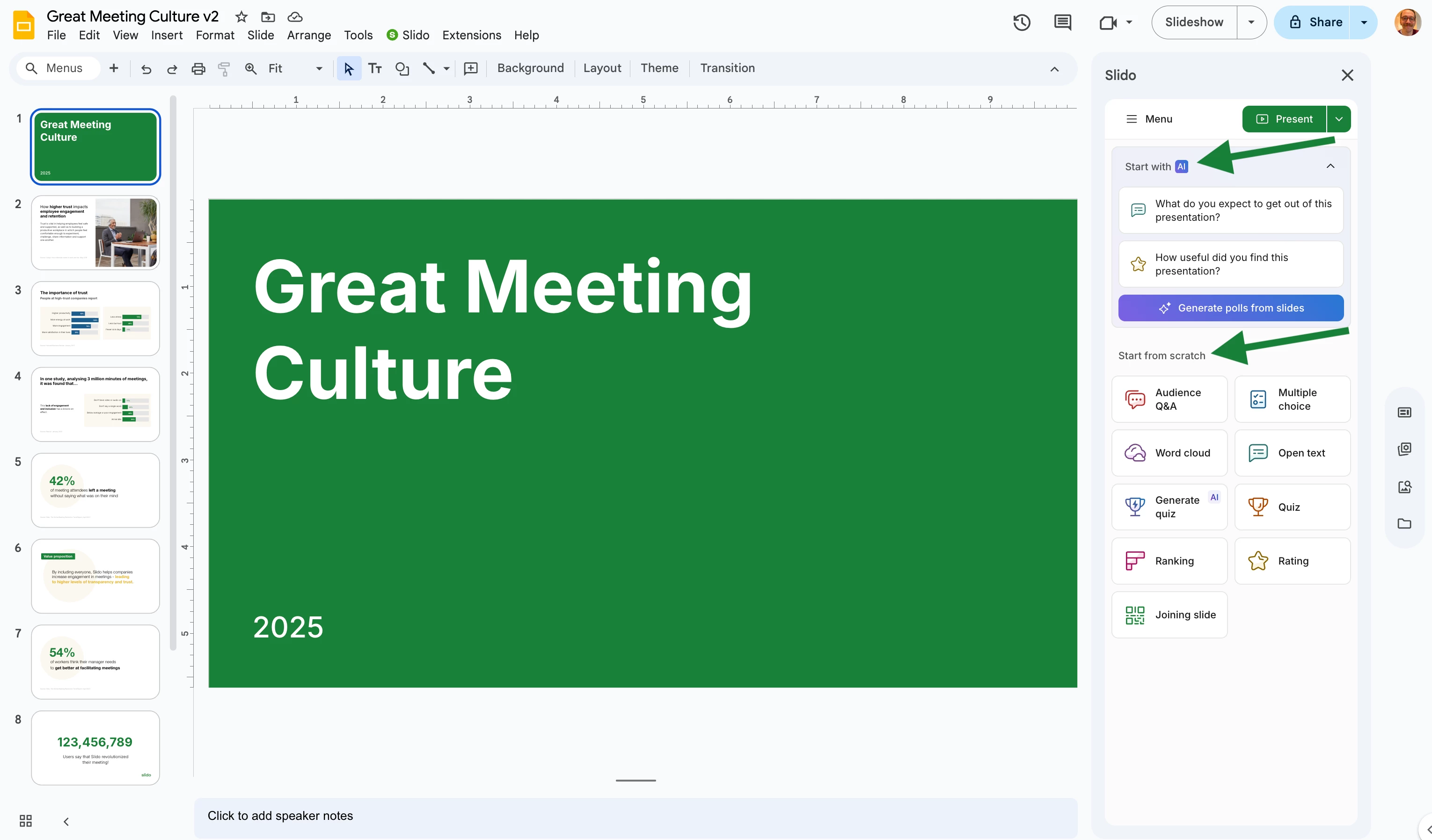
If you do not see the Start with AI widget, this means the feature is disabled for your Slido organization. Learn more
The AI widget will already suggest a couple of polls for your slide deck. Clicking on any suggested poll will add it to your presentation.
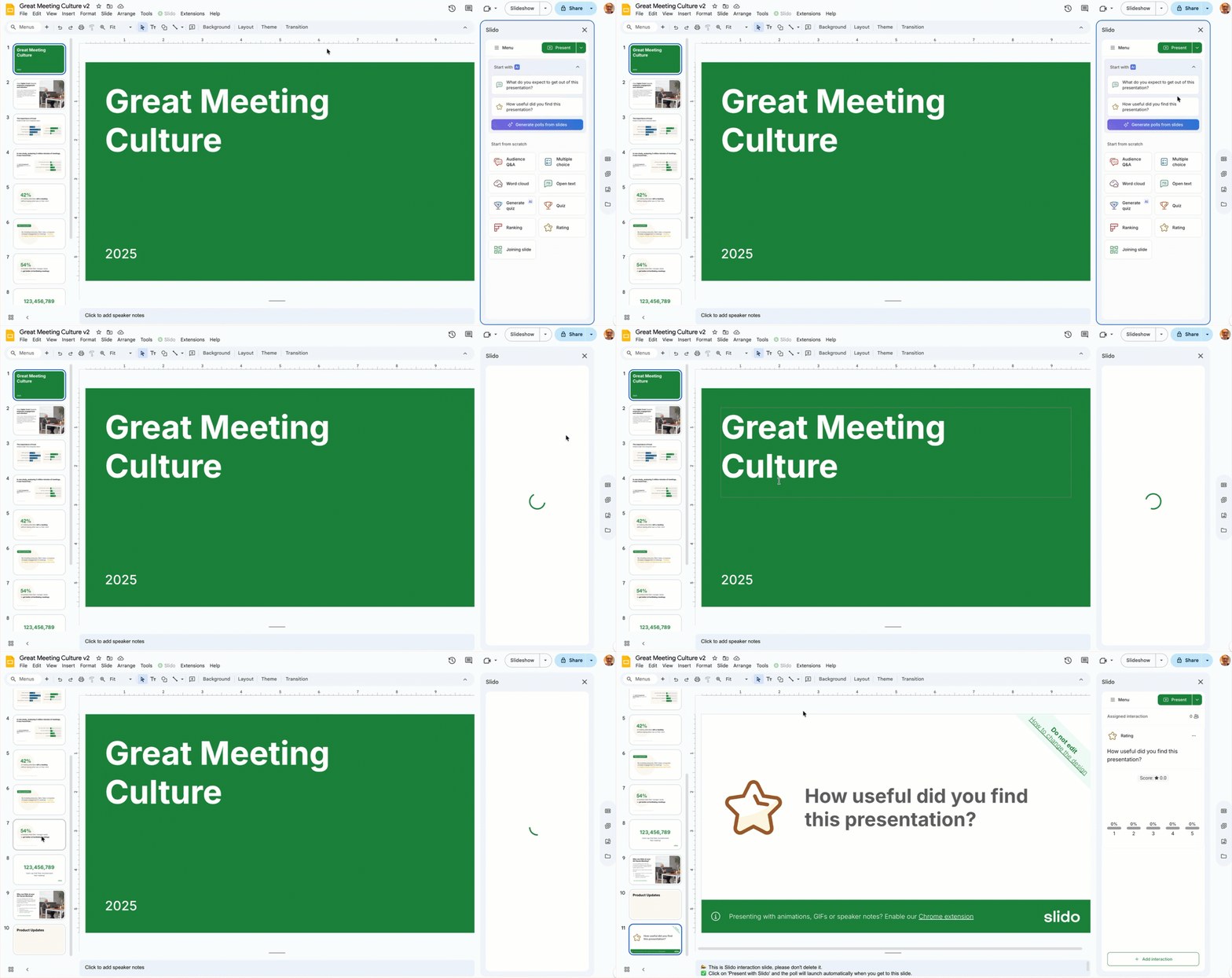
And whenever you’re ready...click Generate polls from slides and watch as custom polls based on your slide deck appear in the sidebar.
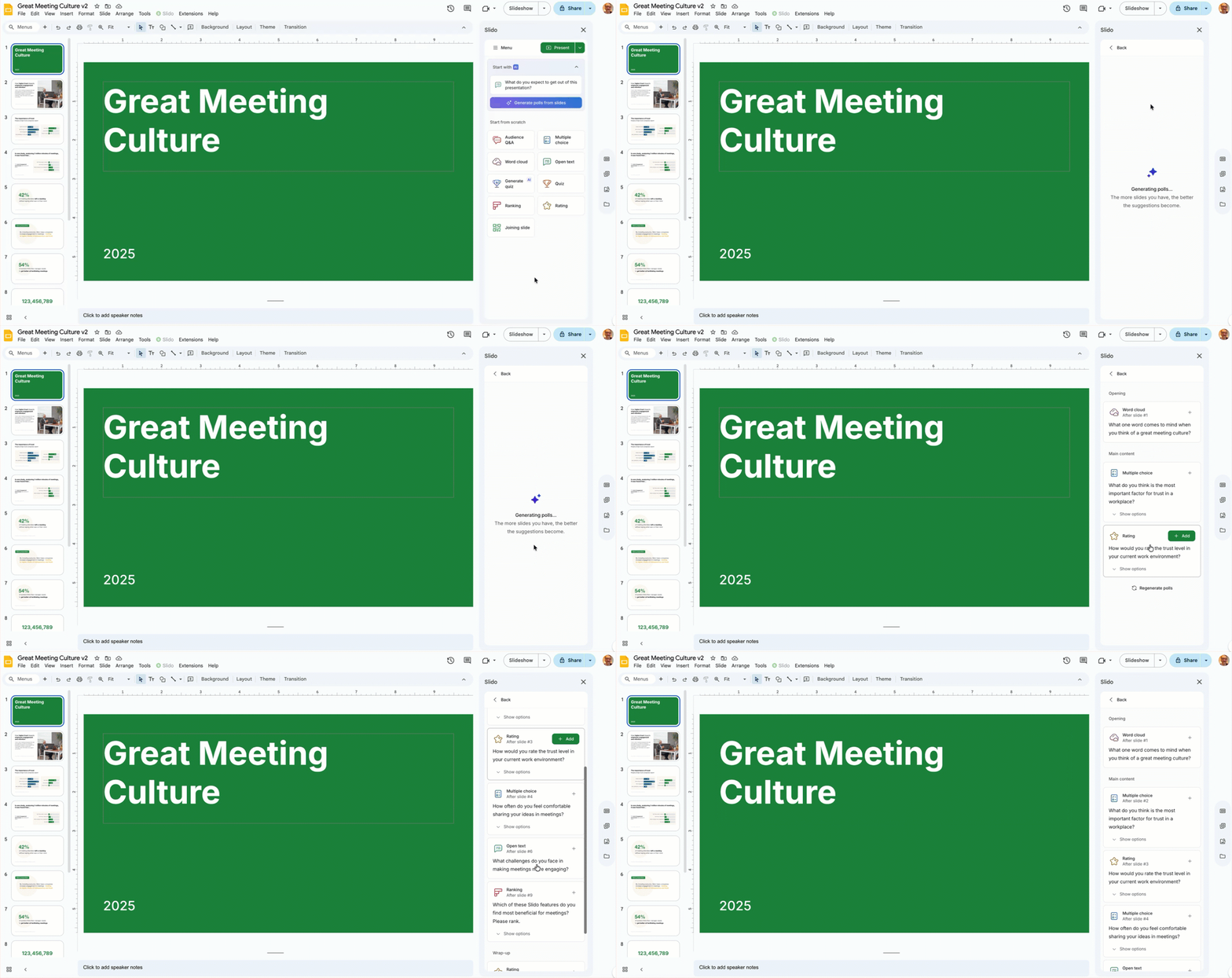
Now you can review the suggested polls and click + Add to add any of them to your presentation.
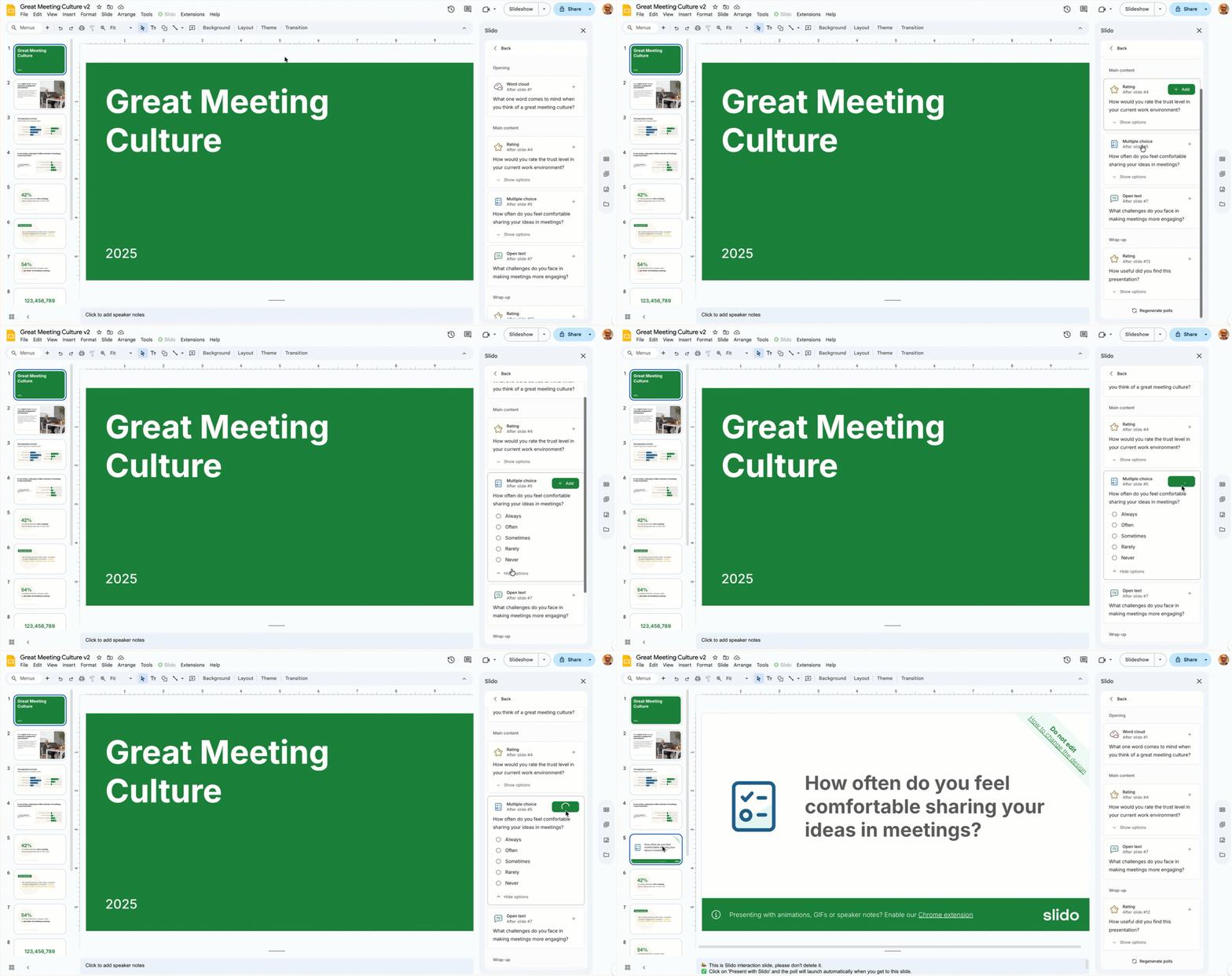
Slido AI even adds the poll to a specific spot in your presentation to maximize engagement. But don’t worry, you can always move it if you wish.
Once you’ve added AI-generated polls, they function just like any other Slido poll. You can move them around and/or edit them to your liking.
Tips and reminders
- Available in both Slido for Google Slides and Slido for PowerPoint (Windows and macOS)
- Optimized for presentations in English – for the best experience
- Learn more about Slido’s use of AI in our AI Transparency Note.
We want to hear from you!
Share your feedback with us and let us know how we can improve these features. And if you have ideas of how we can utilize AI even further within Slido, you can let us know that, too!
Curious about more?