



The Multiple rooms feature allows you to create different ‘rooms’ within your slido – each having their own separate polling and Q&A. When organizing an event with parallel tracks or multiple training sessions throughout the day, setting up multiple rooms will help divide your content.
Participants can even switch between different rooms depending on which session or meeting they’re attending.
Available in Professional and higher plans
In this article:
Create rooms
To create multiple rooms in a slido:
- Open up your Settings
- Select Multiple rooms
- Add and rename as many rooms as you need – then hit Save
There is a limit of 200 rooms per slido, but we recommend keeping the number much lower to provide a better experience for participants.
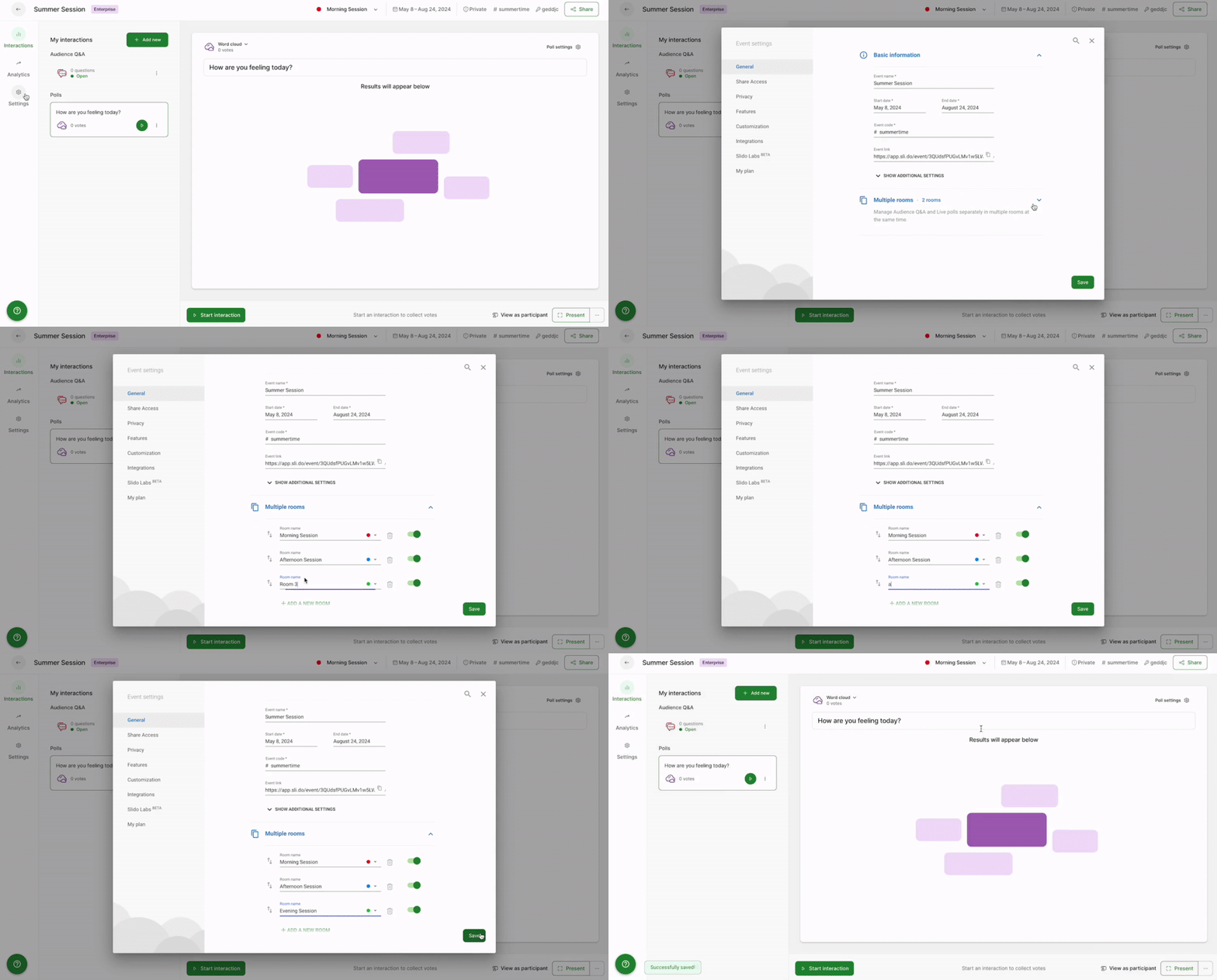
If you ever need to delete a room, simply click the trash icon next to it.
Keep in mind that deleting a room will also delete all of its data (poll responses, Q&A questions, etc.). To ensure you don't lose anything, we recommend deactivating the room instead. The data will stay safe but the room will no longer be visible to your audience.
Activate and deactivate rooms
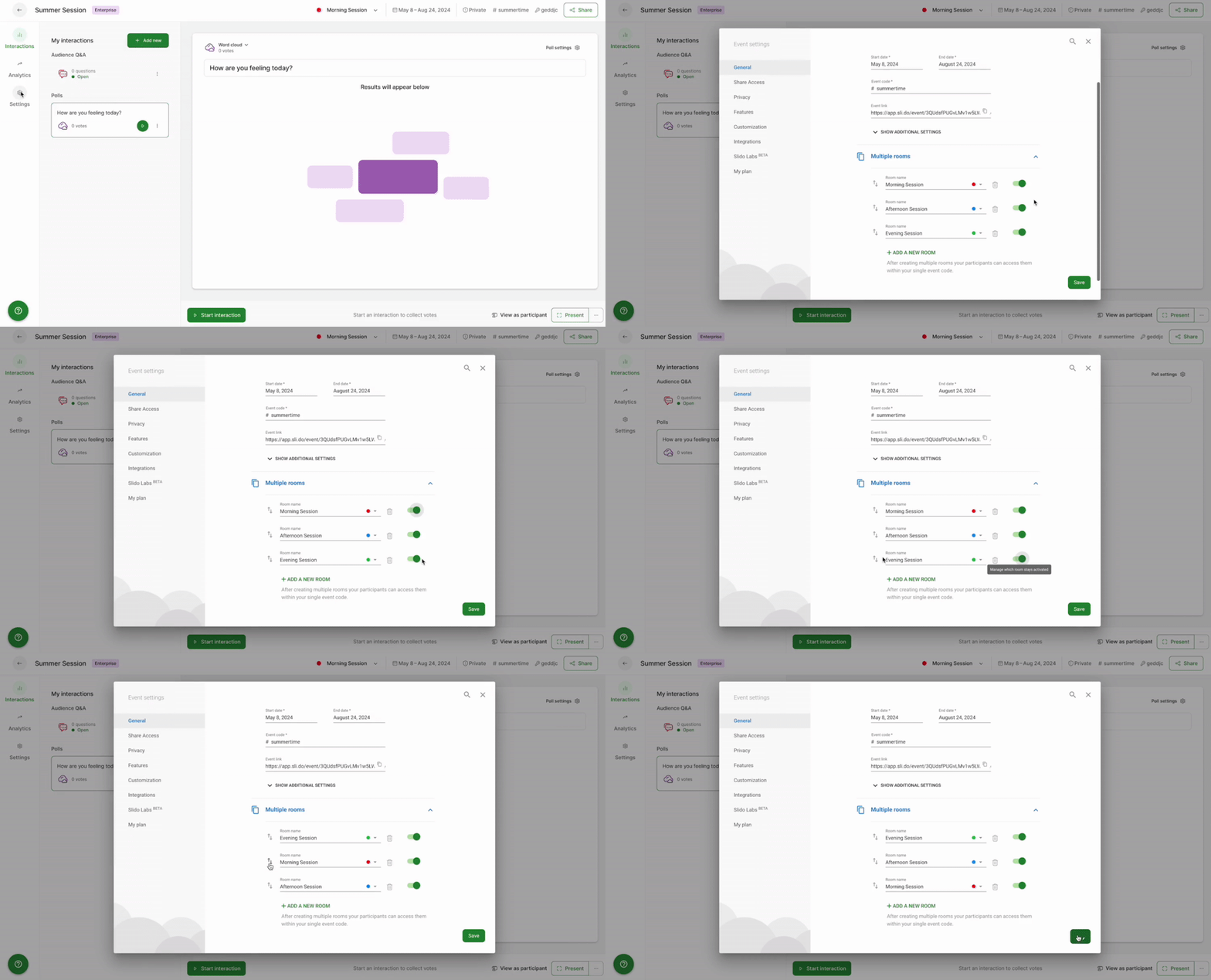
To minimize the number of rooms for your participants to choose from, you can activate or deactivate them at any point. For example, if you have specific afternoon sessions, there’s no need to have them activated throughout the morning.
In your Settings, use the toggle button next to each room in order to activate or deactivate them. You can also drag and drop the rooms to rearrange their order.
Manage rooms
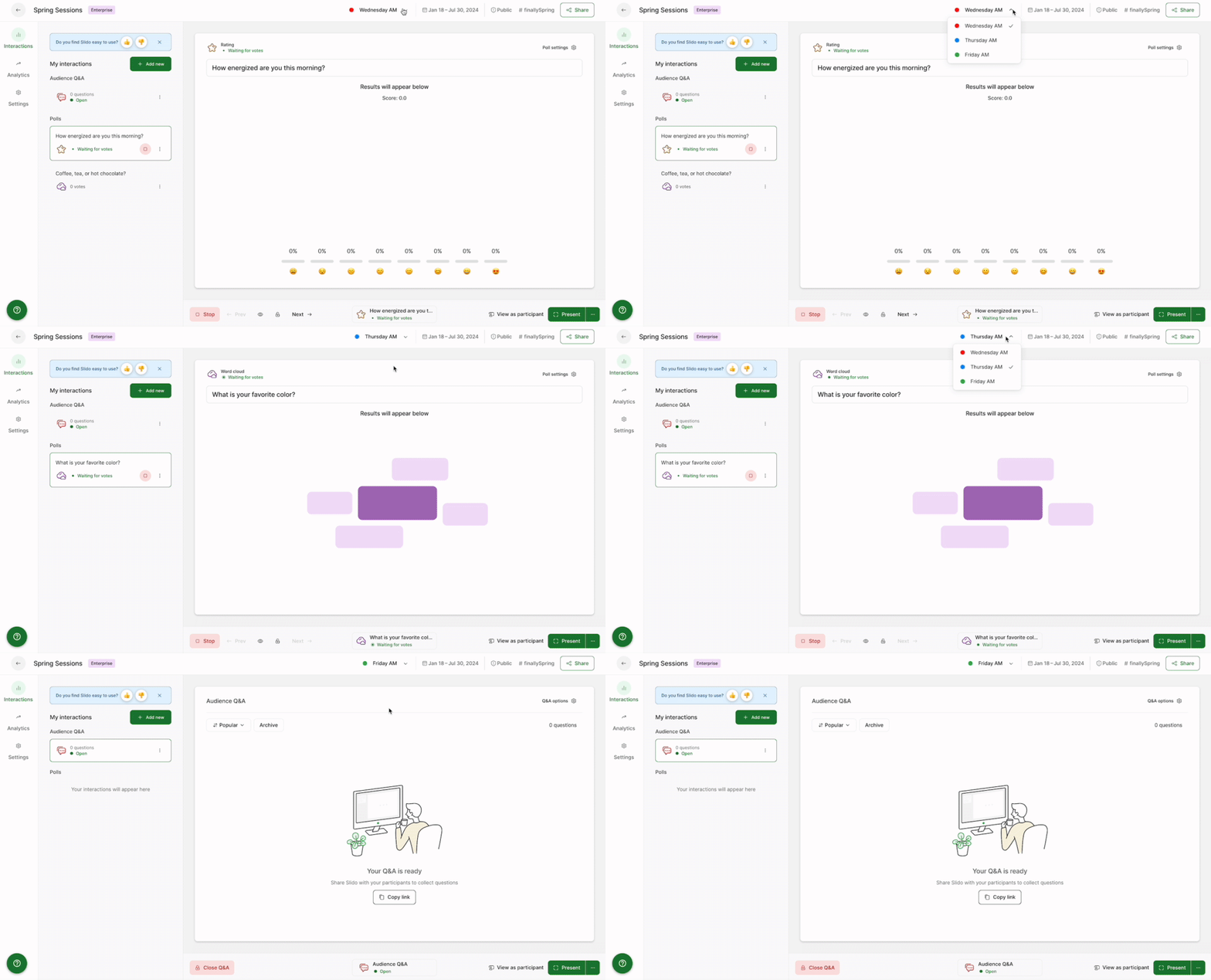
Each room has its own set of Interactions. Select which room to manage using the dropdown menu in the upper right corner.
Pro tip: If you’re running multiple sessions at the same time, use co-hosts to help facilitate. Co-hosts are free to add and can help manage the polling and Q&A in your different rooms.
How to change rooms in Present mode
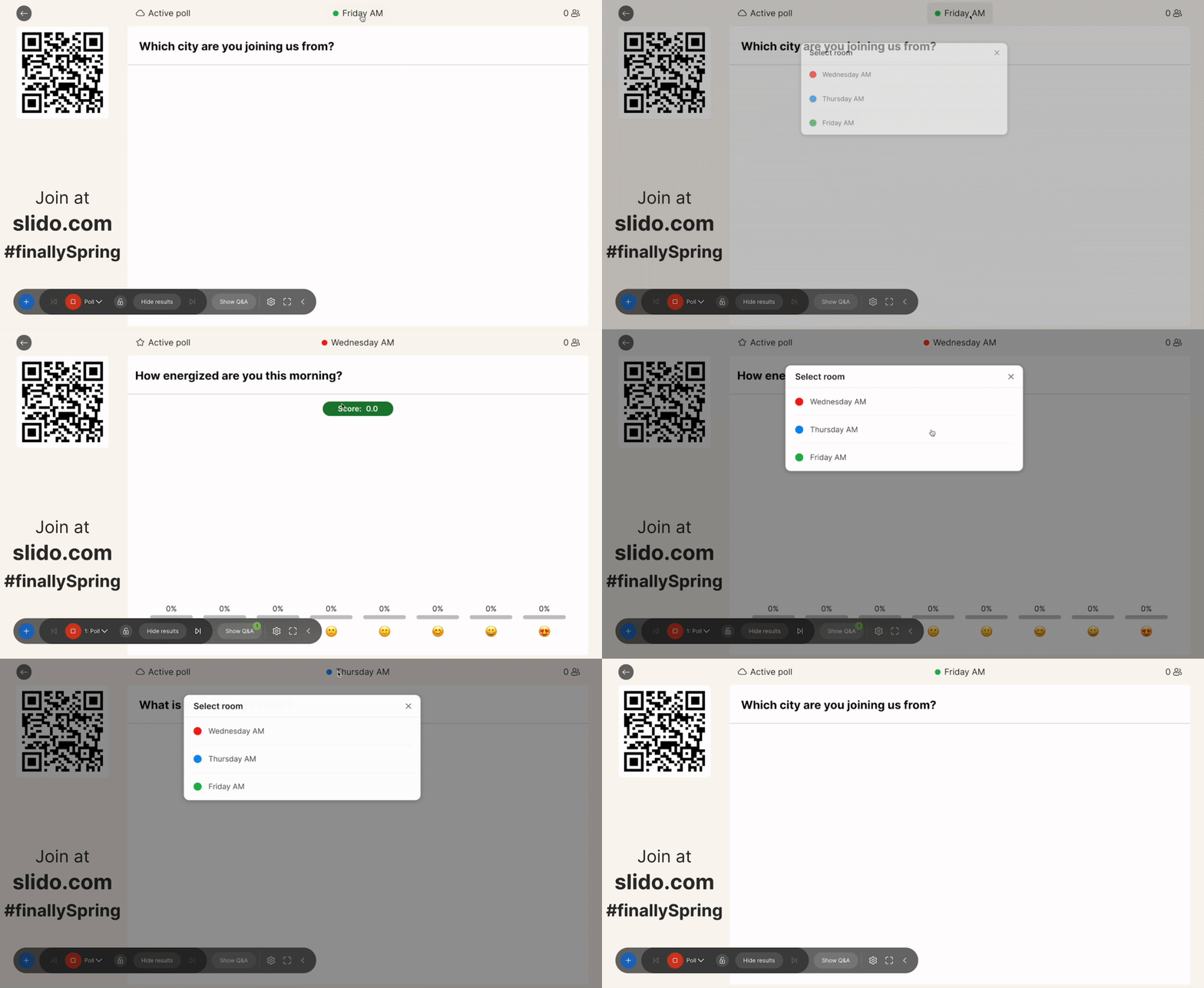
Present mode is the best way to display your polling and Q&A for all to see. If your slido has multiple rooms active, the room that’s being displayed will be shown at the top.
To change rooms, click on the current room and select another one.
Get the permanent link for a specific room
While you can't create multiple QR codes for each room, you can generate a unique permanent link for both the Present and Participant modes from each of your rooms.
Present mode permanent link
To get the permanent link for a specific room’s Present mode:
- Select your desired room
- Open its Present mode by selecting Present in the bottom right
- Copy the Present mode URL
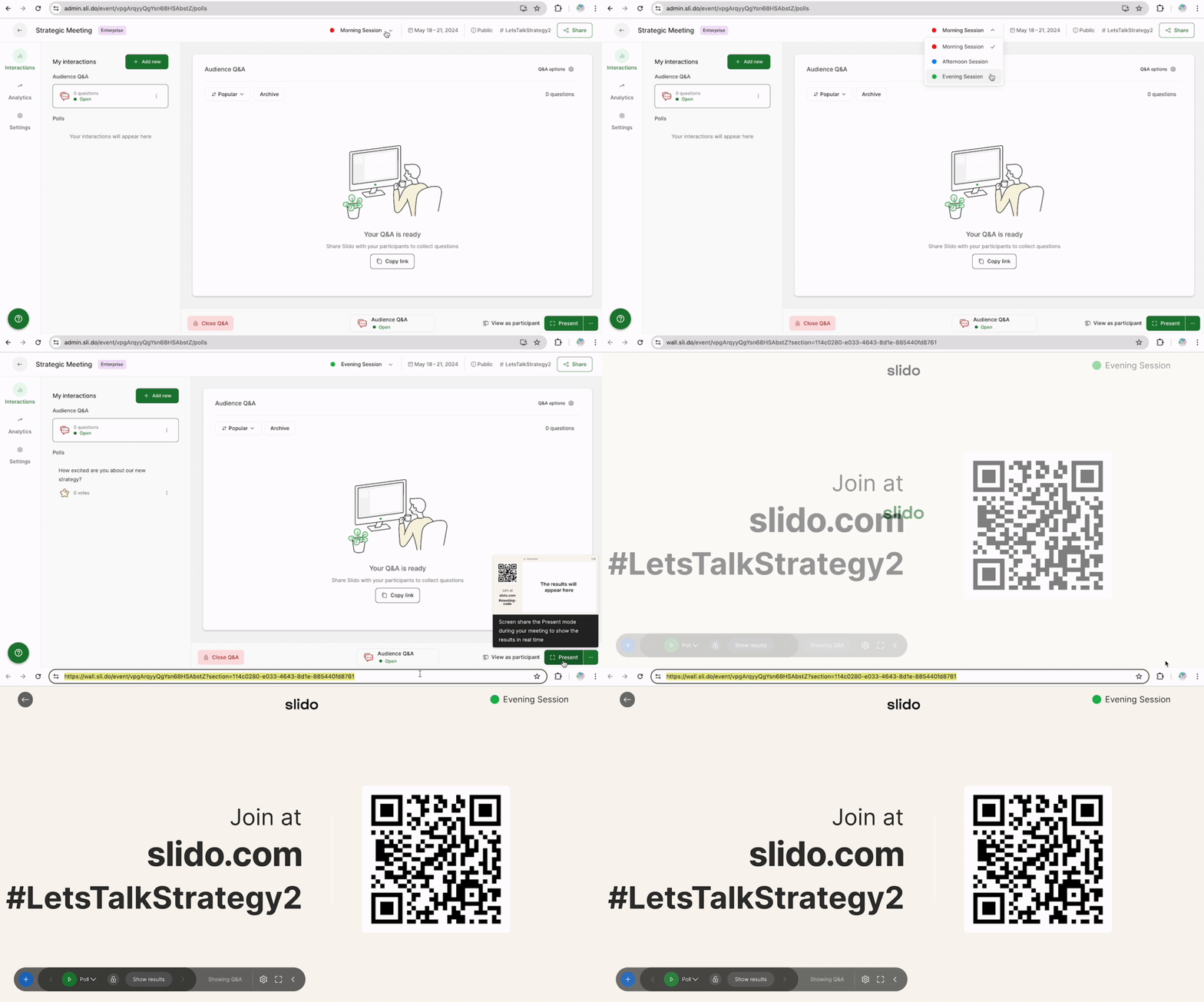
If you need to copy a different room’s Present mode link, simply change the room. The URL will change accordingly.
Participant mode permanent link
Getting a permanent link for a specific room’s Participant mode is useful if you want your audience to immediately join a desired room.
To generate the link, follow the above steps for getting a Present mode link. Then simply replace wall.sli.do with app.sli.do.
Example Present mode link: https://wall.sli.do/event/fPwQwZDFCDE9VoR9i28AHn?section=6428b309-7eaa-4f4c-9b77-365f7c58c99c
Example Participant mode link: https://app.sli.do/event/fPwQwZDFCDE9VoR9i28AHn?section=6428b309-7eaa-4f4c-9b77-365f7c58c99c
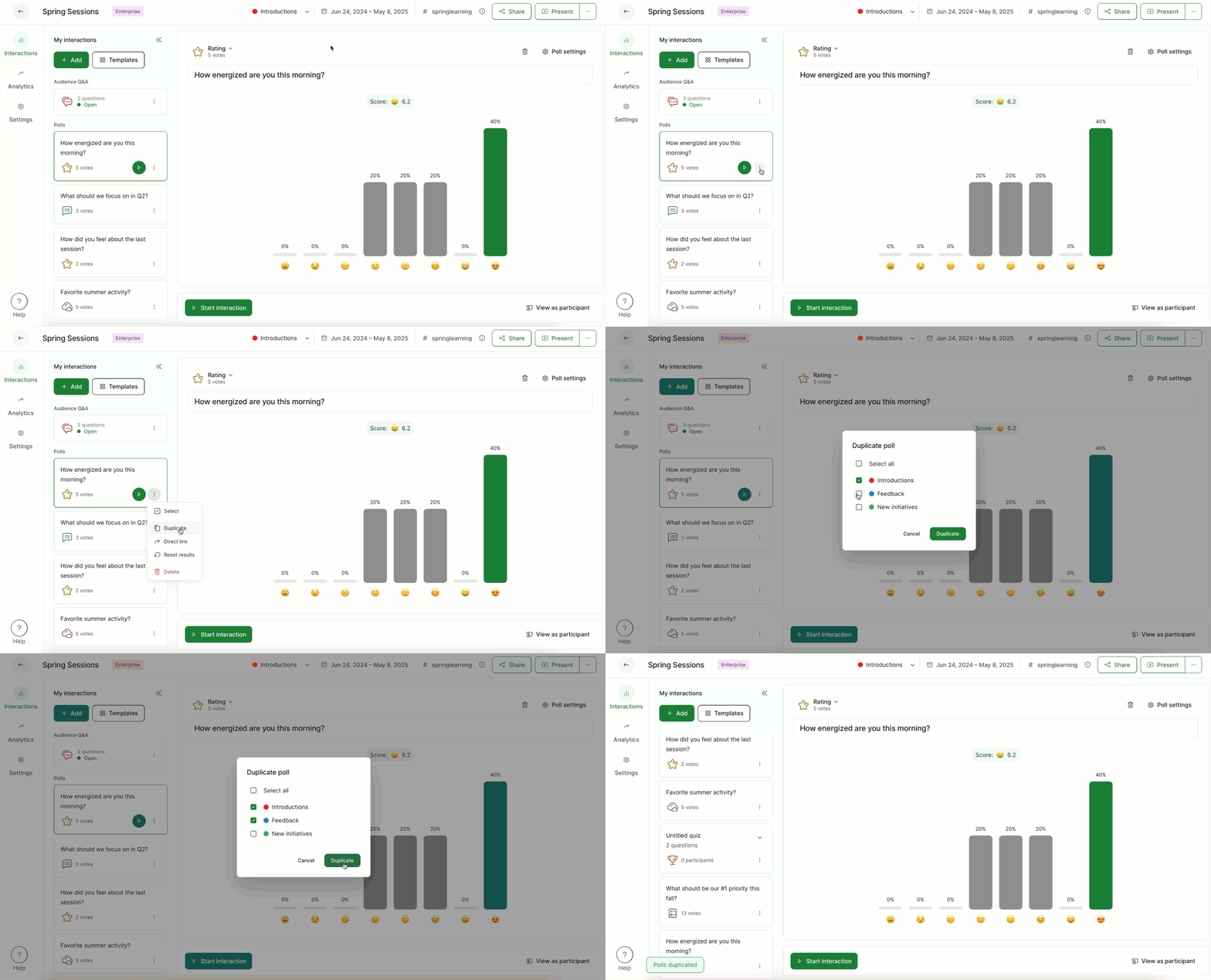
Duplicate a poll into different rooms
- Click the three dot menu next to one of the polls
- Then click Duplicate
- Select the rooms you want to duplicate into
- Select the Duplicate button
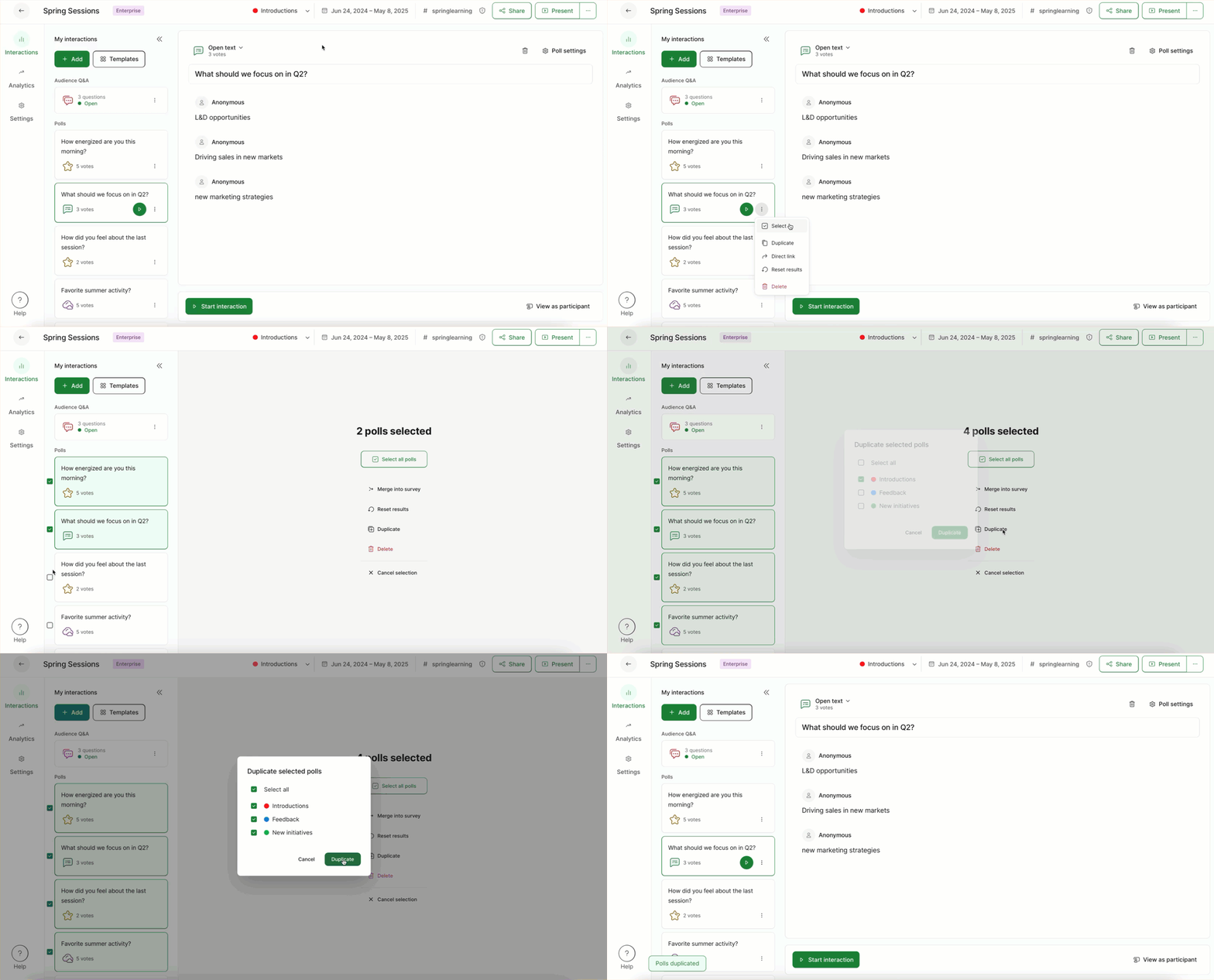
Duplicate multiple polls into different rooms
- Click the three dot menu next to one of the polls and choose Select
- Tick the box next to the polls you’d like to duplicate
- Choose the Duplicate option and select the rooms you want to duplicate into
- Hit the Duplicate option once more to confirm
Participant experience
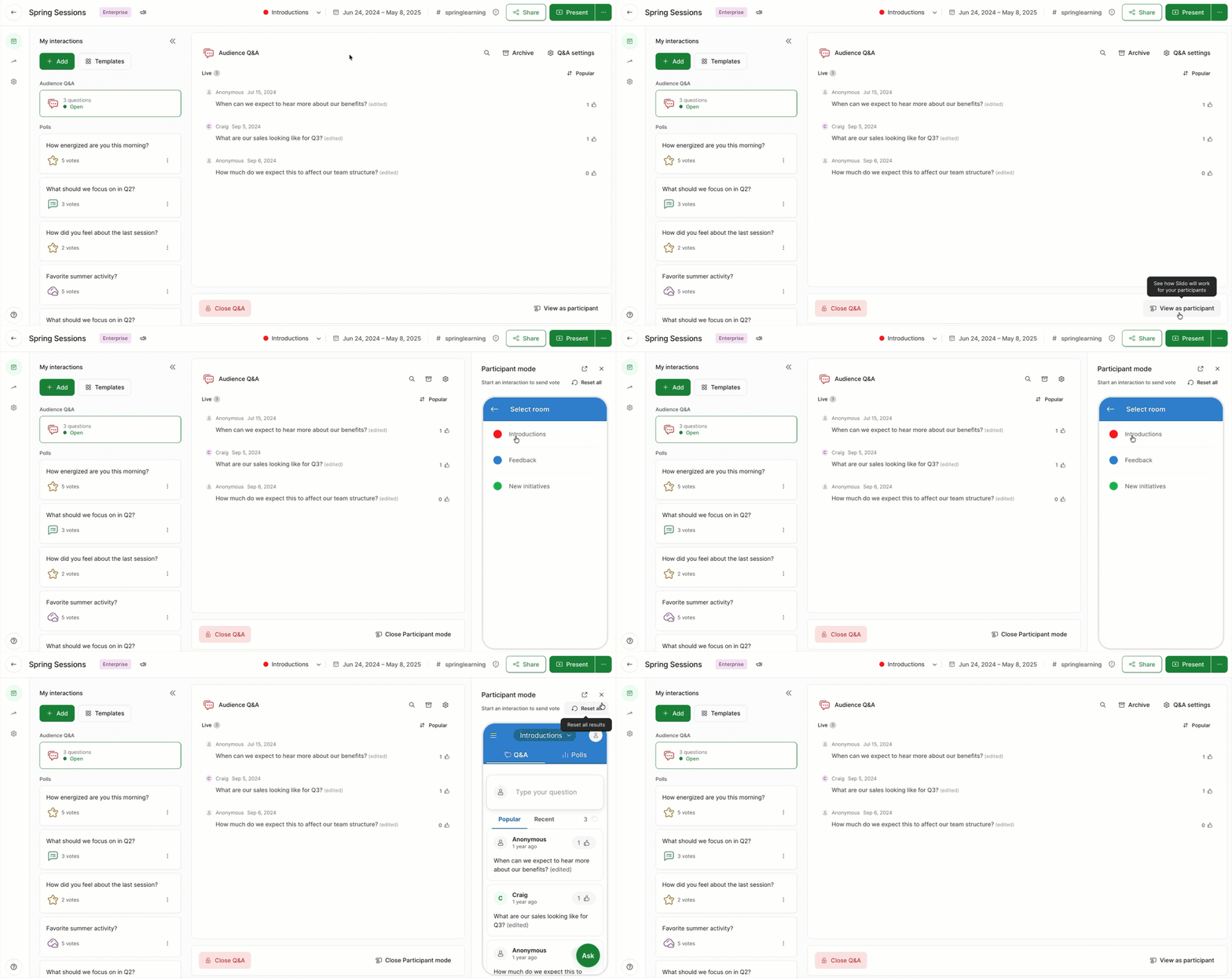
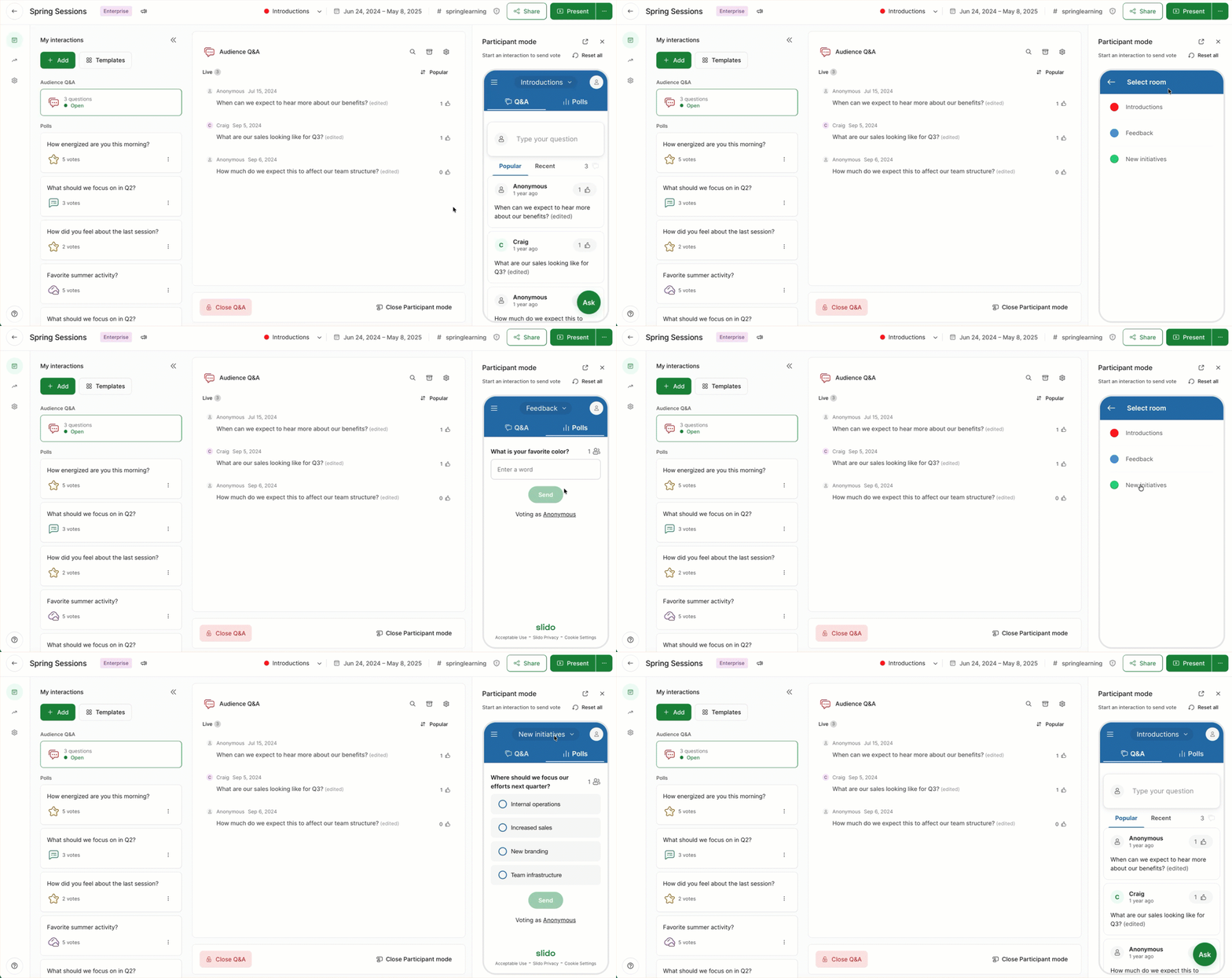
If your slido has multiple rooms active, participants will be prompted to select a room when joining. You can test the experience by clicking on View as participant in the bottom right corner of your host mode.
Tips and reminders
- Settings apply for all rooms
You and your co-hosts can manage each room and its content separately. However, it is not possible to differentiate settings between rooms. For example, if you enable Moderation in one room, it will be on in all rooms. This applies for all settings.
- Embed a specific room to your website
If ever necessary, you can embed a specific room’s Present or Participant mode into your website. Viewers will be directed straight to your desired room. For detailed steps, check out our guide for embedding a specific room to your website.
- Analyze and export your data afterwards
From your Analytics tab, you can analyze and export all questions and poll results from specific rooms or your entire slido. Simply choose the format that works best for you (PDF, XLS, Google Sheet).
Curious about more?