


Slido Ideas help you brainstorm as a group in a well-organized, yet flexible way. And with AI categorization instantly grouping related ideas together, you and your team can move forward faster than ever.
Once you start an ideas poll, participants can submit their ideas and even react to others with emojis. This gives everyone equal opportunity to contribute, no matter your meeting size or setup.
Slido Ideas are available for all plans
In this article:
Create an ideas poll
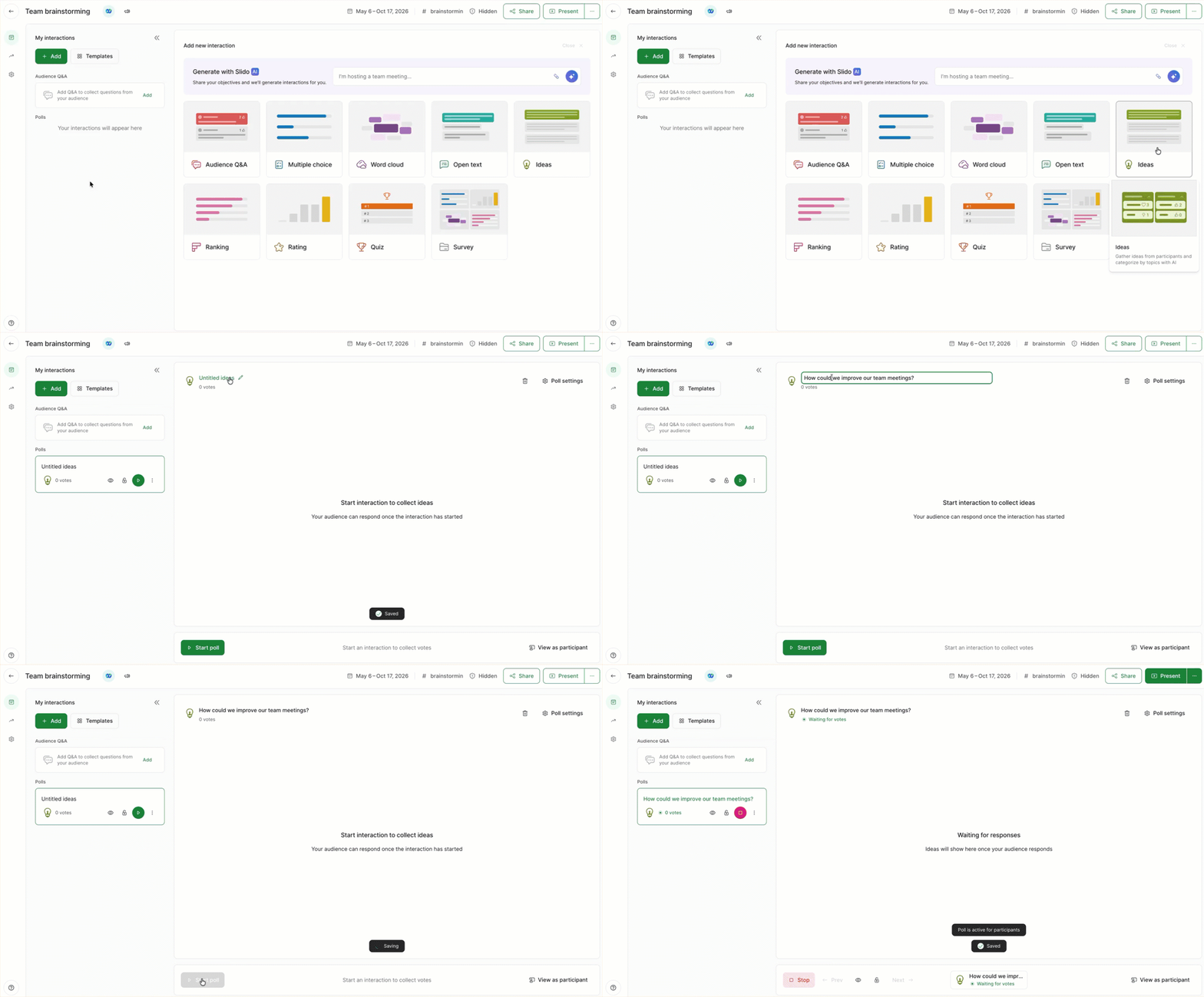
- Open your slido and select Ideas from the list of interactions
- Type in a title
- Hit Start poll or the green Play button whenever you’re ready to collect ideas
Ideas poll settings
You can customize your idea topic in a few different ways. Select the Poll settings in the upper right corner to see the below options:
- Multiple answers: Allow your participants to submit more than one idea.
- Show respondent names: Display participants’ names next to their ideas.
- Poll results: You can keep submitted ideas hidden until you’re ready to display them for all participants to see.
- Poll description: Add a description for added context.
- Add image: Add an image to be displayed alongside your idea topic.
Test your ideas poll and see how it works for participants
To see how the idea topics works for your participants:
- Click Start poll or the green Play button
- Select the View as participant option near the bottom right corner
- Submit an idea as a participant and click Close Participant mode when finished
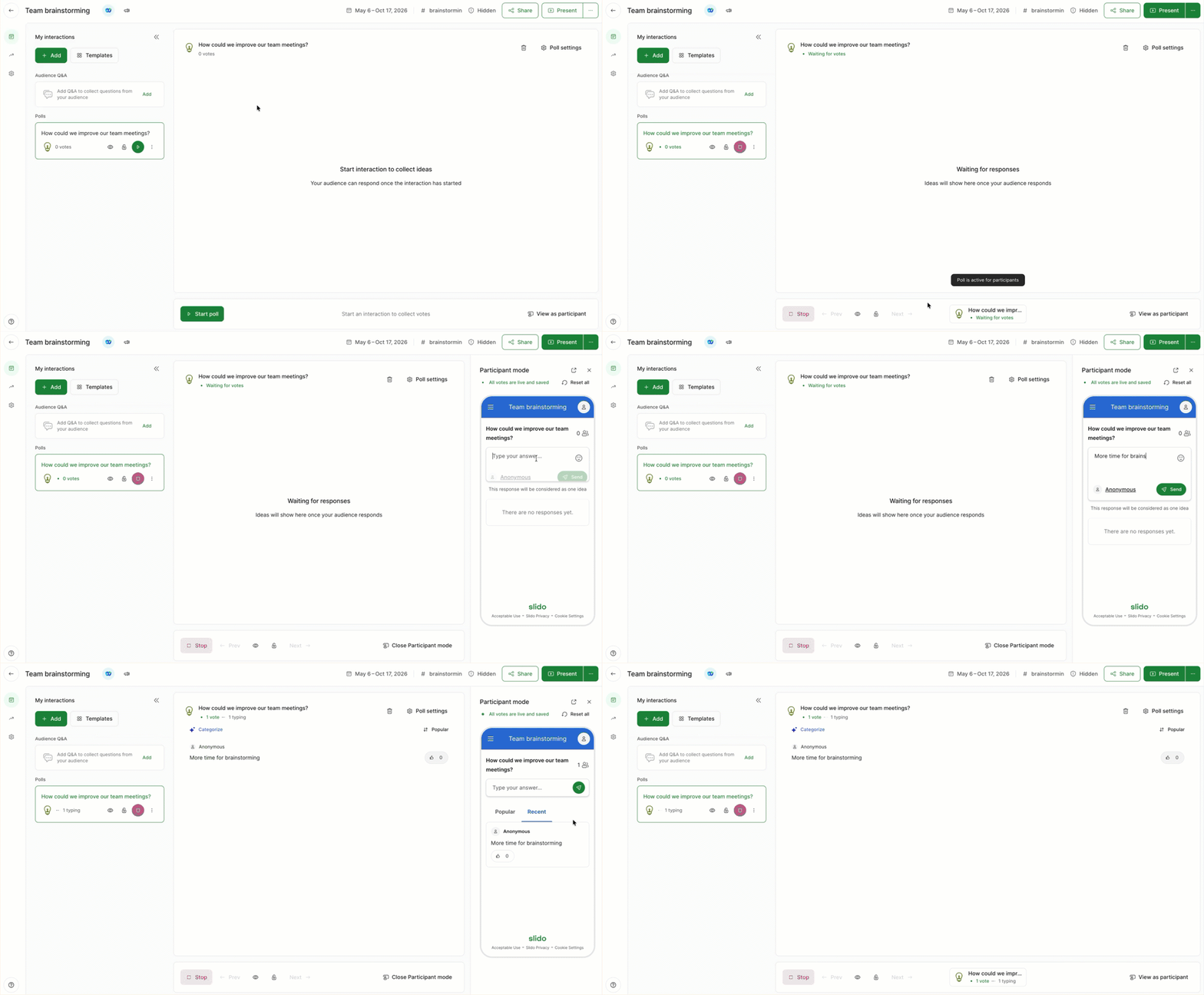
Participants can react to ideas with emojis 👍 👏 💡 💚 🔥. This helps you understand which ideas resonate with the whole group.
You can change your Ideas poll to a different poll type by selecting the chevron by the poll title. Changing between Ideas, Open text and Word Cloud keeps the existing submissions but if you change to or from Multiple choice, Ranking or Rating, you will lose any submissions.
Run your ideas session
Depending on your use case, you can collect ideas before, during or even after a meeting.
Before your meeting
You can share a direct link to your ideas poll directly in a meeting invite or email message. This is especially useful if you’d like participants to begin brainstorming on their own and submitting ideas before you get together.
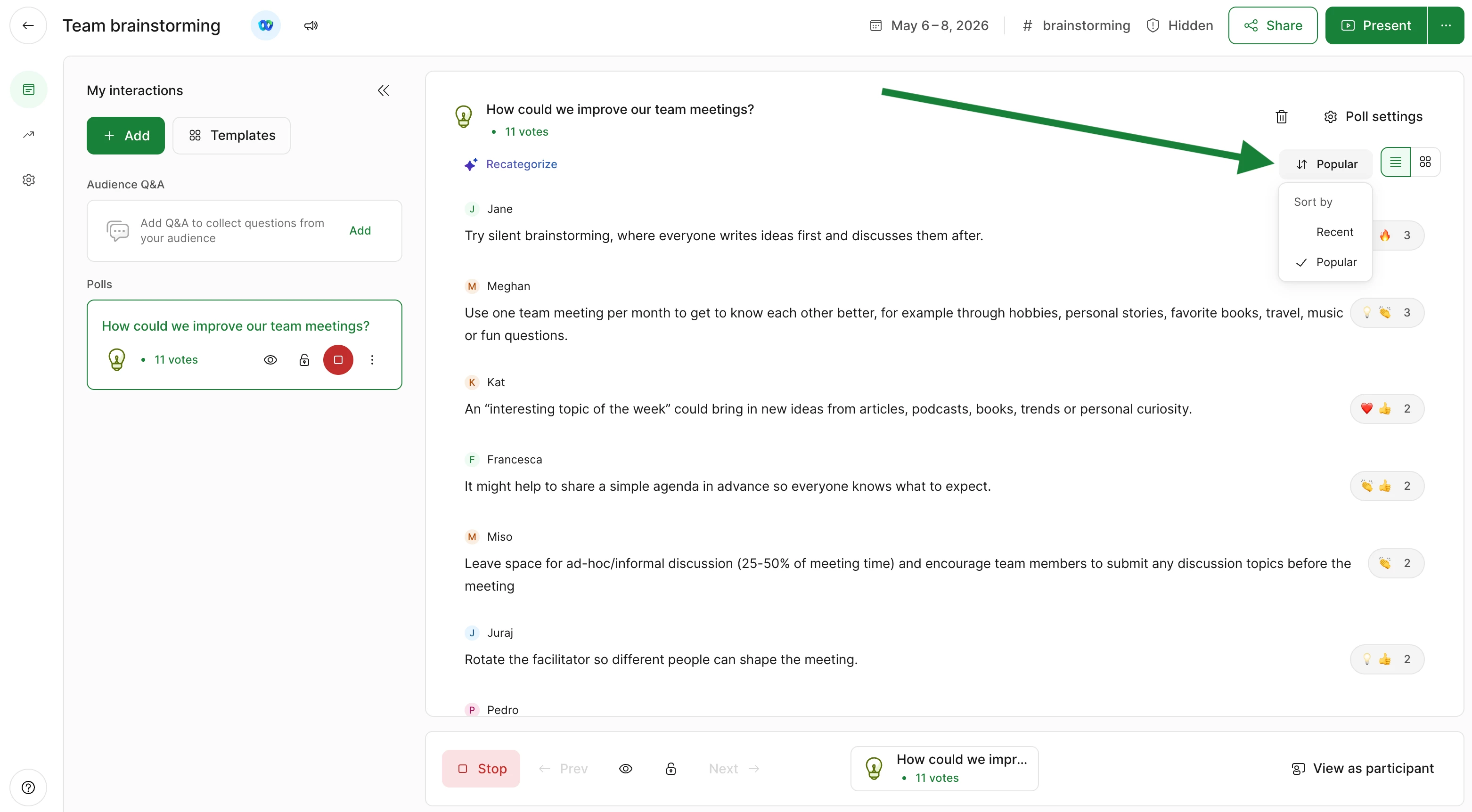
Once you’ve collected a number of ideas, you can sort them by their popularity or by the most recent submissions. Use the Popular button to switch between Popular and Recent questions.
During your meeting
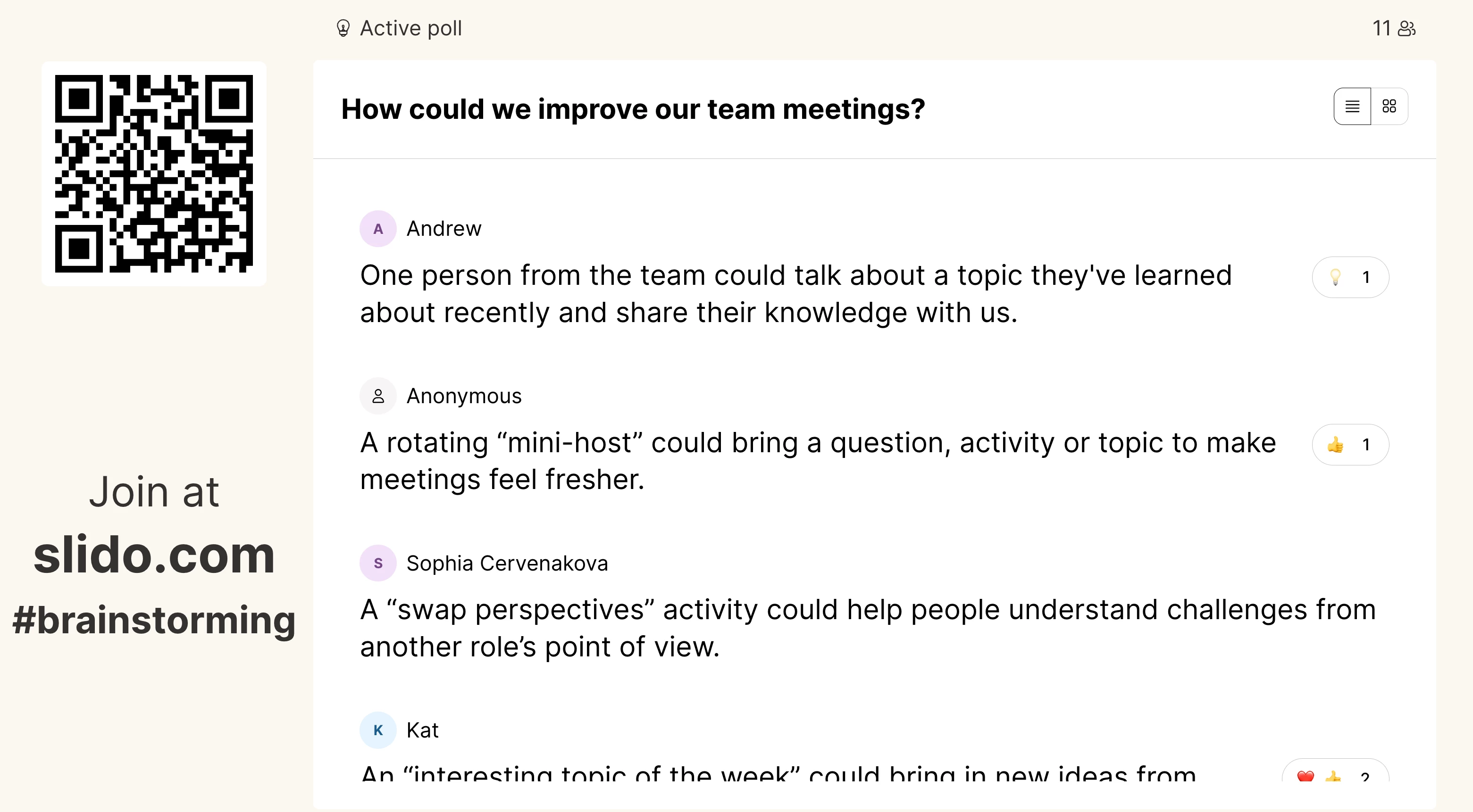
When you’re discussing ideas live with your audience, make sure you’ve started your ideas poll so that it’s visible and accessible for everyone. A great way to present the ideas poll is by opening Slido Present mode and simply sharing your screen.
See below for what an ideas poll will look like in Present mode.
After your meeting
Just like you can share a direct link to your ideas poll before a meeting, you can do the same afterwards. This is great for when something comes up near the end of a session and you don’t have time to brainstorm live together.
No matter when you’re collecting ideas (before, during or after a meeting), participants will always be able to react with emojis – making sure you instantly know the most popular submissions.
AI-powered categorization
The Slido Ideas poll is a great brainstorming solution for any audience. But what truly elevates it, is its AI-powered categorization. With one simple click, your list of ideas are instantly organized by common themes. This allows you to move forward quicker, without having to manually categorize anything.
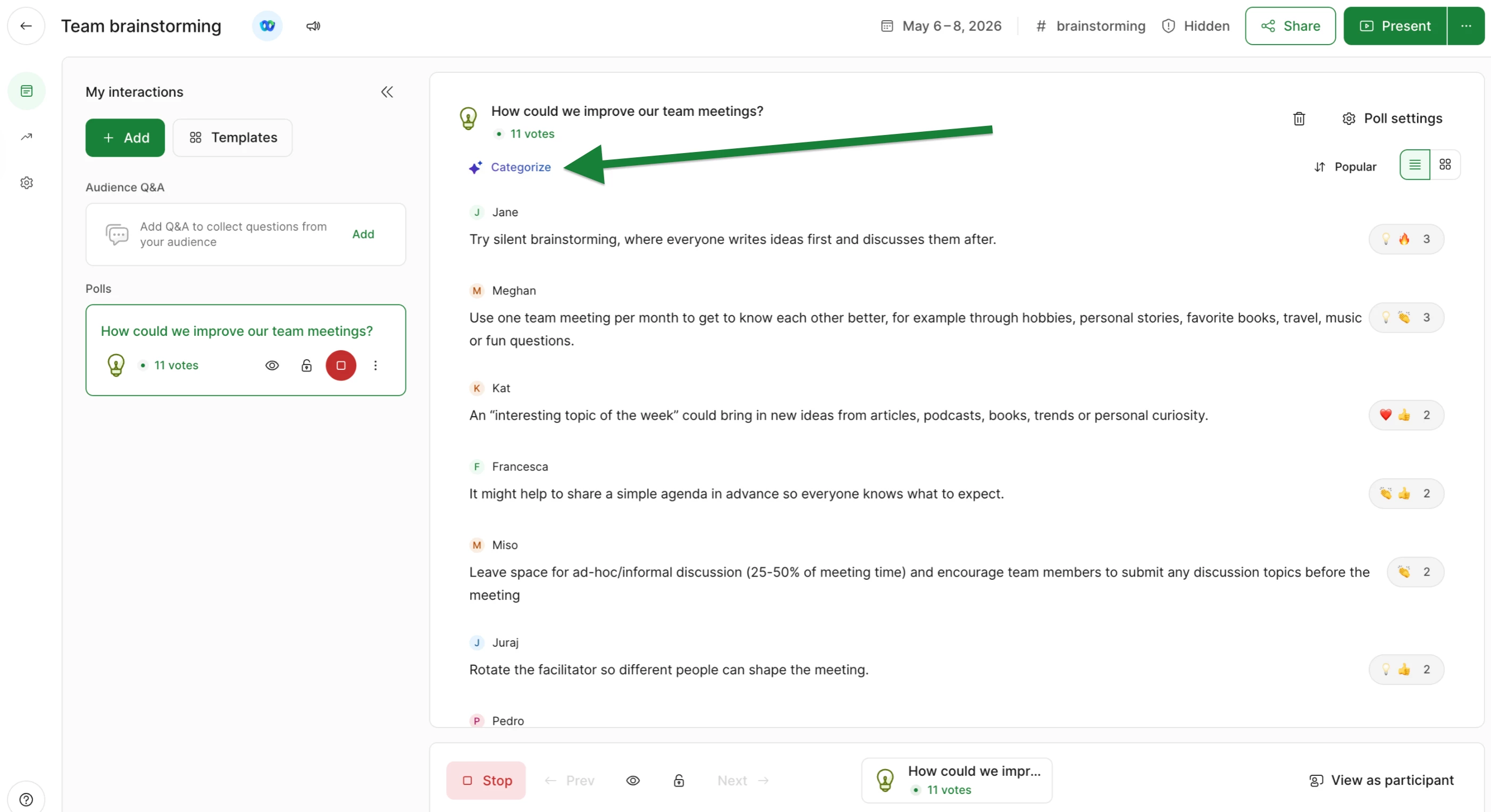
Simply click Categorize from Host mode and let Slido AI organize a list of common themes. This brings instant organization and clarity to your discussion – and it’s useful before, during or after any live brainstorming session. If AI doesn’t organize Ideas quite the way you had in mind just select “Undo” and you can try again.
Now you’ll see your ideas neatly organized by common themes. Click the dropdown icon on any category to view the specific ideas included.
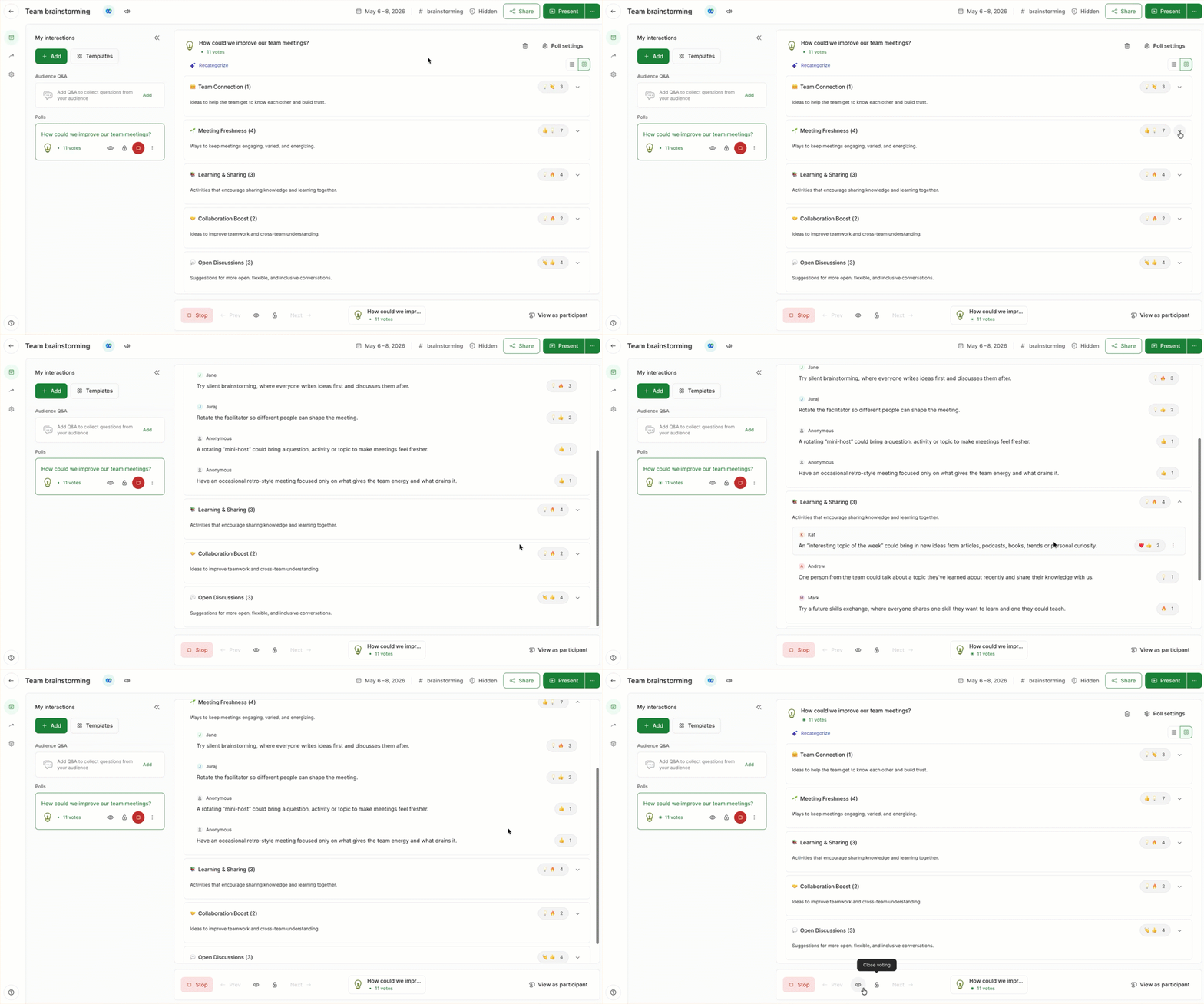
If you’d like to change a category’s title or description, simply click on it and make your edits.
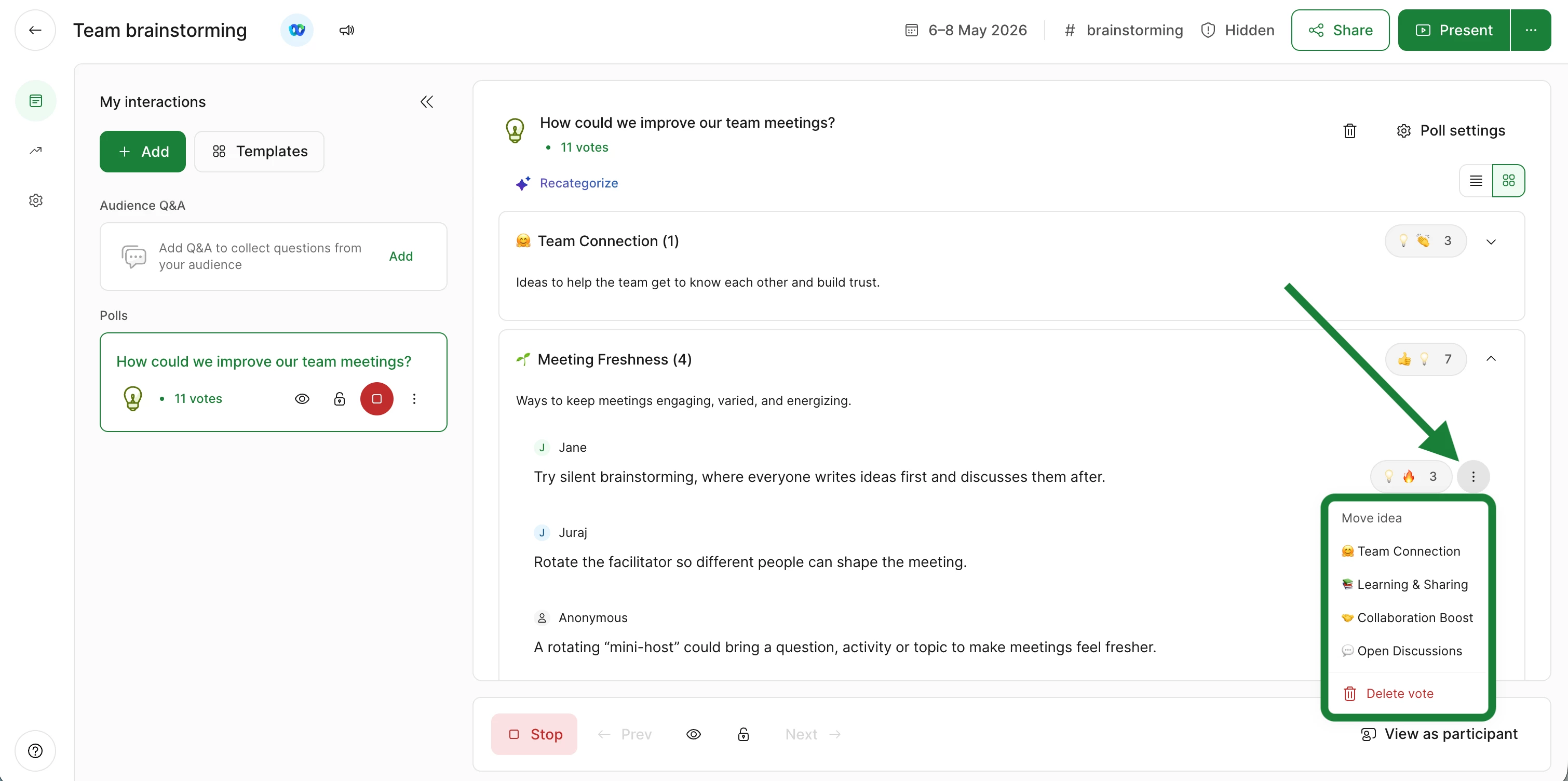
You can also move a idea from one category to another. To do so:
- Click the three dot menu next to the idea
- Select which category you’d like to move it to
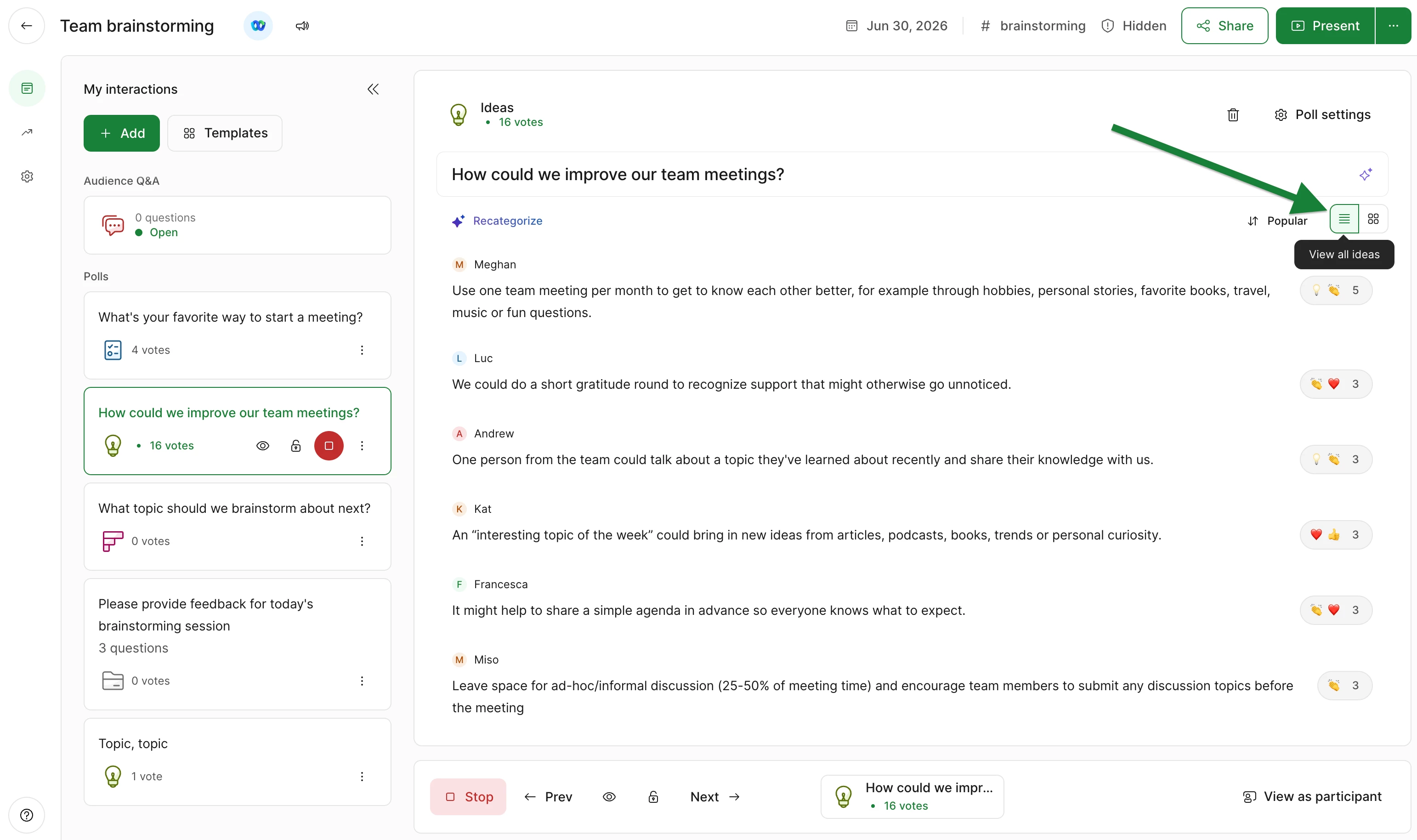
Prefer the list view of ideas with no AI categorization? Click the View all ideas button to view the full list.
AI categorization is also visible when you’re using Present mode. You can click in and out of each category...
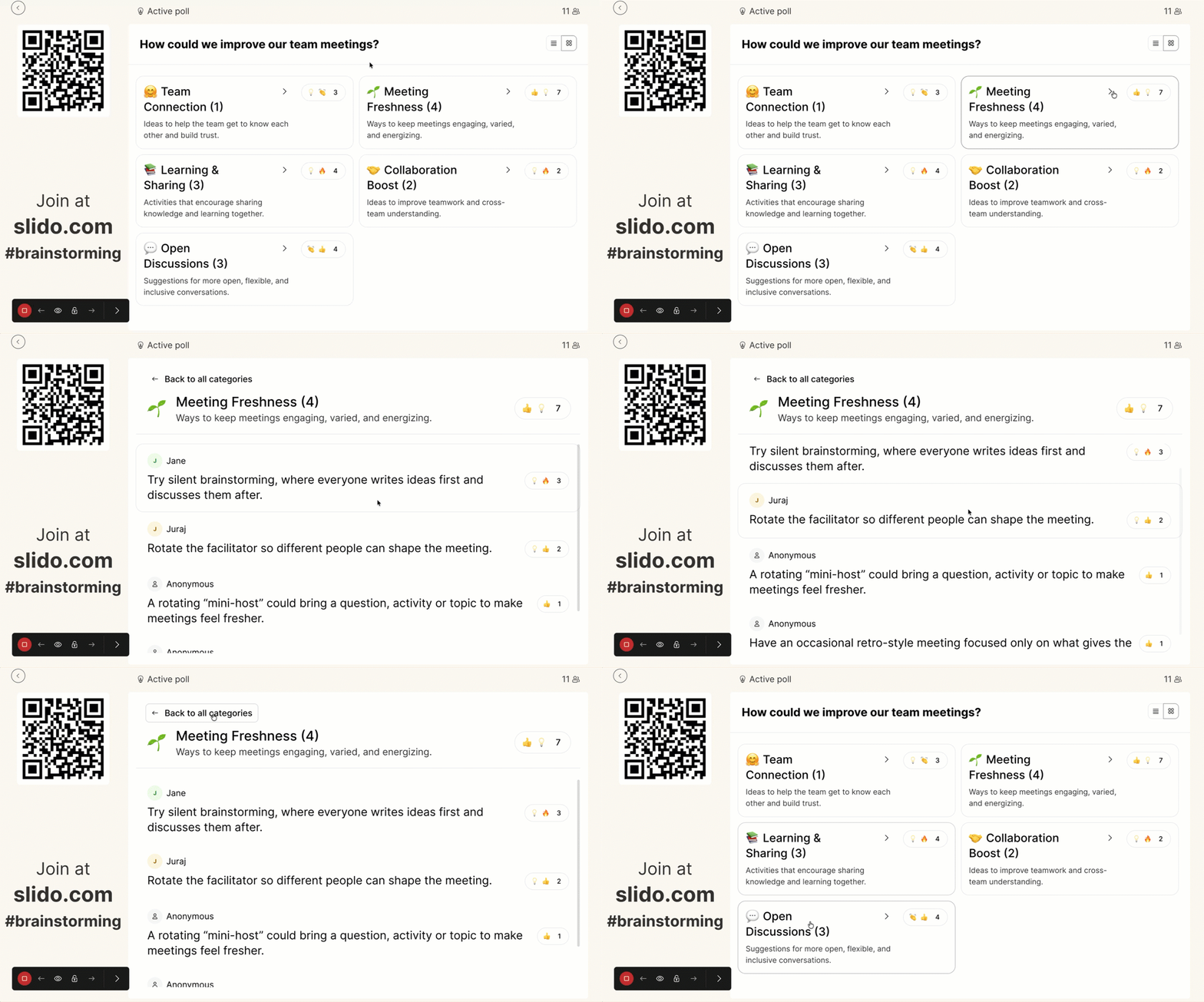
...or select the list icon to switch back to the full list.
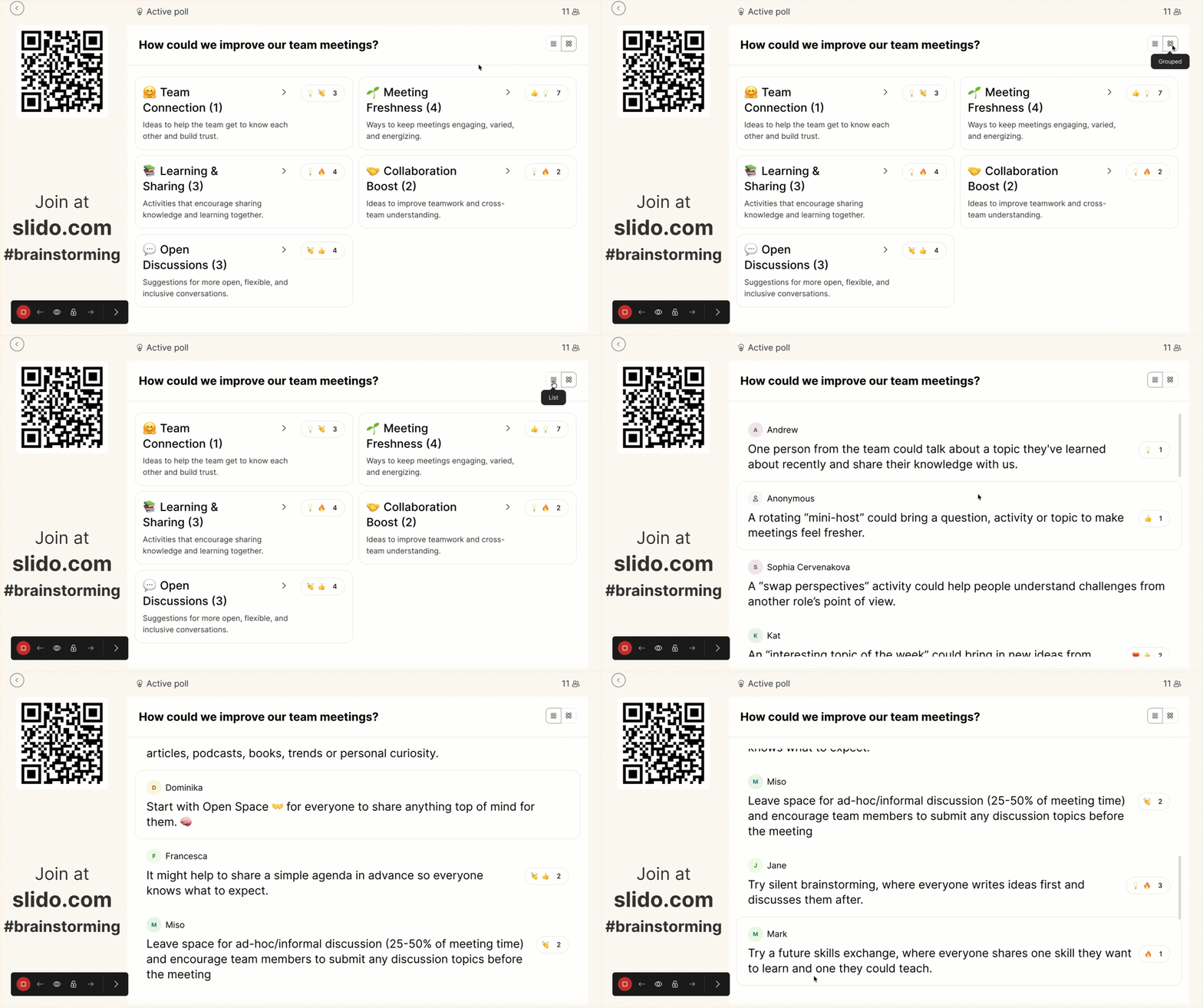
And don’t worry, the categories will also display for participants to see on their devices.
FAQs
-
Can I include an idea poll in a survey?
Idea polls cannot be included in a survey.
-
Are Ideas available in all integrations?
Currently, ideas are available in video integrations, but not in presentation integrations.
-
Is there a limit on how many ideas can my audience submit?
Currently, we support up to 200 ideas. We’re working on making categorization faster and smoother, so we can support more ideas in the future.
Curious about more?