



When running your Slido interactions, you sometimes have to hide the results from the audience to keep them guessing. Then once all your participants have answered, you can reveal the results and present them live.
In this article:
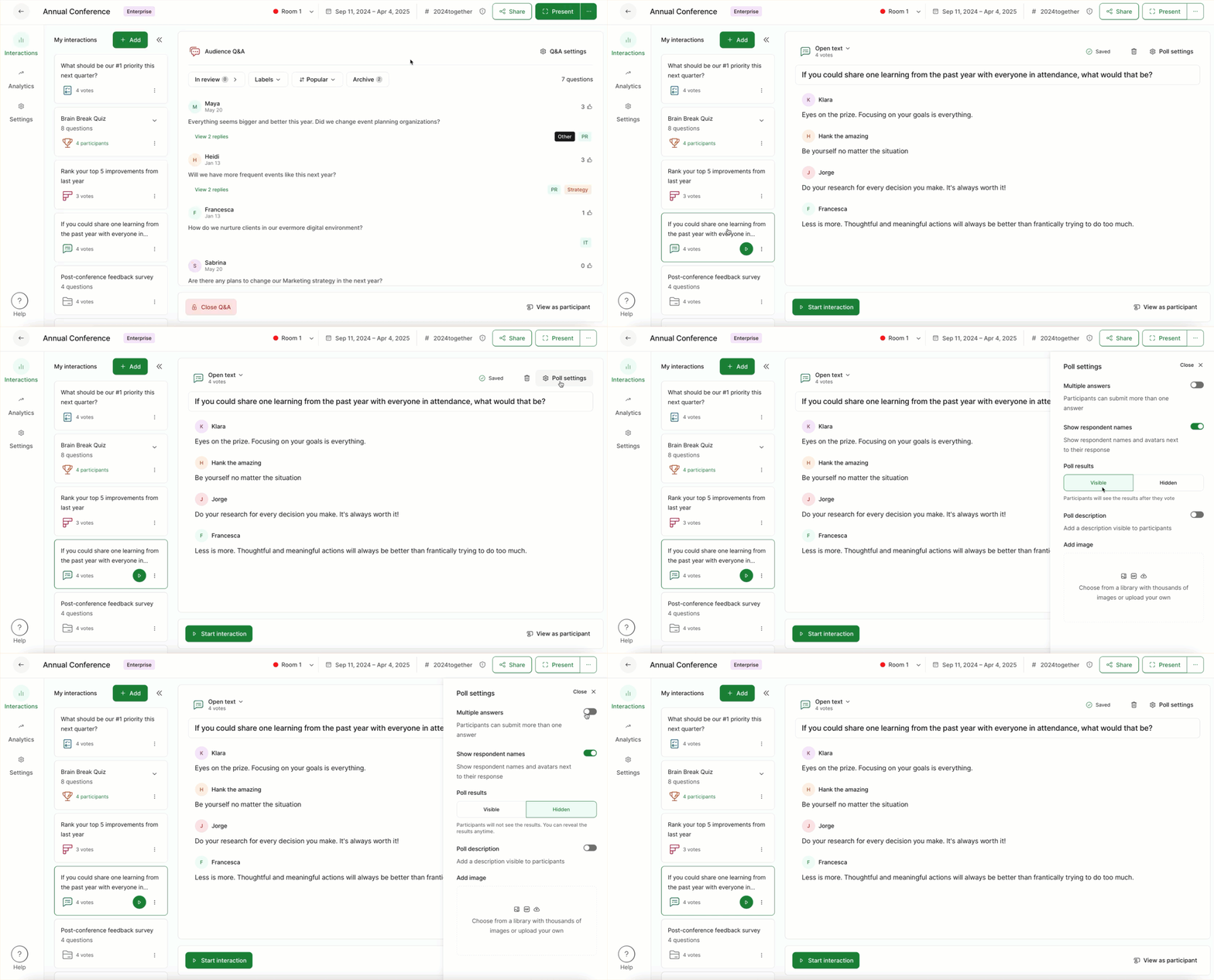
Hide poll results from Poll settings
- Select a poll and open its Poll settings
- Select Hidden under Poll results
This will keep the results hidden from participants until you change the setting.
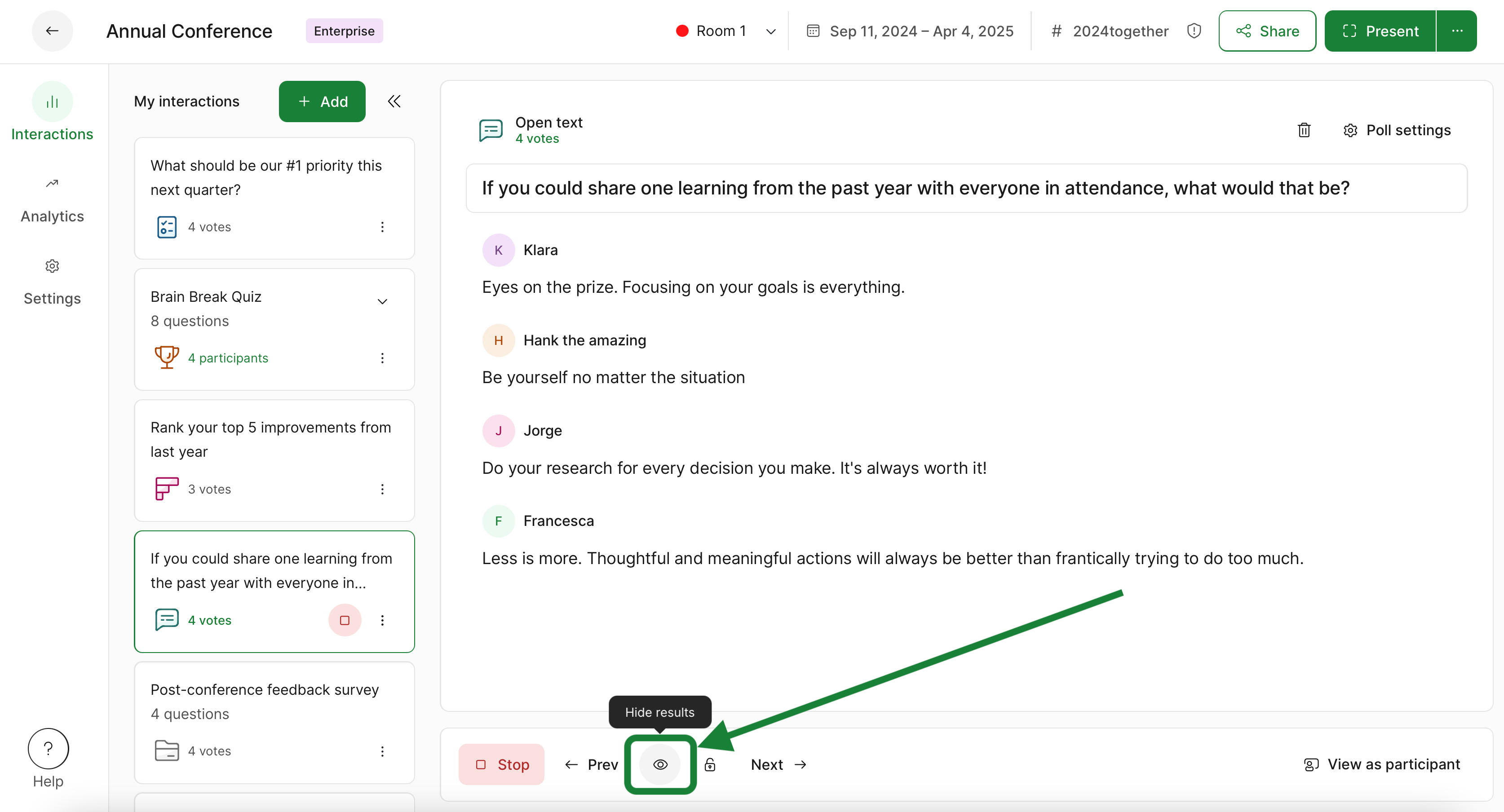
Hide poll results from the control bar
If a poll is activated, use the control bar near the bottom of your Host mode to quickly hide or reveal the results. Simply click on the eye icon.
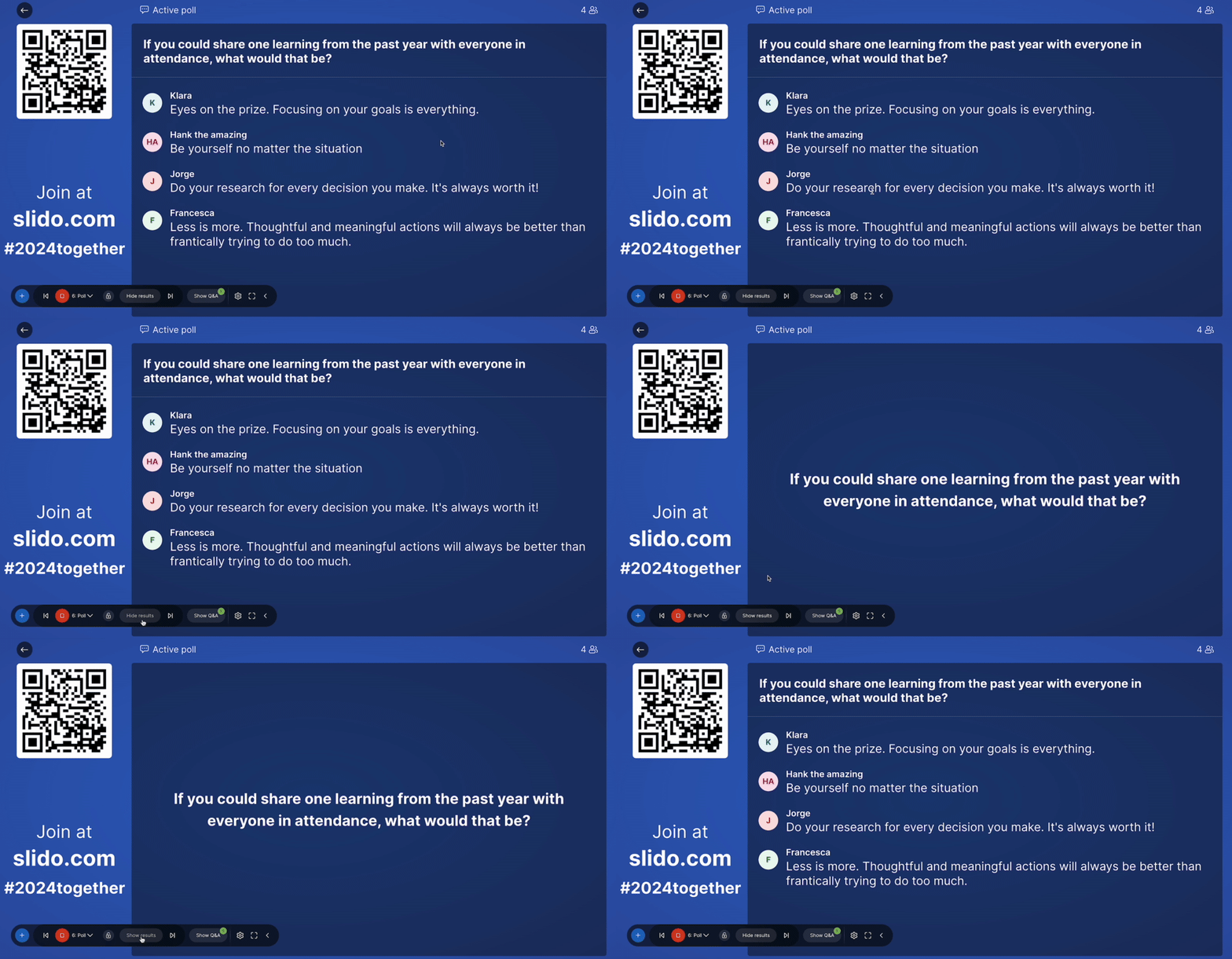
Hide poll results from Present mode
When using Slido’s Present mode, you’ll have a separate control bar there where you can choose to hide or display your poll results.
It’s not possible to hide participant results in a Quiz. Quizzes are designed to always show results as this provides the best experience for participants.
Learn more: