



A word cloud creates a "cloud" of the most popular words or short phrases that are sent by your audience.
Word clouds are a fun way to get a sense of how your participants are feeling, or where they’re logging in from. It lets you identify silent heroes, find out what your participants value most or just warm up the event.
In this article:
How the word cloud works
Here are four simple principles of the word cloud:
- Short answers work best
For maximum impact, one word is best. If your participants need more words to express themselves, a maximum of three words work too. This is to enhance the dynamic display. For longer answers, an open text poll is recommended.
- No swearing
Swear words won't go through at all, unless you’ve disabled the Profanity filter in Poll settings
- Watch the words grow
The word size changes dynamically depending on how many times your attendees enter it.
- You will not see certain words that are considered 'connectors'
We should keep in mind that words we use to connect words conversationally are filtered out when submitted to the Word Cloud. These words include 'However,' 'Ok,' and 'This,' to name a few.
- Emojis work too
If someone submits an emoji, it’s treated just like a word. So if more people submit the same emoji, it will appear larger and larger.
Word clouds display the most popular or most repeated responses. And if you have a large audience, some single responses may not display due to lack of space. If you prefer each and every response to be shown, an open text poll may be a better option.
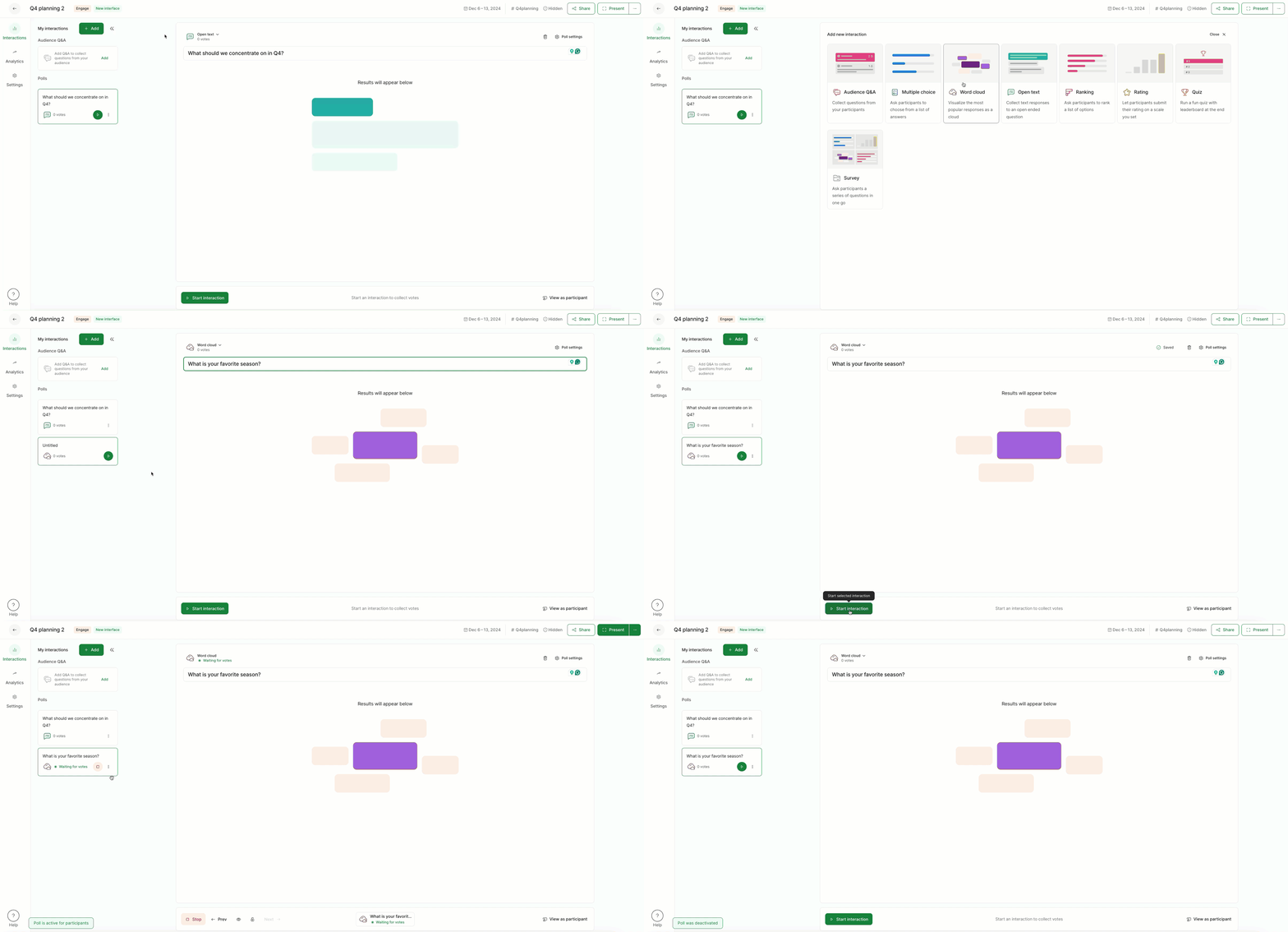
Create a word cloud
- Open your slido and click the + Add new button on the left, next to My interactions
- Select Word cloud and type in your question
- Hit Start poll or the green Play button to start your poll
Word cloud settings
You can customize your word cloud in a few different ways. Select the Poll settings in the upper right corner to see the below options.
- Multiple answers: Allow your participants to submit more than one response
- Profanity filter: Enable or disable the filter for profanity (this always defaults to being on)
- Character limit: Set a character limit for your responses
- Poll description: Add a description for added context
- Poll results: Choose whether your live poll results will be visible or hidden for participants
- Add image: Add an image to be displayed alongside your poll question
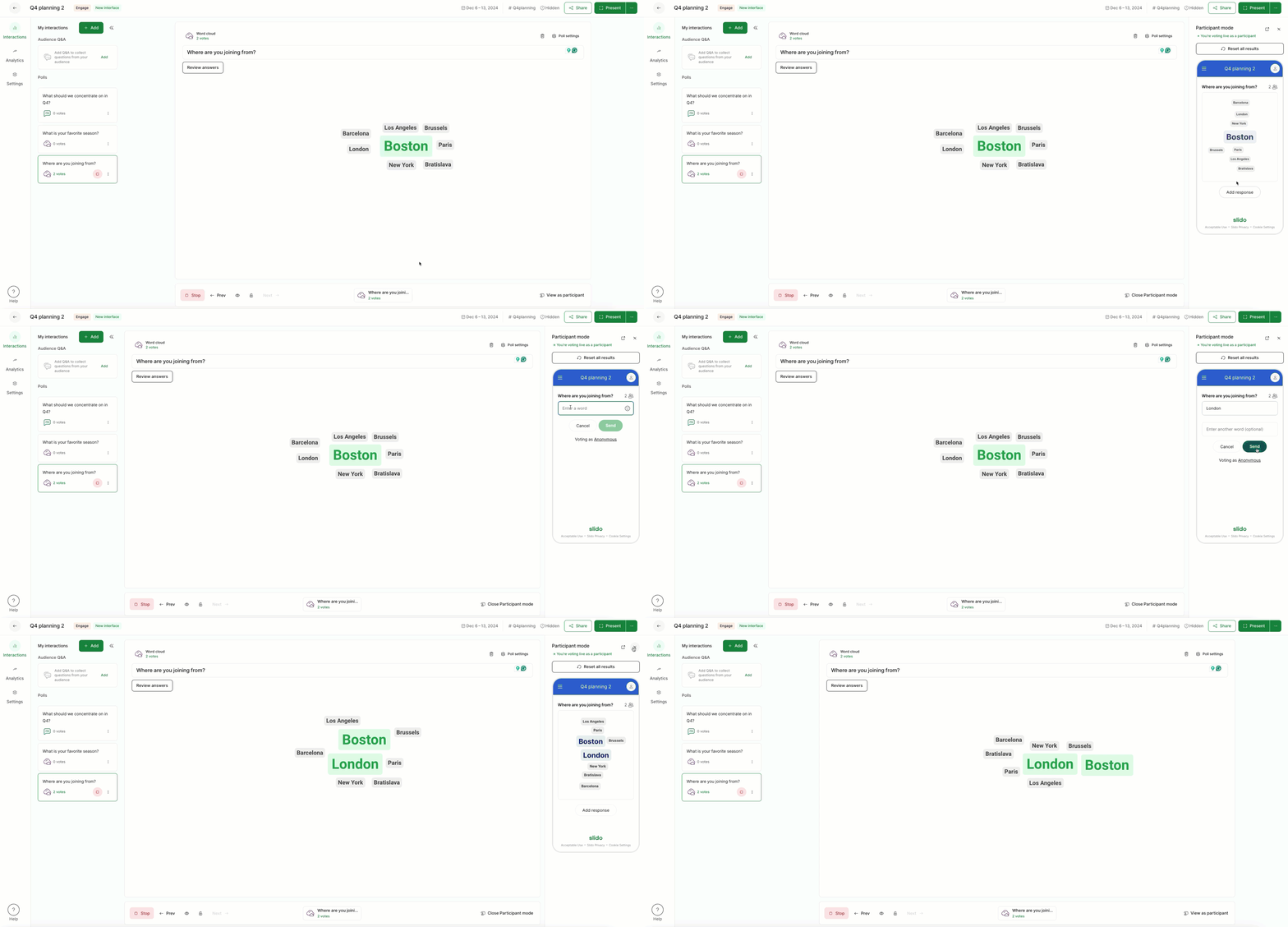
Test your word cloud and see how it works for participants
To see how the word cloud works for your participants:
- Start it by clicking the green Start poll or Play button
- Select the View as participant option near the bottom right corner
- Submit an answer as a participant and click Exit participant mode when finished
Each line is considered a single entry, no matter the number of words included. Make sure your instructions in the poll description are clear or explain verbally what you're after.
Pro tip: You can share a link to your slido and test it on different devices. Get some colleagues to submit answers too, so you can see how your word cloud changes.
You can delete your testing response by clicking the three-dot menu next to your poll and selecting Reset results.
Run your word cloud
When you’re ready to run your word cloud for your participants, simply start the poll and open Present mode. You can share your screen while using Present mode and display your poll results live for all to see.
See below what a word cloud looks like in Present mode.
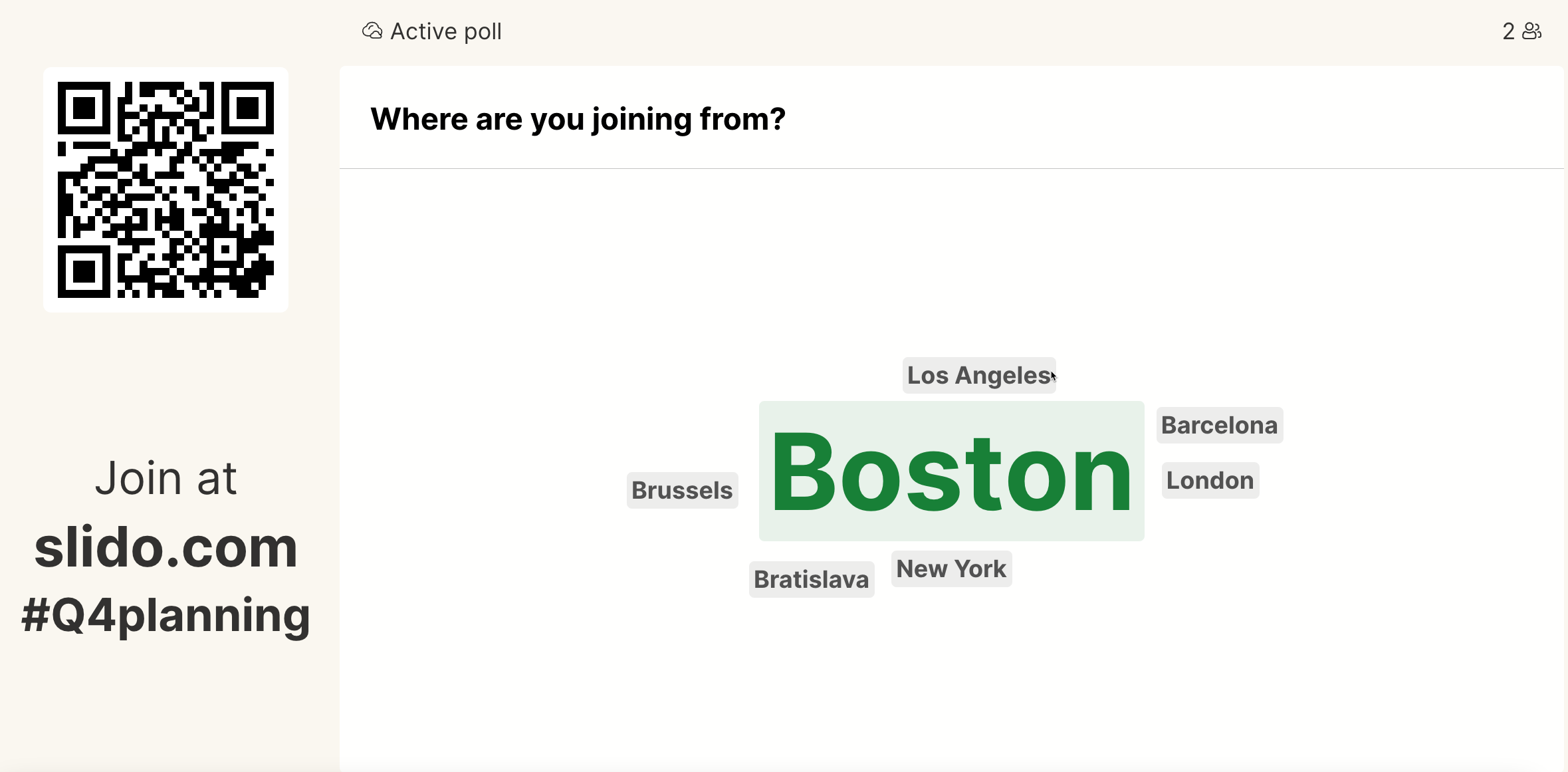
The number of words displayed depends on the size of the screen it’s presented on. This means that the Present mode view may differ a little from what participants see on their devices.
Pro tip: Start the word cloud with hidden results
You can hide the results of your word cloud from participants by selecting Hidden under Poll results in the poll settings. This way, you can choose when to display the results by switching it back to Visible.
Want to save an image of your word cloud? You can always go to your slido’s analytics section to review and download a visual of the word cloud results. Learn more
Moderate your word cloud
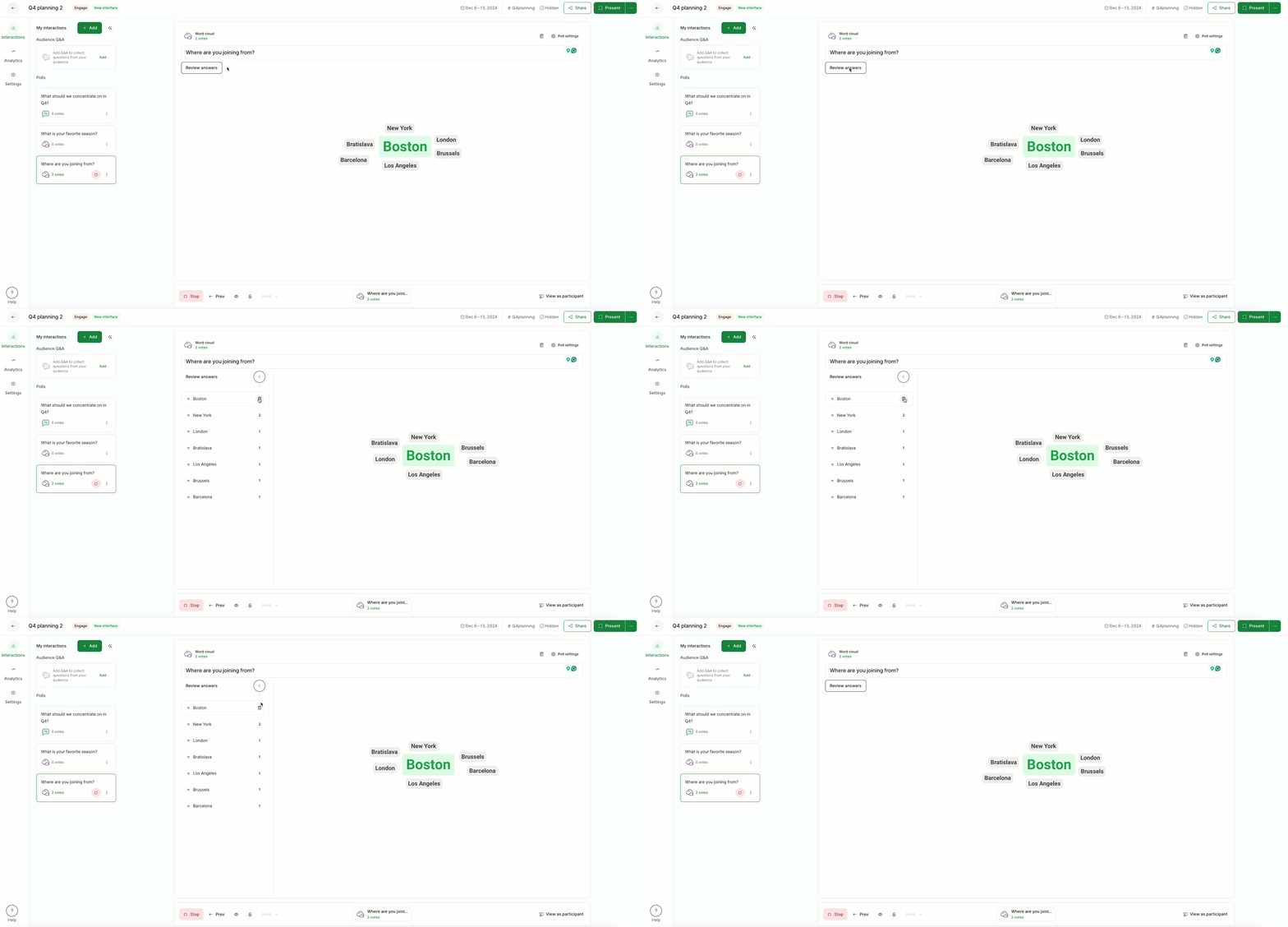
Once you click Start poll, your word cloud is live and the audience can submit their words. Underneath your question is a Review answers box . If you click this, it will expand, giving you the option to delete entries.
Note that special characters (æ, ø, å, š, č) will be replaced by simple letters.
Learn more: