


Some new customers in the United States complete their Slido purchase through Cisco Store. Your Slido plan works in the same way, but you’ll manage its billing and subscription details in Cisco Store Account Manager.
In this article:
Where was your plan purchased?
Check the company named on your order confirmation or invoice:
-
Cisco Systems, Inc.: Follow the instructions in this article.
-
Slido s.r.o.: Follow our standard Slido purchasing and billing instructions.
Being based in the United States does not necessarily mean that your purchase was made through Cisco Store.
Access your Slido purchase
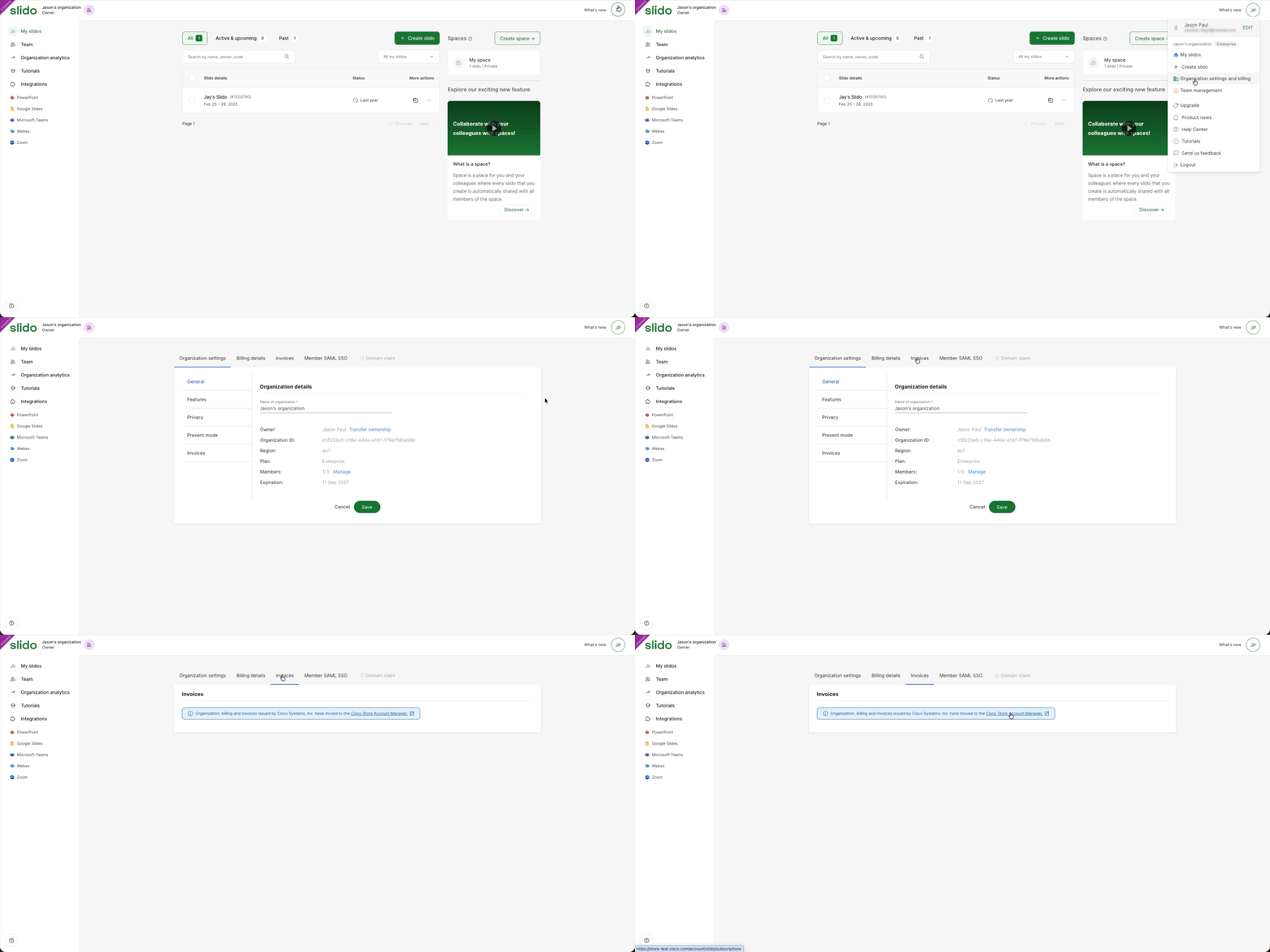
You can manage a purchase made through Cisco Store in Cisco Store Account Manager:
-
When logged into Slido, open your organisation settings and billing.
-
Choose the Invoices tab.
-
Open Cisco Store Account Manager.
-
Sign in using the email address associated with your purchase.
-
Open Store purchases.
-
Select your Slido subscription.
From here, you can view your order, manage your subscription and access available billing actions.
Find your order and invoice
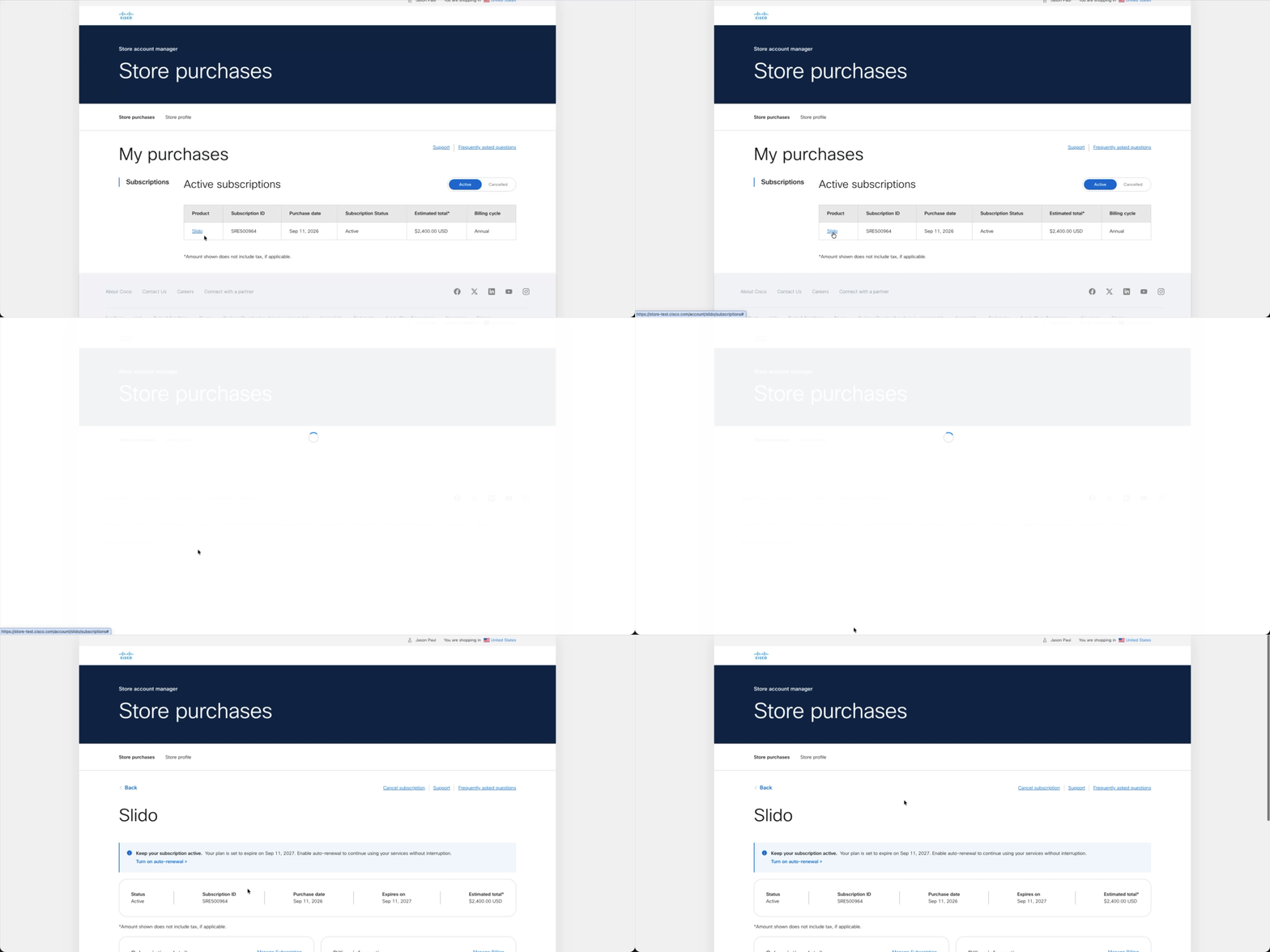
Your order confirmation and invoice are issued by Cisco Systems, Inc. Your invoice will become available in Cisco Store Account Manager within an hour and will also be sent to you via email within 24 hours.
You can find them:
-
In the confirmation emails sent after your purchase
-
In Cisco Store Account Manager, under Store purchases
Applicable US state tax may be added based on your billing information. This means the final total can differ from a price previously displayed through Slido.
For purchases invoiced by Slido s.r.o., find your invoice in your Slido account by following our Slido invoice instructions.
Payment and procurement options
Cisco Store purchases are self-service and can be completed using a credit or debit card.
Invoice-based purchasing and purchase orders are not currently available for Slido purchases billed by Cisco Systems, Inc.
If your organisation needs an invoice, purchase order or another procurement arrangement, contact our support before completing your purchase. We’ll help you understand the available options.
Upgrade your plan or add seats
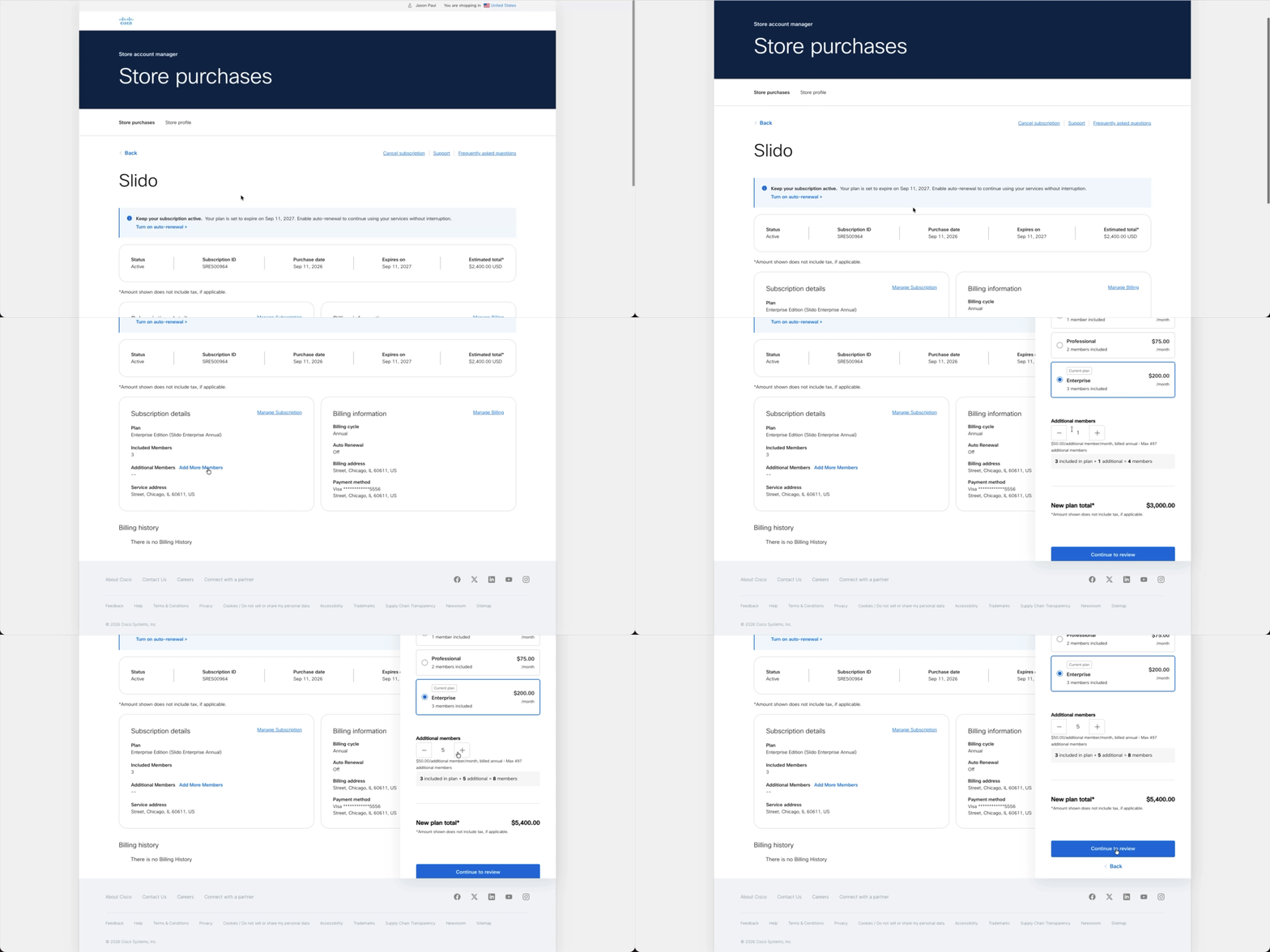
You can upgrade an eligible plan or purchase additional seats through Cisco Store Account Manager.
-
Open Store purchases.
-
Select your Slido subscription.
-
Choose the available option to upgrade your plan or change the number of seats.
-
Review the prorated price before confirming your purchase.
The available options depend on your current plan and subscription.
Manage automatic renewal
Automatic renewal is turned off by default when you first purchase your plan.
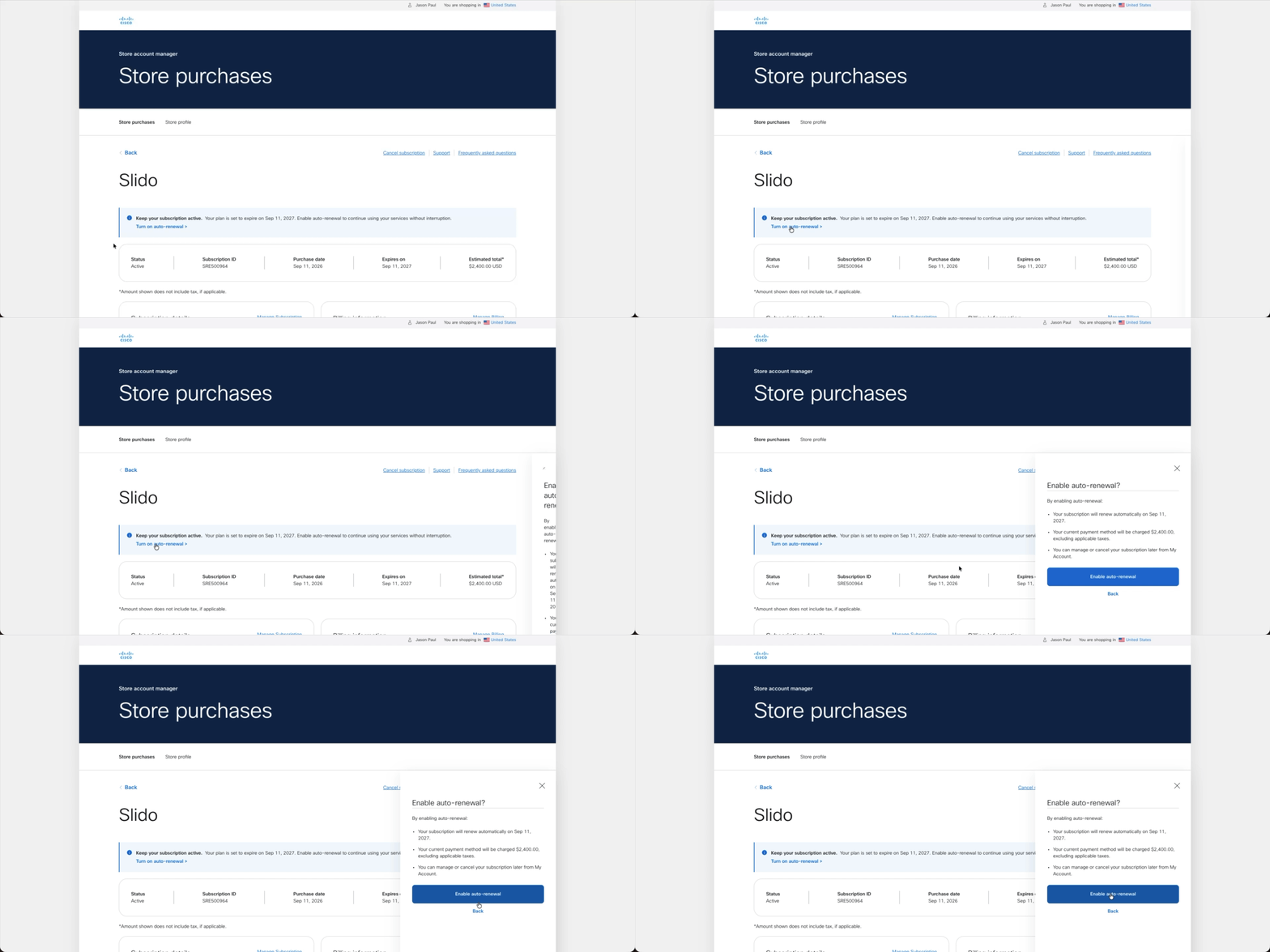
You can choose to enable it during checkout or change the setting later in Cisco Store Account Manager. If automatic renewal is enabled, the card associated with the purchase will be charged when the plan renews.
To review or change the setting:
-
Open Store purchases in Cisco Store Account Manager.
-
Select your Slido subscription.
-
Find the automatic renewal setting.
-
Enable or disable it as needed.
Cancel an annual plan and request a refund
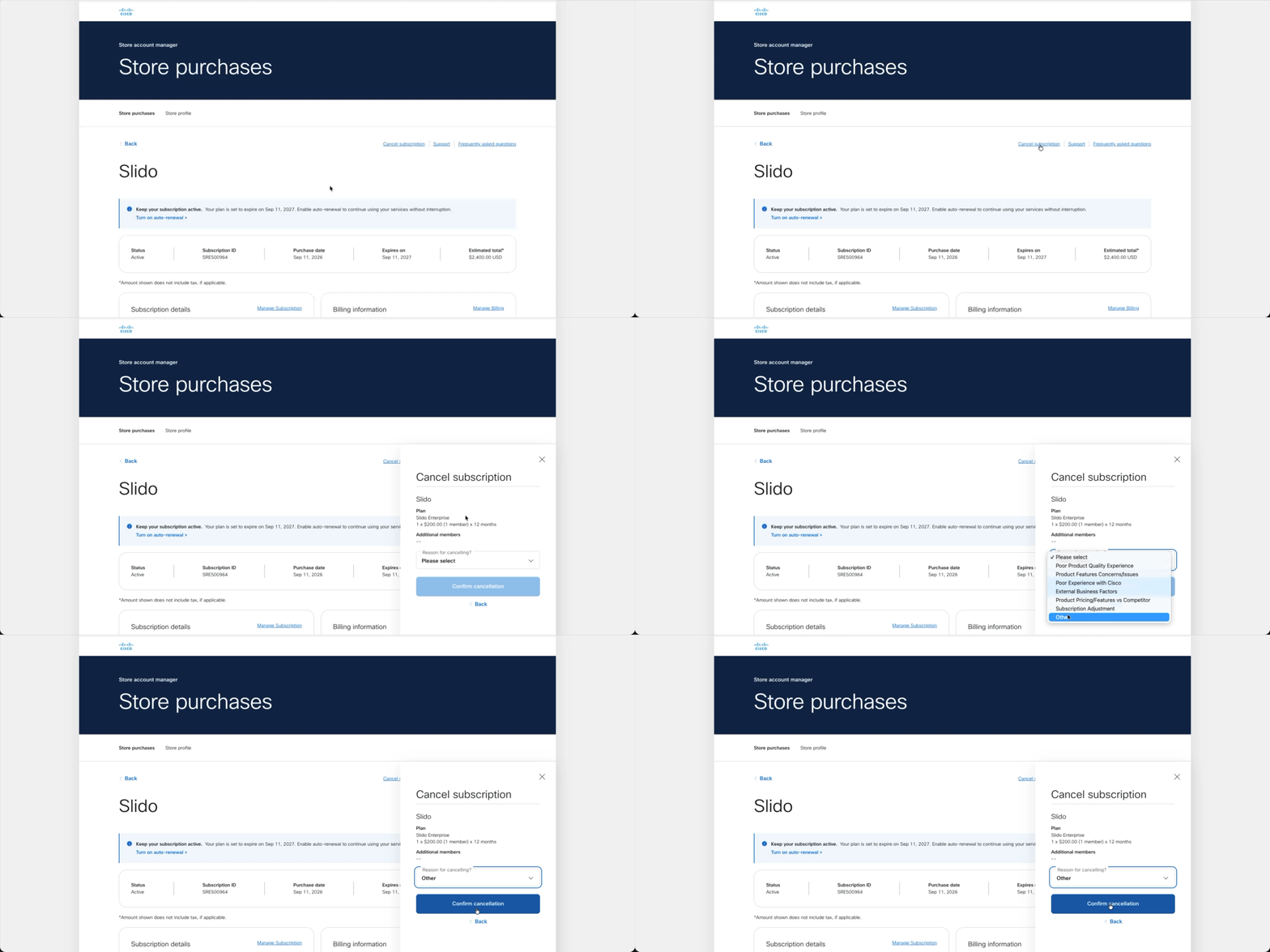
Eligible annual plan purchases can be cancelled and refunded within 30 days of purchase.
You can complete this yourself through Cisco Store Account Manager:
-
Open Store purchases.
-
Select your Slido subscription.
-
Choose the cancellation or refund option.
-
Review and confirm your request.
One-time plans
One-time plans are not covered by the 30-day Money Back Guarantee and are generally non-refundable.
If you experienced a technical or purchasing issue with a one-time plan, contact our customer support so we can look into it.
If your order is being reviewed
Cisco may occasionally review an order to verify payment details, address information, security or compliance requirements. Most reviews are completed within one or two business days.
If additional information is needed, you’ll be contacted using the details provided with your order. If your order remains under review or you need help, contact our customer support.
Discounts and education plans
If your account has been confirmed as eligible for an education plan, the relevant plan should be available when you complete your purchase through Cisco Store.
Promo codes will work in both the Slido checkout and the Cisco Store checkout. If you experience any issues with applying your promo code, contact our customer support.
Correct billing or tax information
If information on a Cisco Systems, Inc. invoice or credit note needs to be corrected, contact our customer support.
To help us investigate, include:
-
Your Cisco Store order or subscription ID
-
The email address used for the purchase
-
A description of what needs to be corrected
Get help
Slido Customer Care remains your main point of contact for questions about your Slido plan, including purchases made through Cisco Store.
Contact our customer support and include your order or subscription ID whenever possible.
Purchases made through Cisco Store are governed by the applicable Cisco commerce terms provided during checkout and in your order confirmation.