



Labels offer an easy way to categorize and filter questions. This can make your meetings or Q&A sessions more structured and efficient.
Available in our Professional plan and higher.
In this article:
Prepare and manage your Labels
Make sure you’ve added Audience Q&A to your slido. Then follow the steps below:
- Click on Q&A settings
- See the Labels section where you can create the Labels you need.
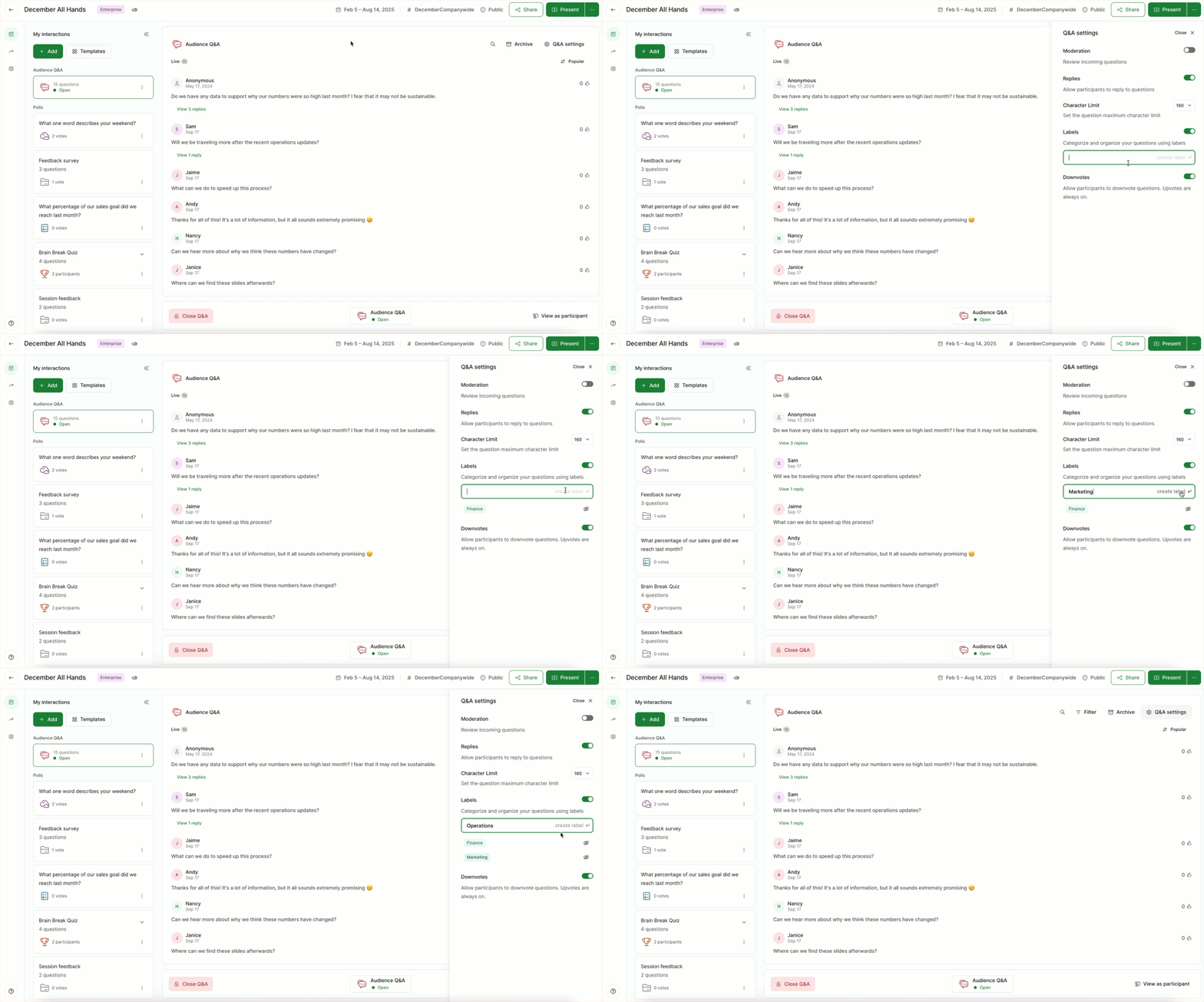
This is also where you can manage your Labels. You can use the eye icon to make Labels hidden or visible for participants – plus you can edit or delete any that you no longer need.
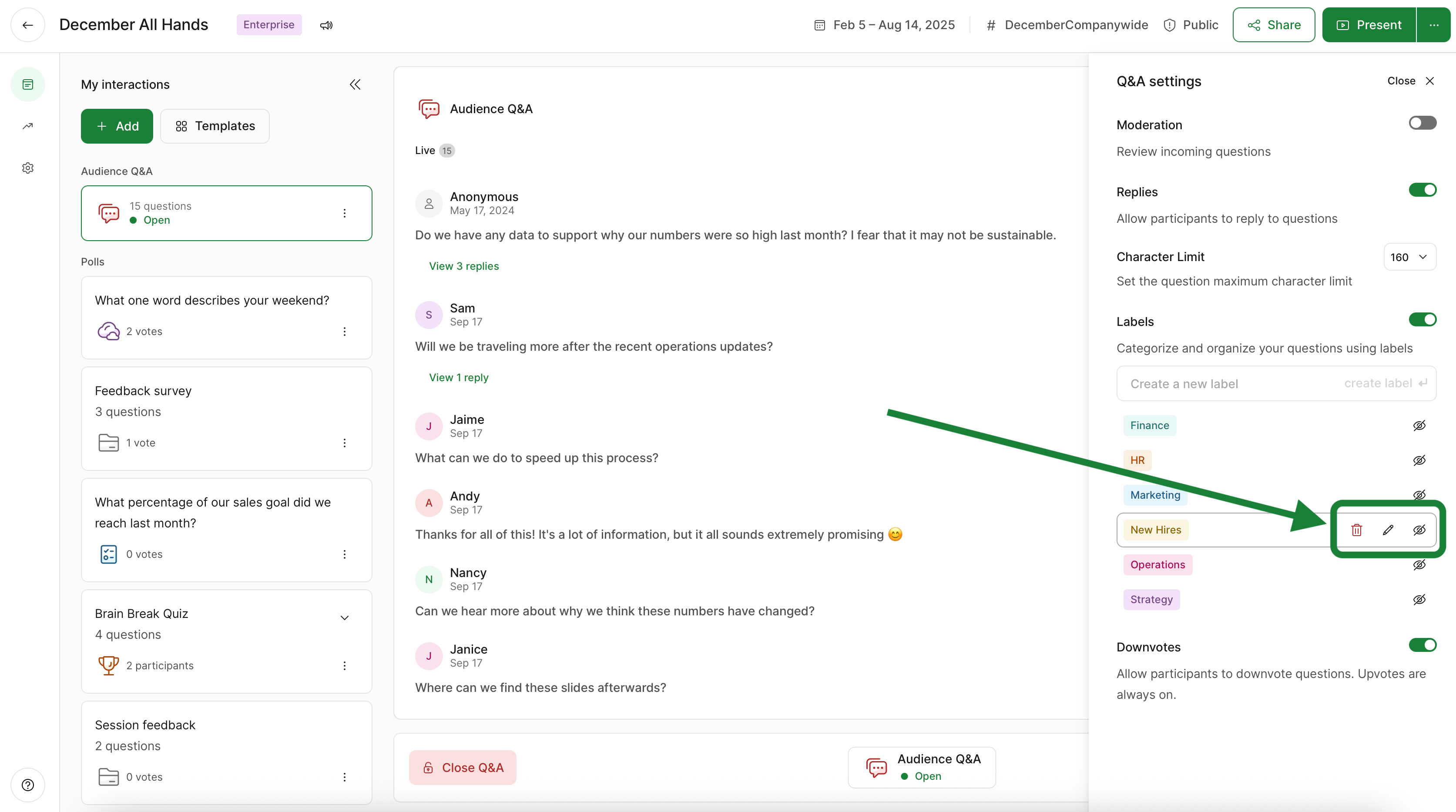
Making Labels visible for your participants allows them to add them to their own questions.
Add or edit Labels on questions
Add or edit the Labels on a question by hovering over it and selecting the Label icon. You can assign pre existing Labels, remove Labels, or create new ones.
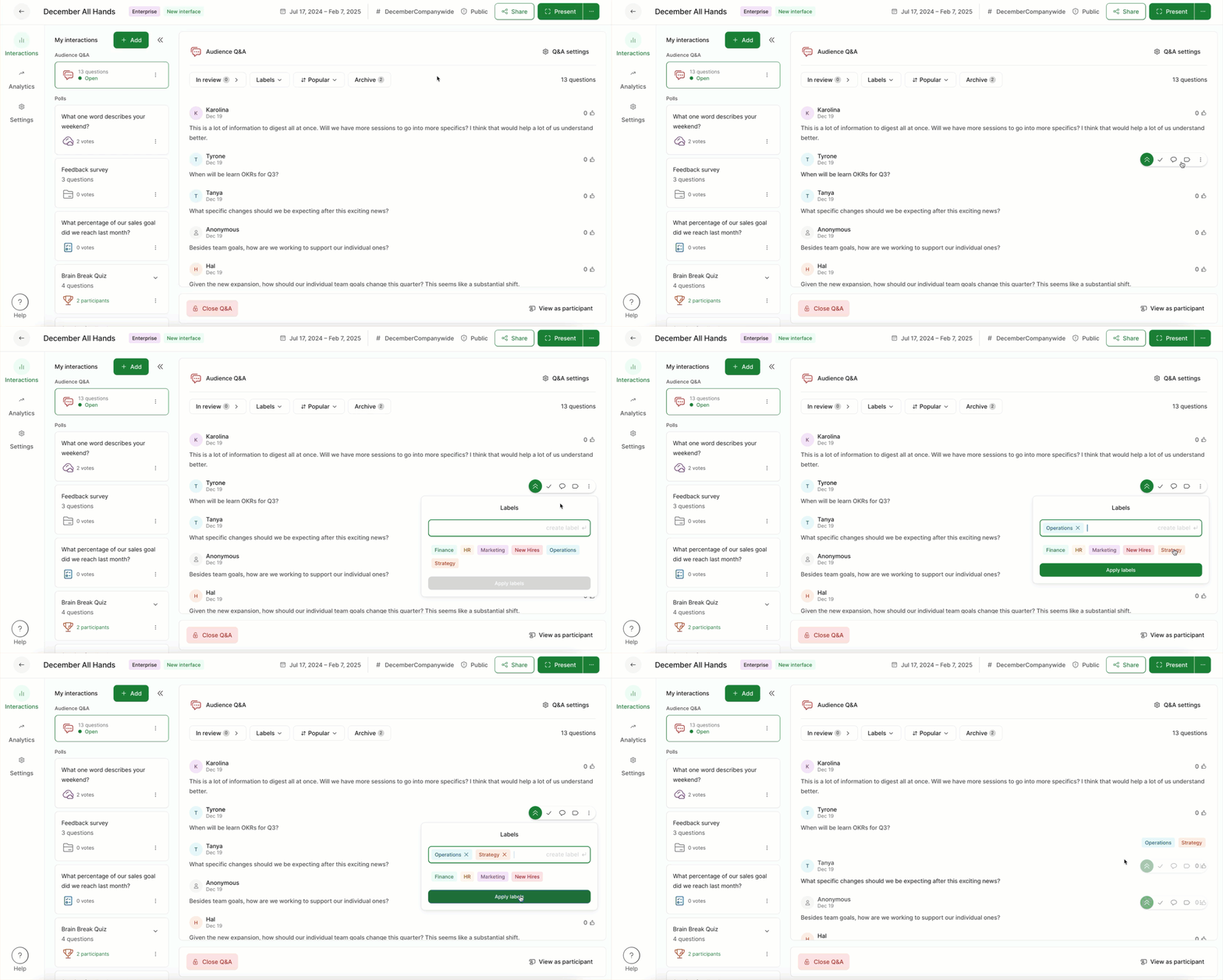
If needed, you can also apply Labels to Q&A questions in bulk.
Filter questions by Label
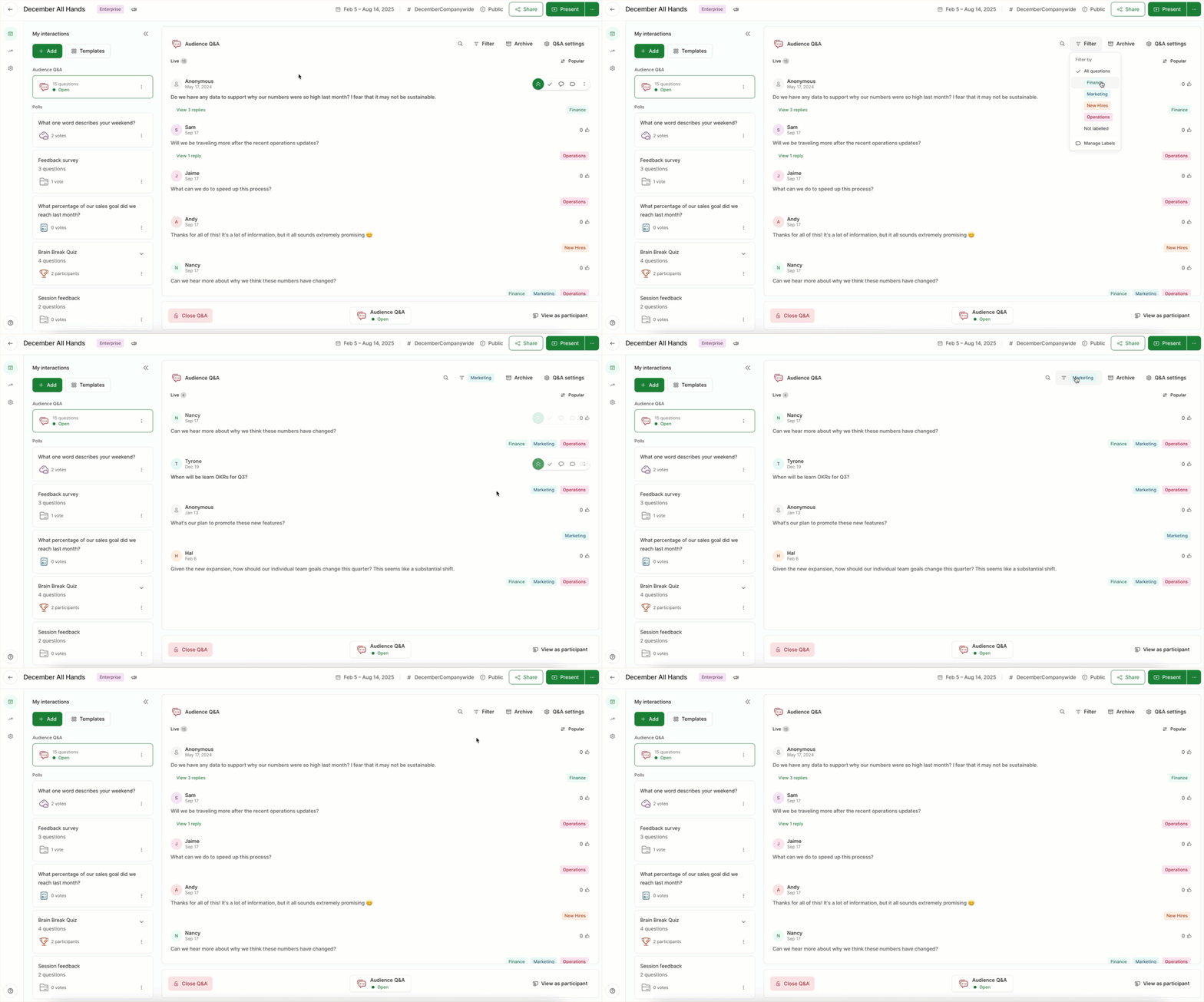
Filtering your questions by their Label can help you address similar questions all at once. You can filter by Label within your Host mode – or in your Present mode so that your audience sees the filtered list only.
Host mode
- Select the Filter button
- Choose the Label you’d like to filter by
- To see all questions again, click the filter and choose All questions
Present mode
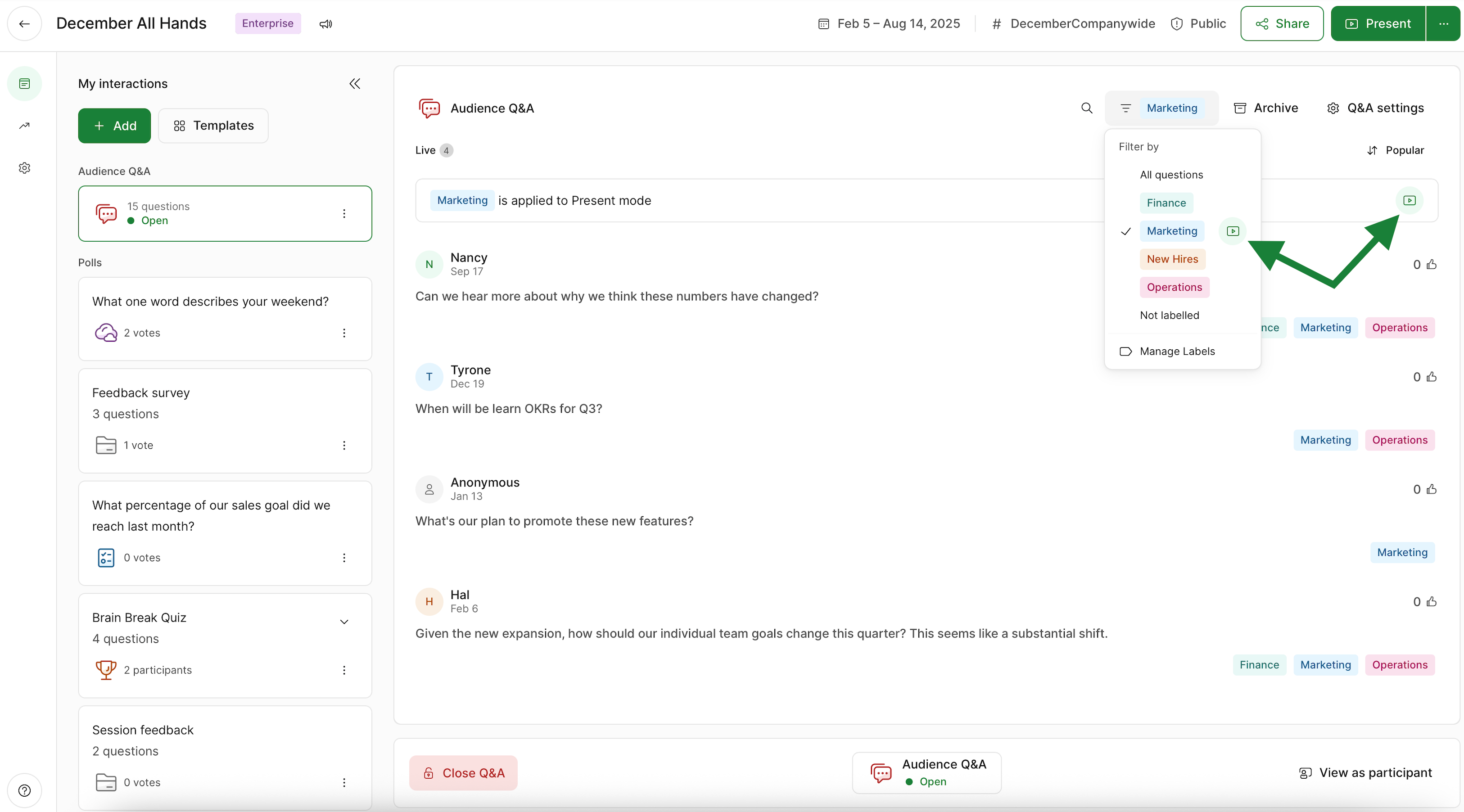
- Select Filter and choose the Label you’d like to display in Present mode
- Click the filter again and click the Present mode icon next to your selected Label
- Notice the banner telling you what Label filter is applied to your Present mode
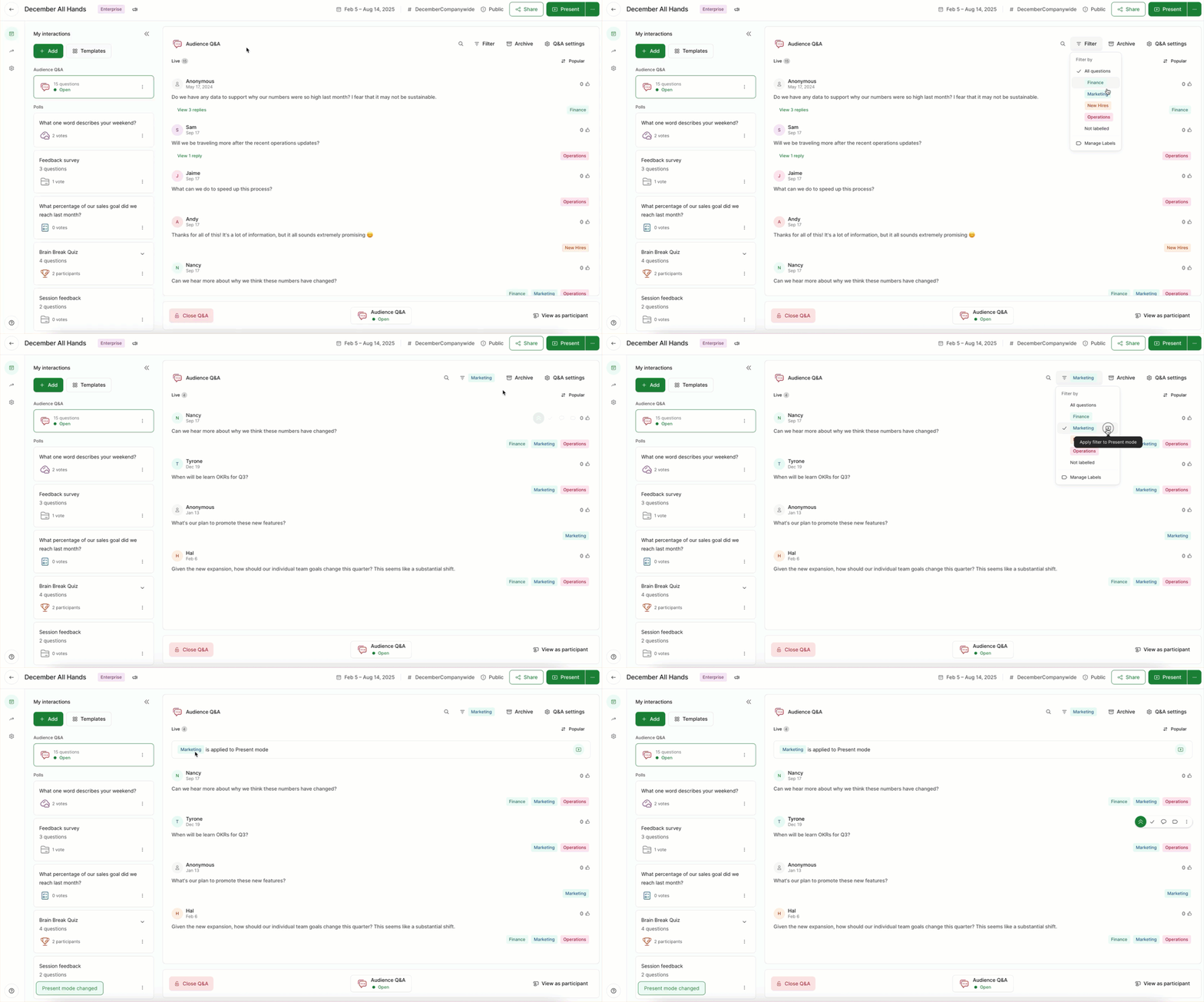
To stop filtering by a Label in Present mode, click the Present mode icon in the banner or within the filter menu.
Labels for participant use
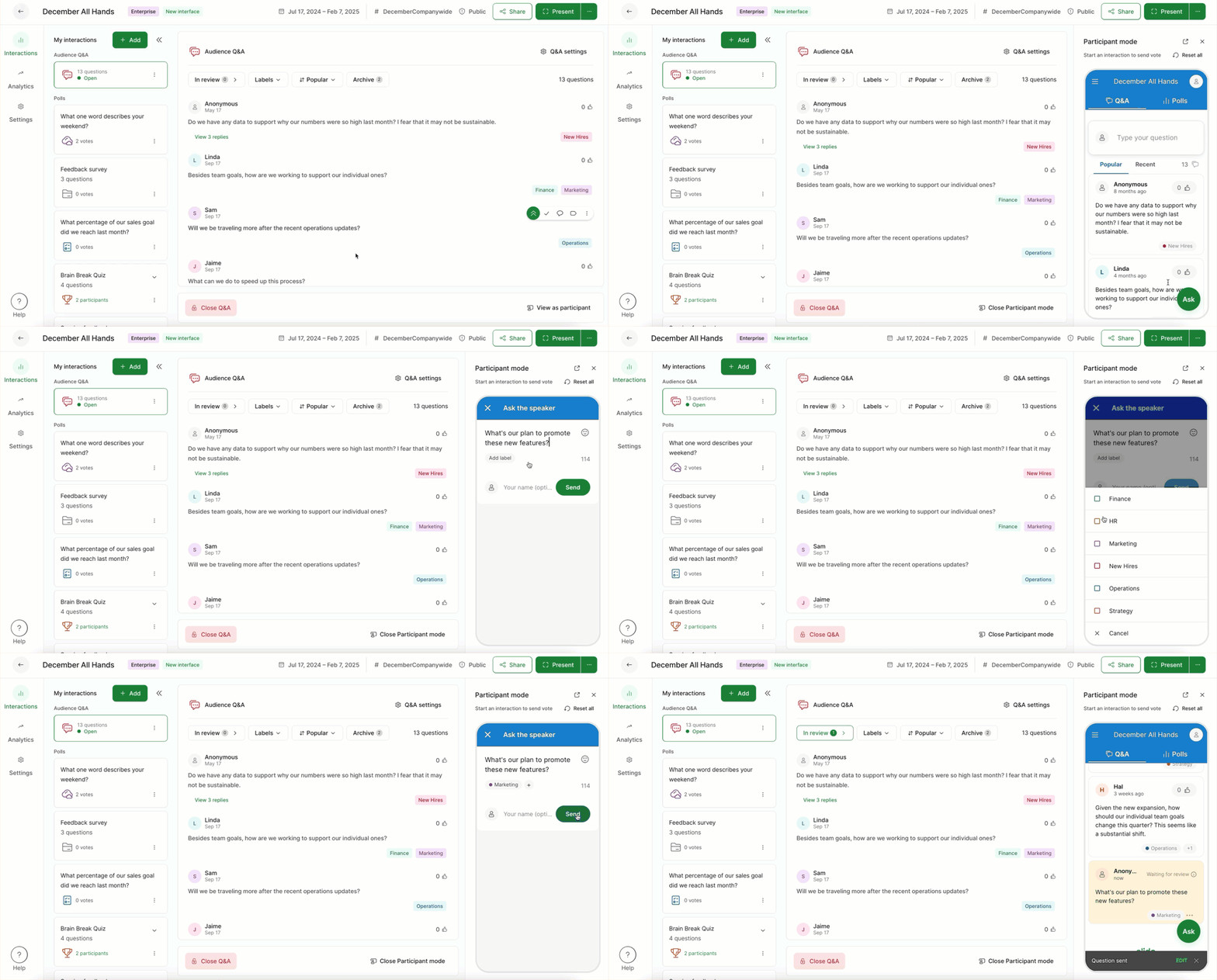
Any Labels you’ve made visible to your participants can be added by them to their own questions. This can make it even easier to keep your Q&A session organized.
Here’s how it looks for participants:
Labels in exports
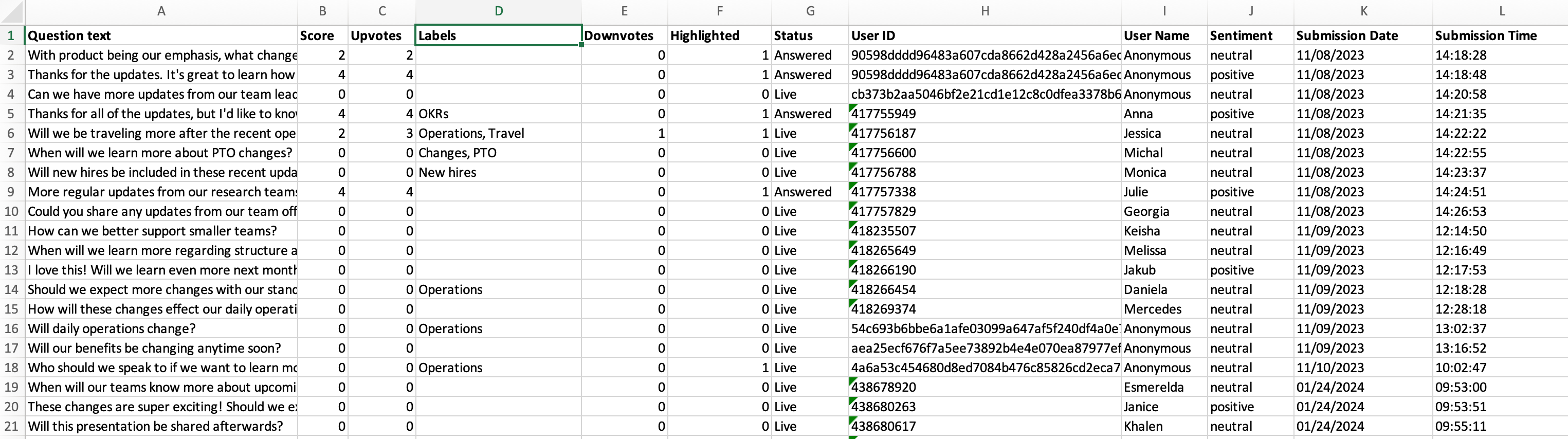
With all our paid plans, you can export your Q&A questions as an XLS file. There you’ll see Labels as its own column for easy filtering.
Curious to learn more?