



Want to use Slido at your upcoming meeting, but don’t have much time to prepare? Let Slido help with AI-Generated polls in Host mode.
In Slido Host mode, you’ll find an AI prompt where you can share details about your upcoming meeting. Slido AI uses the information you share there to generate polls specific to your needs. And it only takes a few seconds!
AI-Generated polls in Host mode is available for all users. However, owners and admins of paid annual plans can disable/enable the feature in their Organization Settings. Learn more
In this article:
How does it work?
When adding any interaction to your slido, you’ll see the Generate with Slido AI prompt at the top.
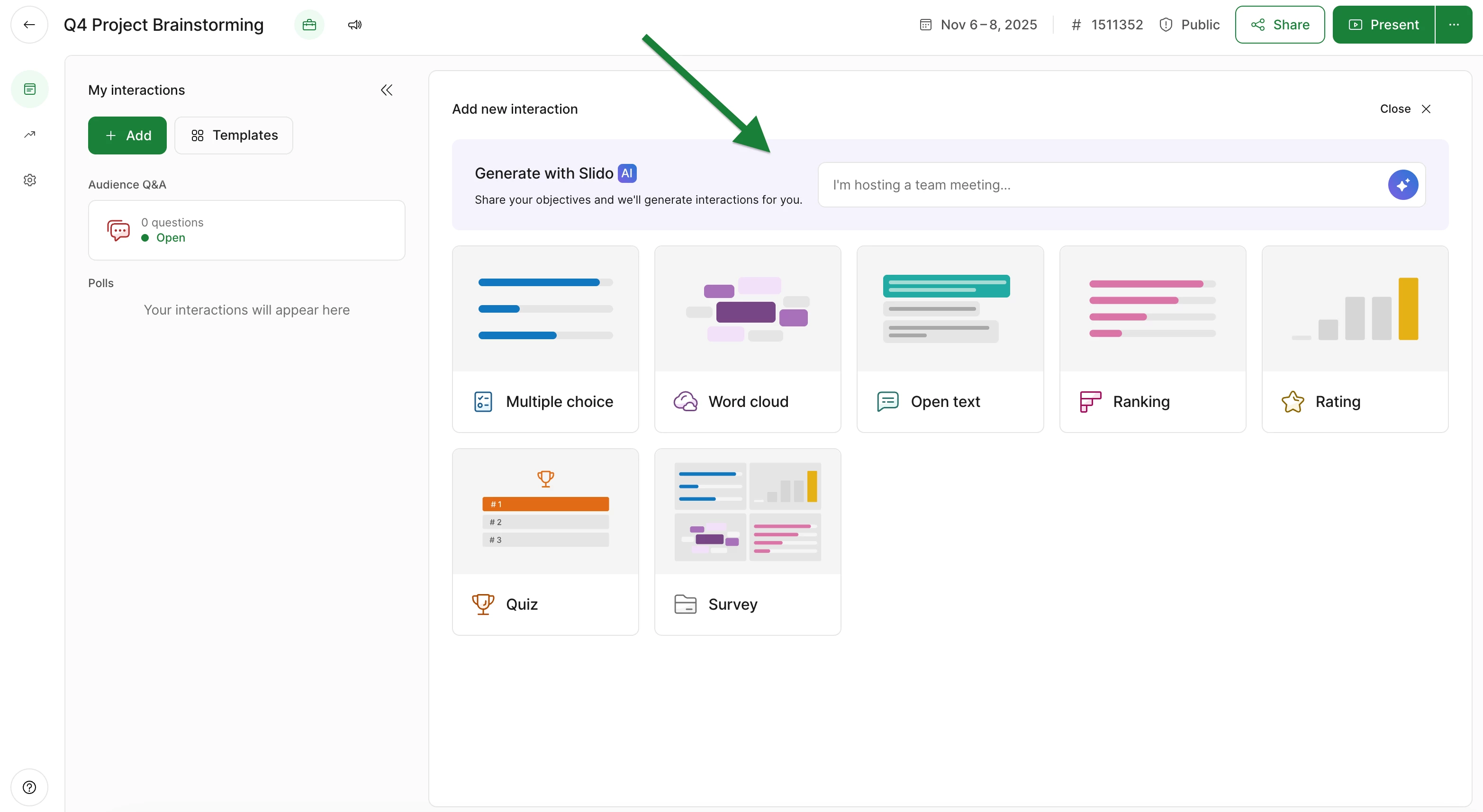
Follow the steps below to generate your polls using AI:
- Click the Slido AI text box
- Type in the details about your meeting or upload a document (PDF, Word, PowerPoint, Excel, CSV or text) to get started.
- Select Generate
Then watch your suggested polls appear right before your eyes!
Note: The upload document feature is enabled by default for all basic plans. For all other plans, it can be managed via the organization settings.
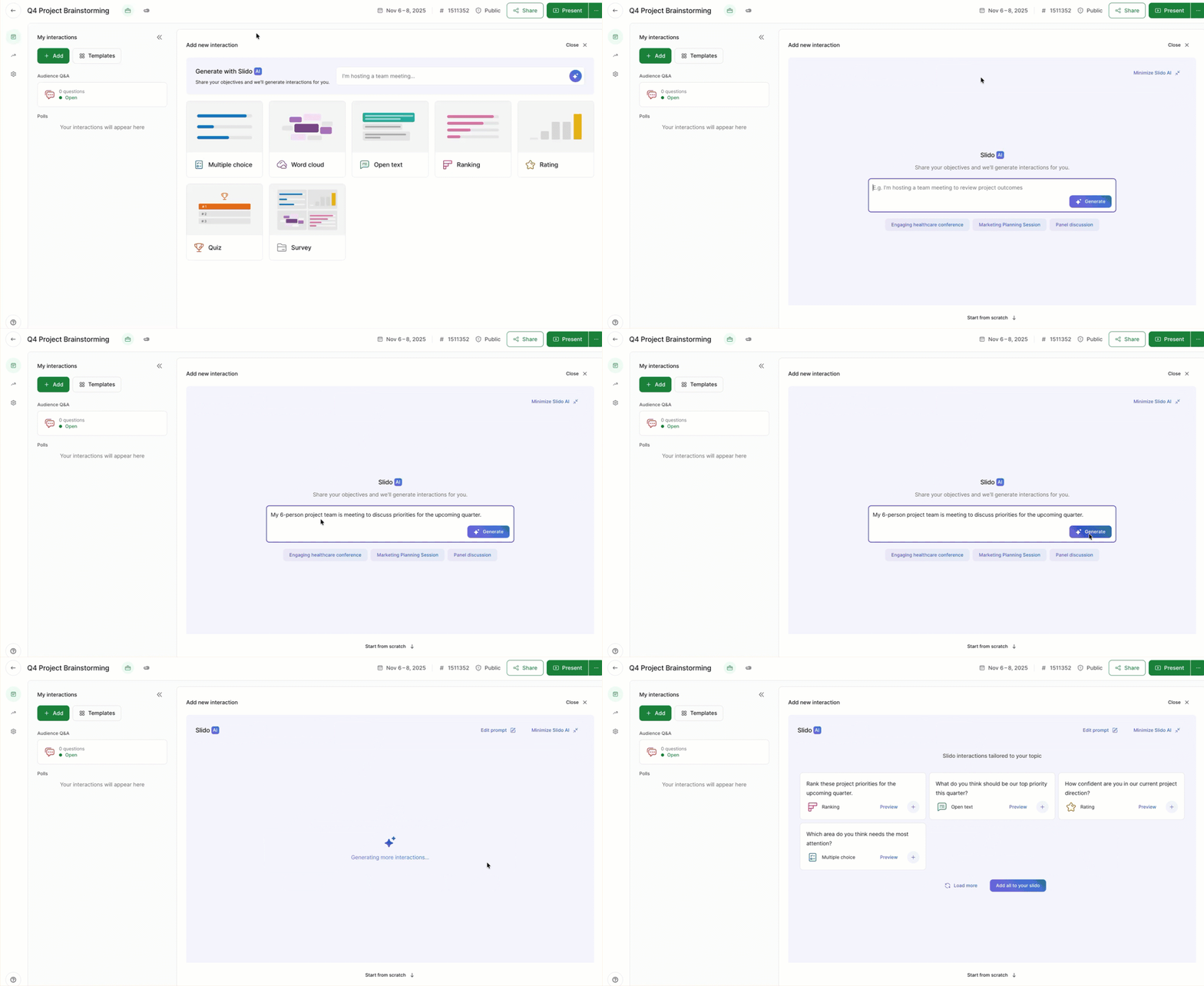
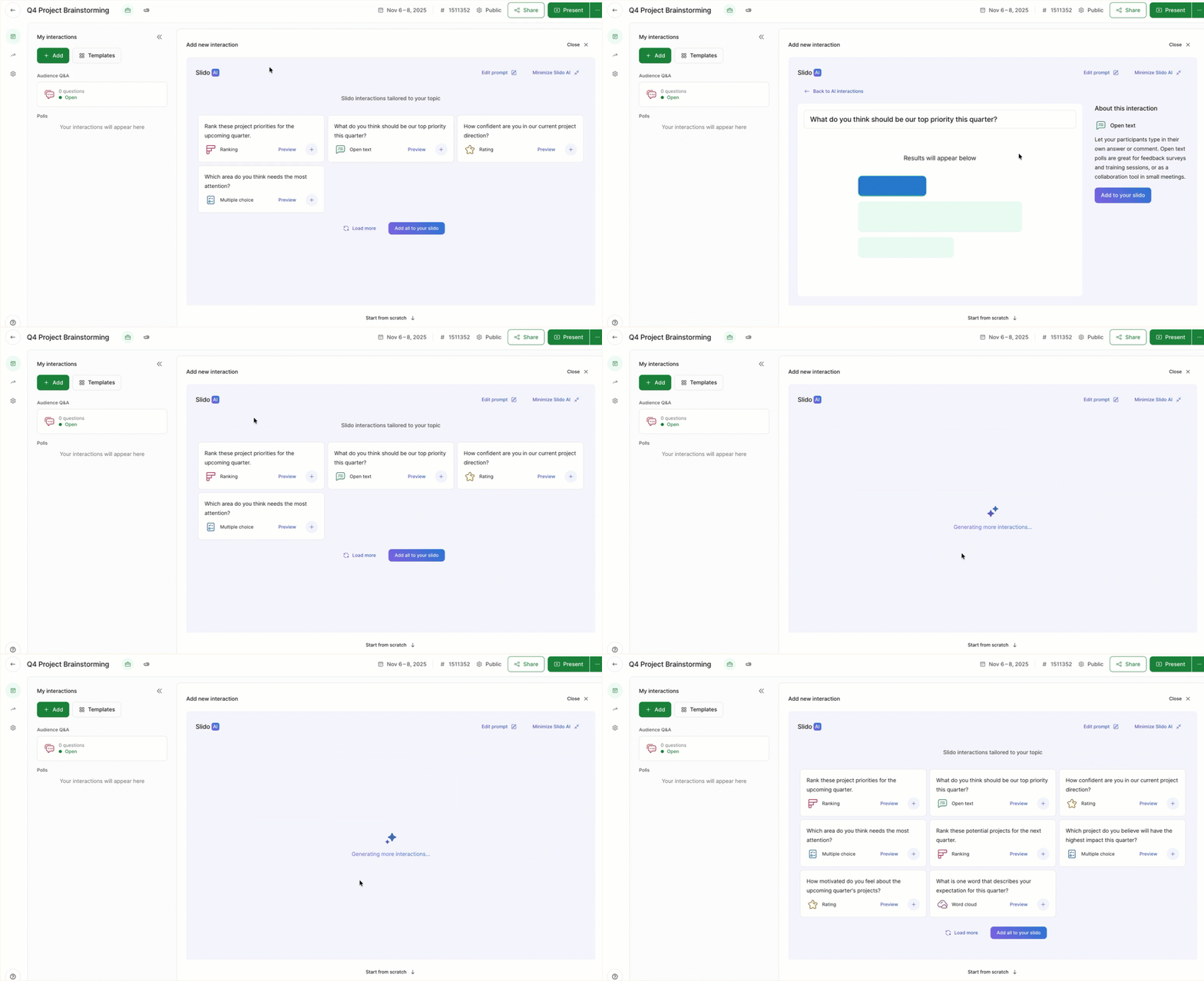
Select Preview to see what the poll would look like for your participants. Then click Back to AI interactions to return to the list of generated polls.
Plus, you can even choose to generate more options.
Want to change your AI prompt? Select Edit prompt near the top of the Slido AI window.
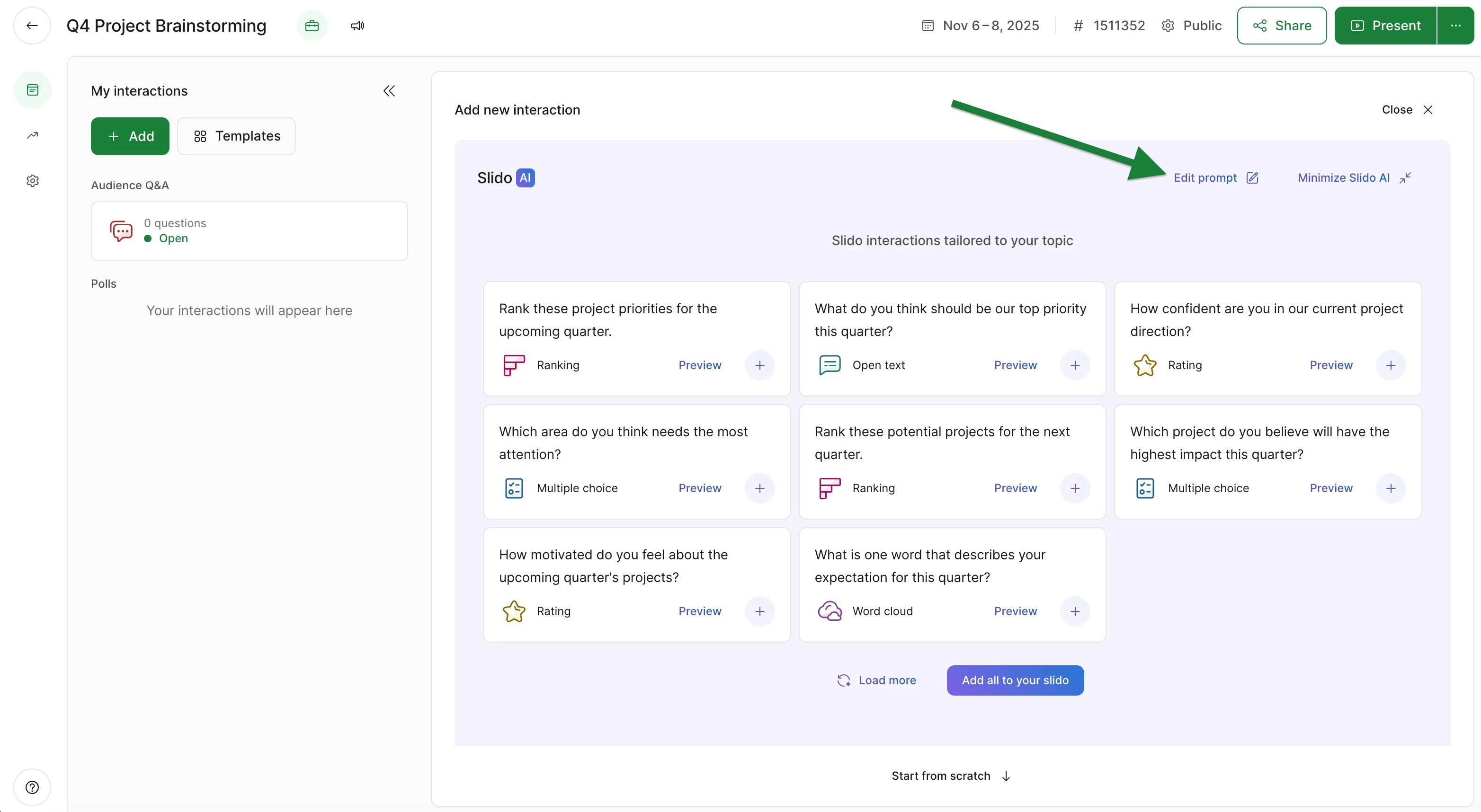
Whenever you’re ready, click the + button next to any poll to instantly add it to your slido. You can also choose Add all to your slido and add every AI-generated poll to your slido at once.
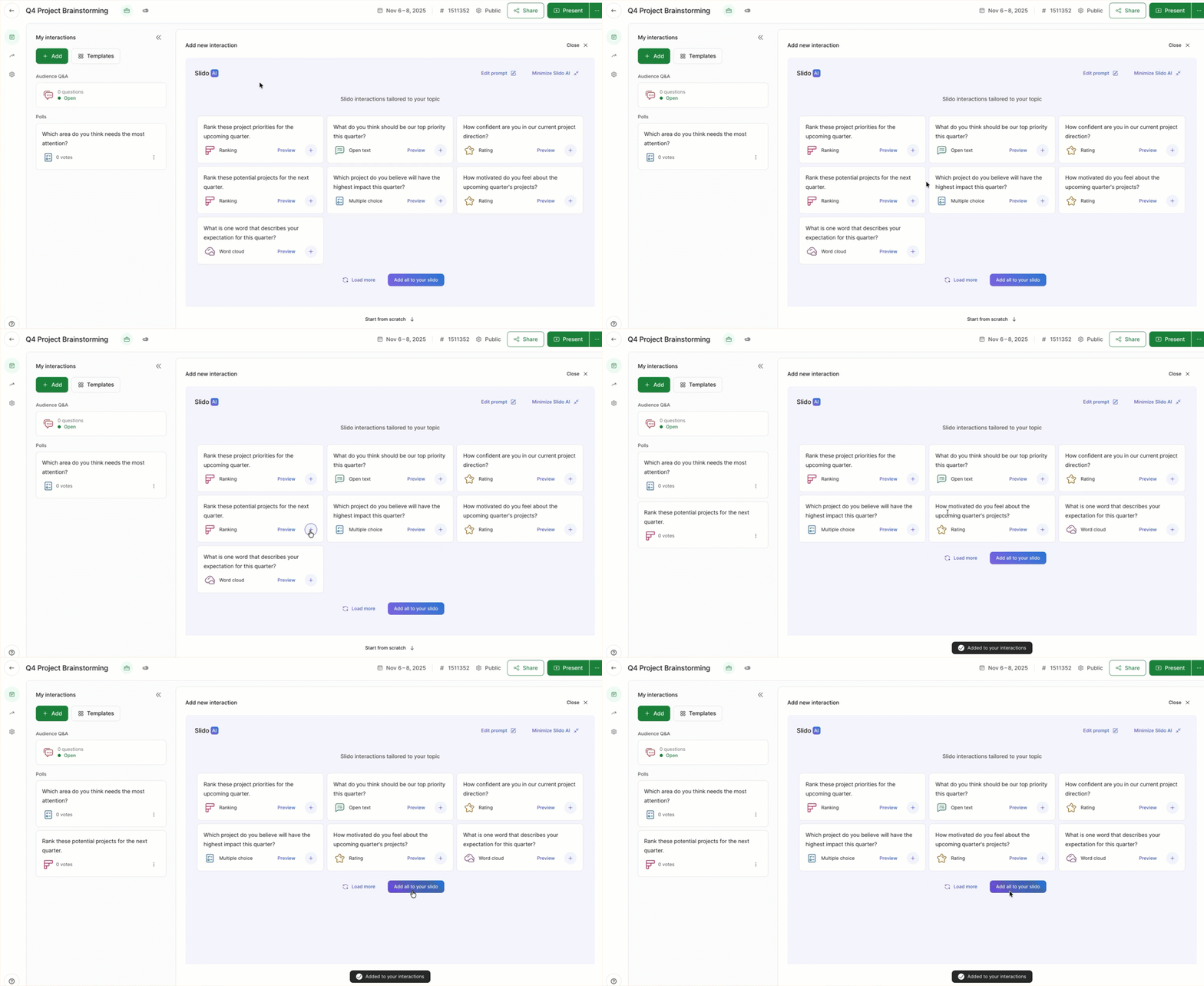
Any and all polls you add will be listed under My interactions. And just like standard Slido polls, you can edit or rearrange AI-generated polls however you need to.
Using PowerPoint or Google Slides? Learn how AI-Generated interactions from slides can create instant polls based on your slide deck.
Tips and best practices
Just like any AI prompt, it’s best to be direct with what you’re asking. With that in mind, here are our tips for getting the most out of Slido’s AI-Generated interactions from shared info.
- Be clear and concise: We recommend prompts between 15-30 words. This allows you to share a clear purpose and topic for your poll(s), while not going too deep into the details. Long sentences with multiple clauses and objectives won’t provide the best results.
- Provide context after stating the purpose: Explain your topic and purpose first, then share your additional context. For example, “Create polls that measure how confident my participants feel about using AI tools. I’m presenting these at a team meeting.”
- Regarding tone, stay neutral: For best results, use factual language and avoid overly conversational or emotional phrasing. Use verbs like generate, assess, create, find out, etc. And avoid ones like want, make people, let’s discuss, etc.
FAQs
What if I don’t like the suggested polls?
If the suggested polls don’t really fit your needs, the best thing to do is edit your AI prompt. Just click on Edit prompt and make any changes you need to.
Where can I learn more about Slido AI?
To learn about all of Slido’s AI features and settings, check out the AI section of our Help Center. For more technical details, you can read our AI Transparency Note.
Where can I toggle this feature on or off?
Owners and admins of paid annual licenses can enable/disable this feature in their Organization settings. Learn more in our AI settings guide.
Curious about more?