


Use Slido AI to create your perfect interactions quicker than ever. The AI Writing assistant helps you compose and refine your poll questions – plus it will generate response options for you in just seconds.
AI-Writing assistant for polls is available for all users. However, owners and admins of paid annual plans can disable/enable the feature in their Organization Settings. Learn more
In this article:
AI-Assisted poll questions
Compose your poll questions with the help of AI. And don’t worry, you can continue refining the poll question until it’s just what you’re looking for.
The AI Writing assistant for polls works with all poll types except the quiz. But if you’d like AI to help generate a quiz for you in seconds, check out our AI Quiz feature.
How it works
- Type in your poll question.
- To the right of your poll question, click on Improve with AI.
- After Generating question appears, you’ll see a suggestion that might improve upon the question you had.
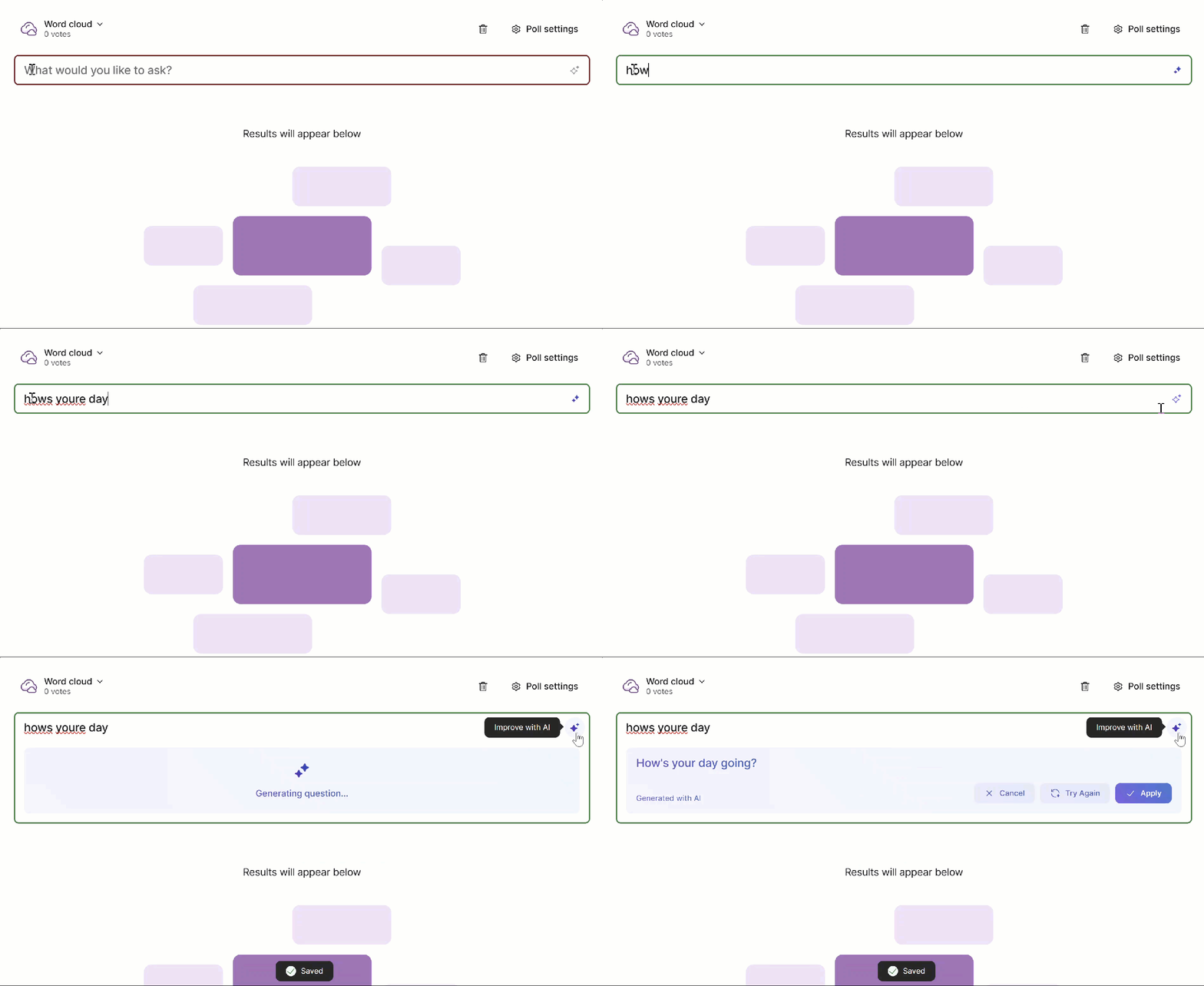
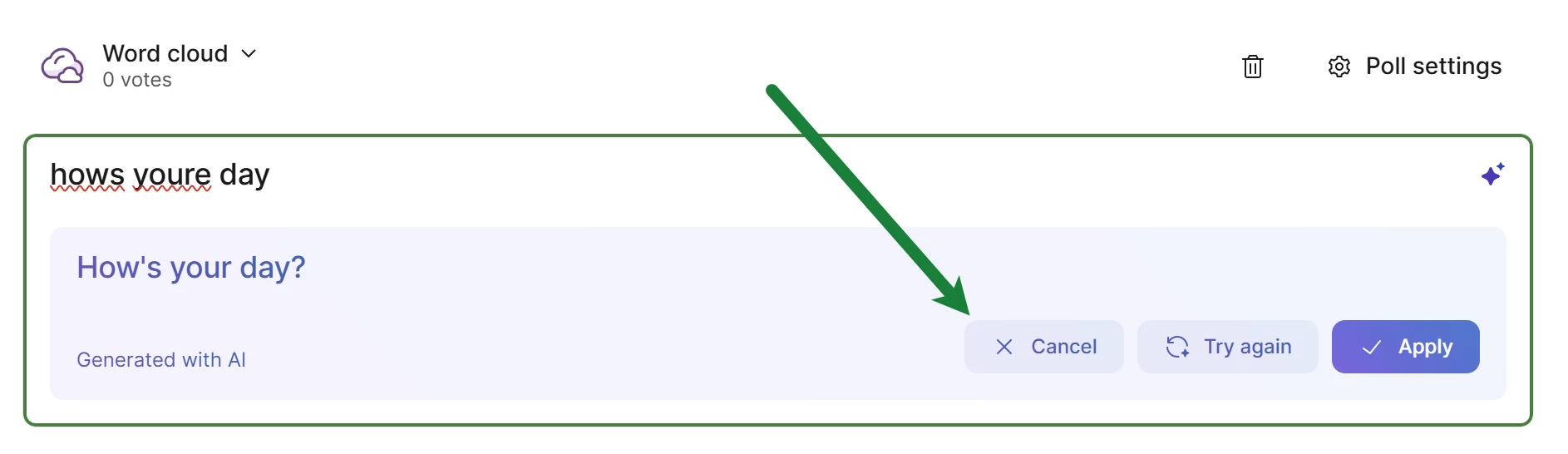
You’ll have three options from there:
You can hit Cancel to stick with the original question you had.
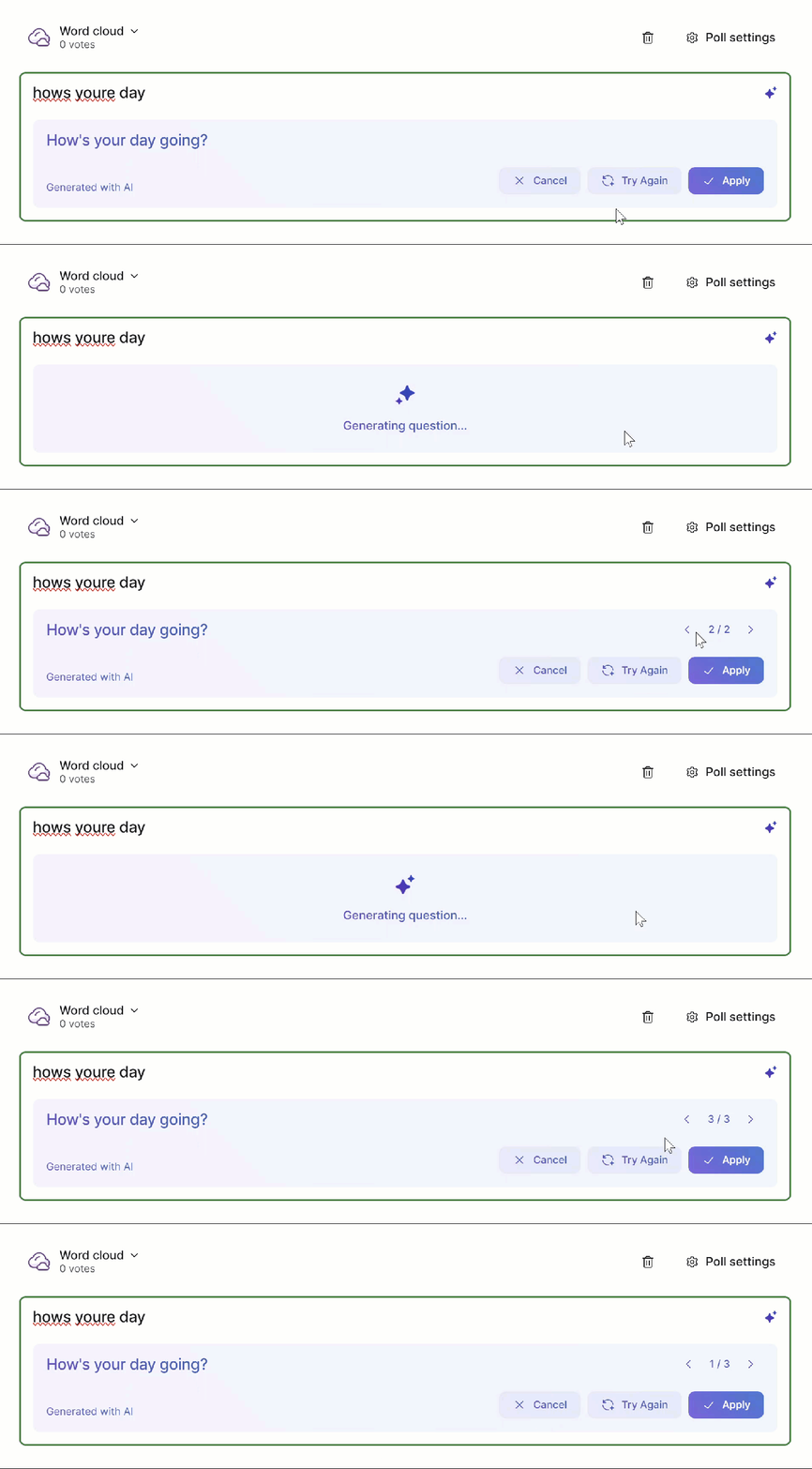
You can also click Try again to generate a new suggestion. Don’t worry - you can always go back to the previous suggestion(s) no matter how many new ones you generate.
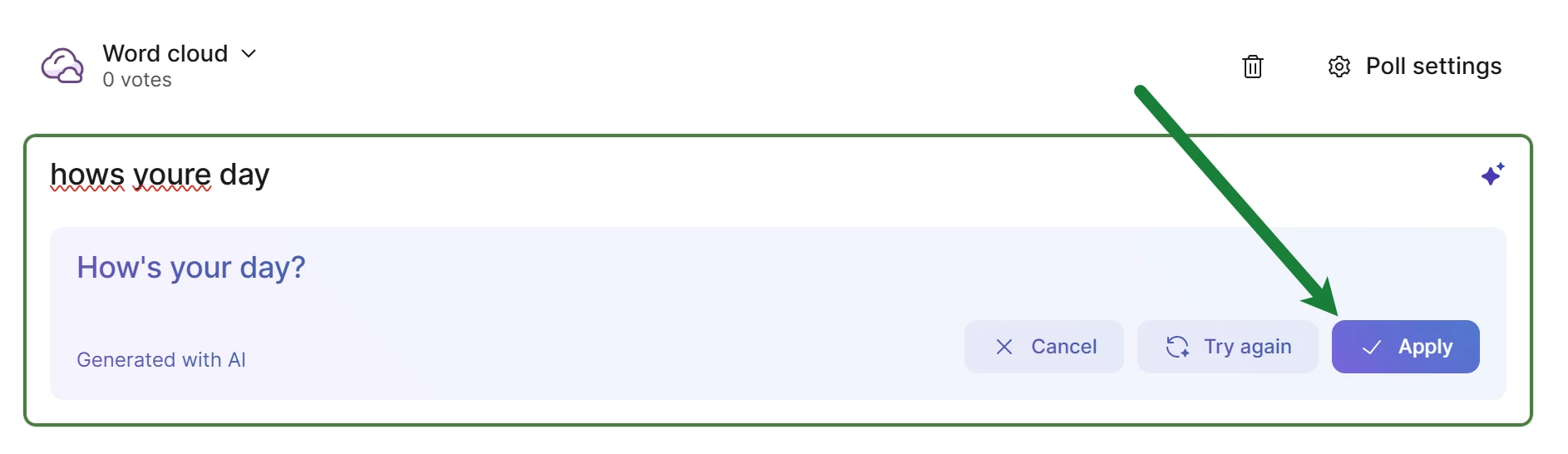
Or if you like the suggestion, hit Apply to use it immediately.
AI-Generated poll options
After you’ve created either a Ranking or Multiple choice poll, you can let Slido AI assemble the options for participants to choose from. Our AI gathers smart suggestions for you, based on the poll question you’ve typed in.
How it works
- Start typing in your Ranking or Multiple choice poll question.
- You’ll see Add options with AI highlighted.
- Once you click Add options with AI, you’ll be given three options.
- You can click Add options with AI again to see additional three options generated.
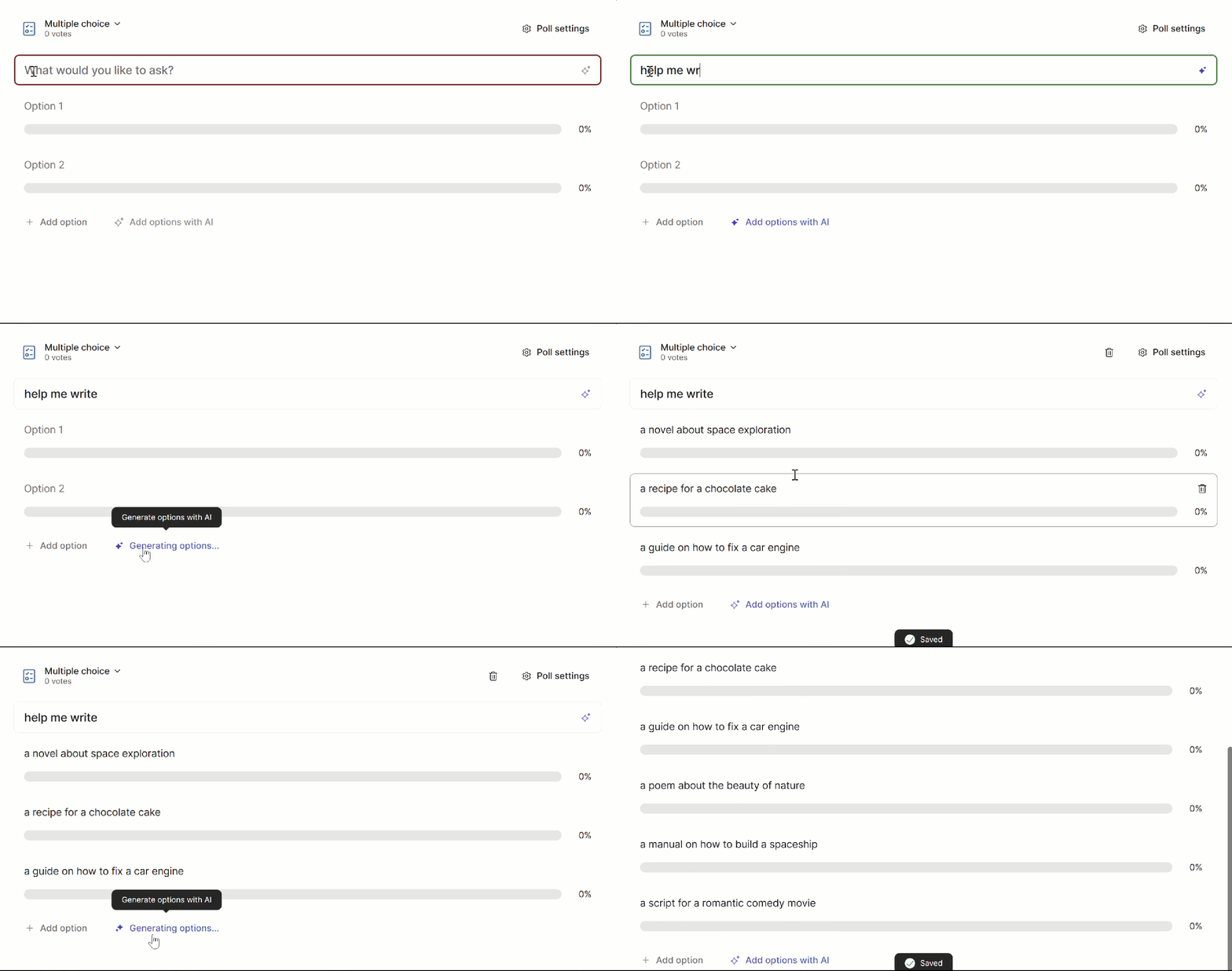
You can delete or edit options at any time, no matter if they were AI-generated or added by you.
FAQs
- If I Add options with AI again, will I lose the previous options that were generated?
No, not at all. New options will be added at the end of the existing list of options.
- What happens to the AI-generated options if I switch the poll type?
The existing list of options will remain safely untouched.
- Can AI help me generate response options for questions in a quiz?
Not at this time. However the AI Quiz feature can help you generate a quiz in seconds when working in PowerPoint or Google Slides.
Curious about more?