



You can use Slido polling and Q&A directly in Webex Webinars (formerly Webex Events new) with our seamless integration. It’s currently available for up to 10,000 attendees or 5,000 if you’re using quizzes.
In this article:
| Essential Requirements |
|
| Current Limitations of Webex and Slido integration: |
|
Schedule a Webex Webinar
To start:
- Log in to your Webex platform (e.g. company.webex.com) and click Schedule a webinar:
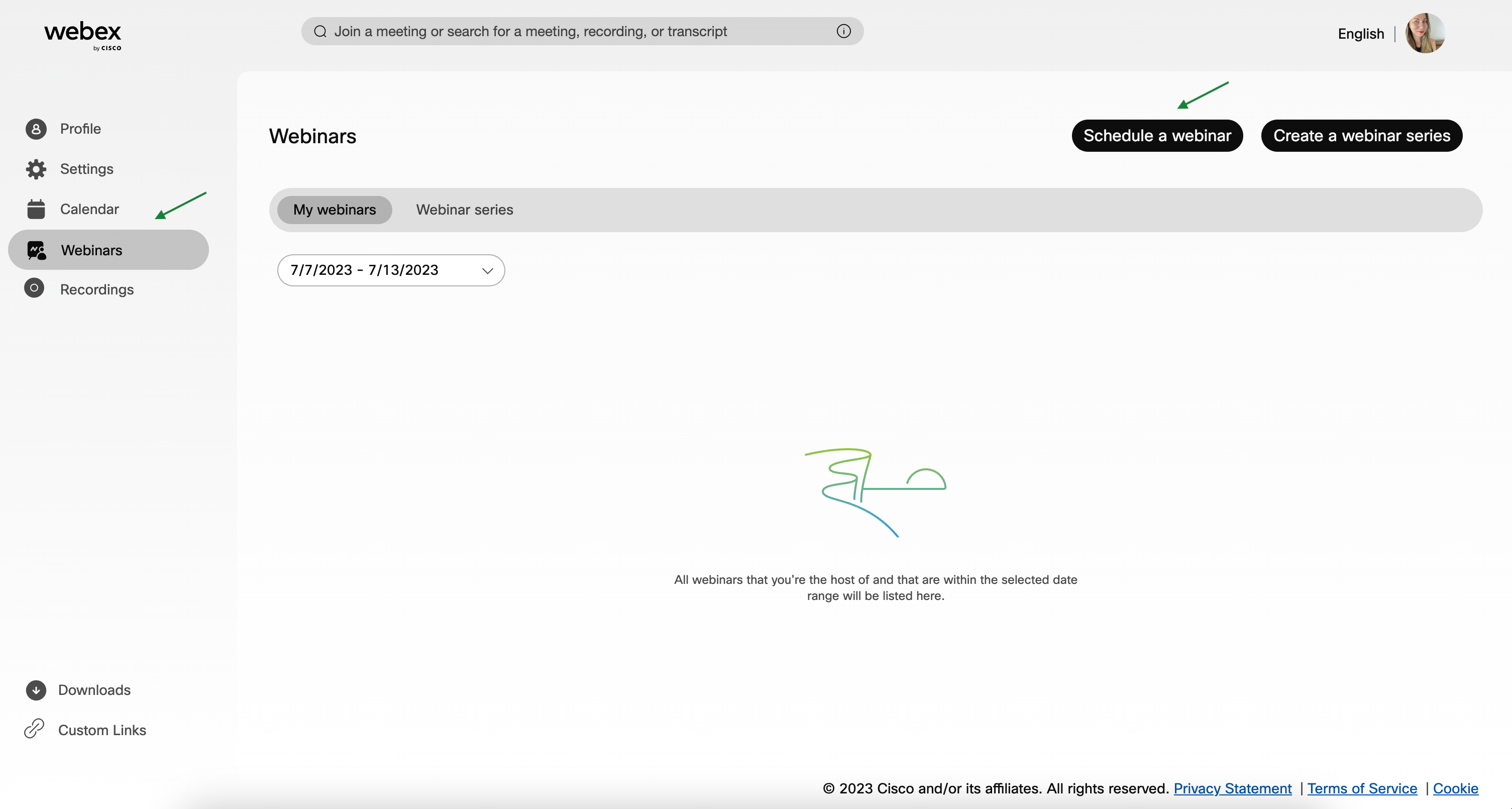
Scheduling a Webex Webinar - Then fill out the information about your webinar and click Schedule once finished.
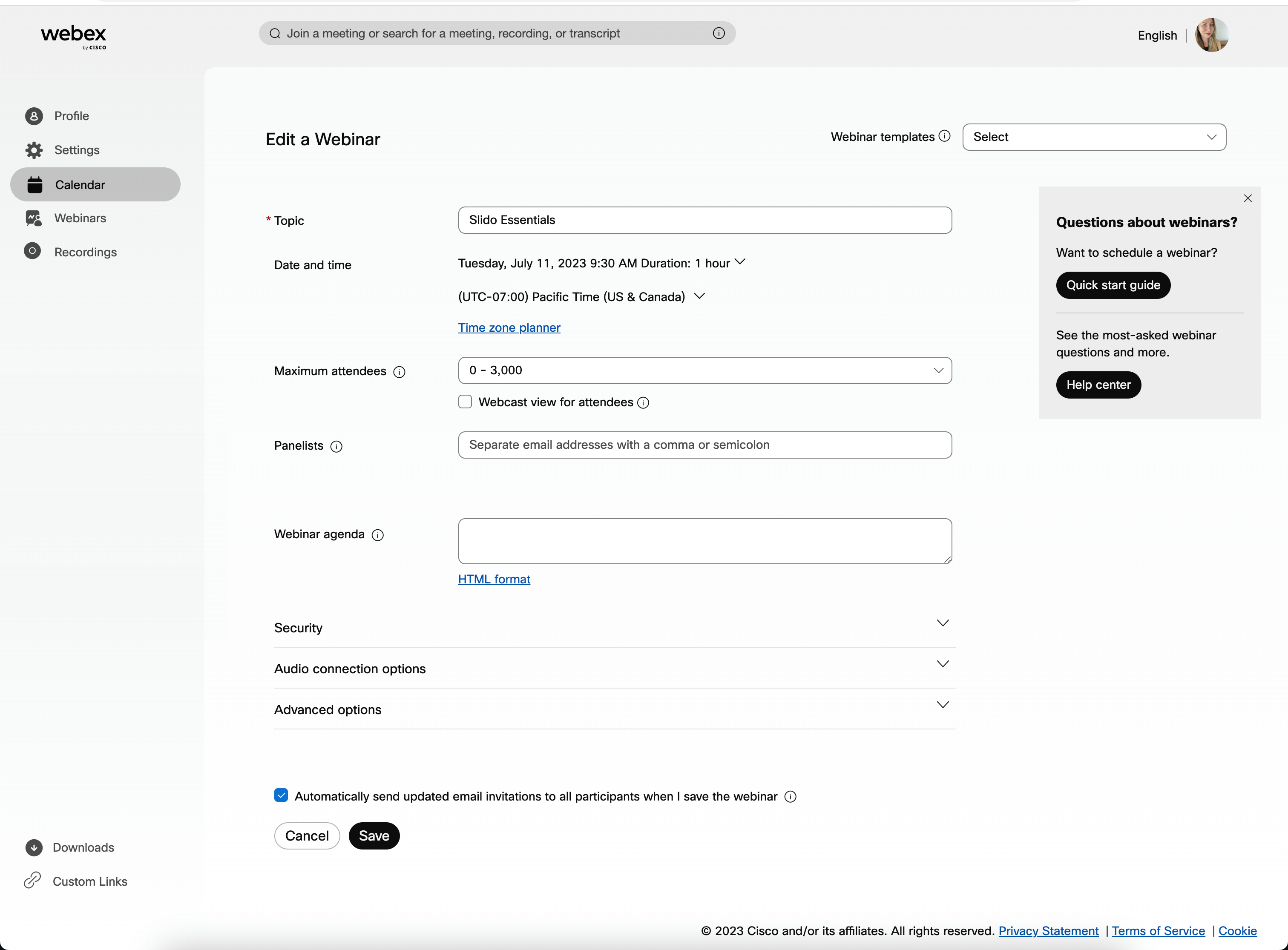
Setting up a Webex webinar
Set up and run Slido during your webinar
You can prepare your slido in advance at slido.com. Just select Login with Webex, enter your Webex credentials and create your slido.
Alternatively, you can set everything up on the day of the event directly in Webex:
- Open the Webex desktop app and continue to the three horizontal dots or click Apps.
- Click Slido (polling and Q&A)
- Select your existing slido or create a new one
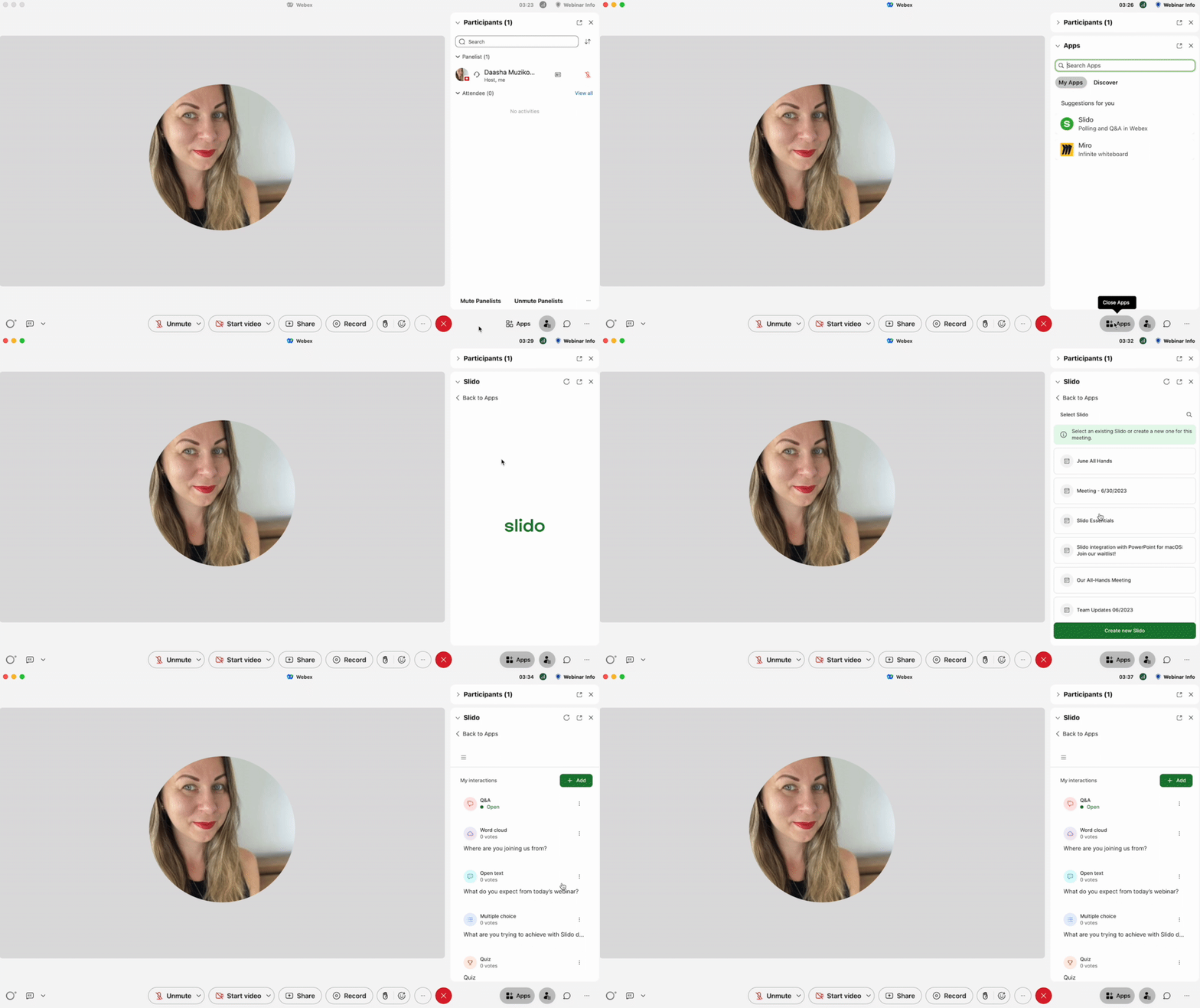
Launching Slido in Webex before or during your webinar or webcast
Once you’re in, click +Add interaction to open Q&A for your audience and create your polls.
Your participants will be able to interact with Slido directly in the sidebar.
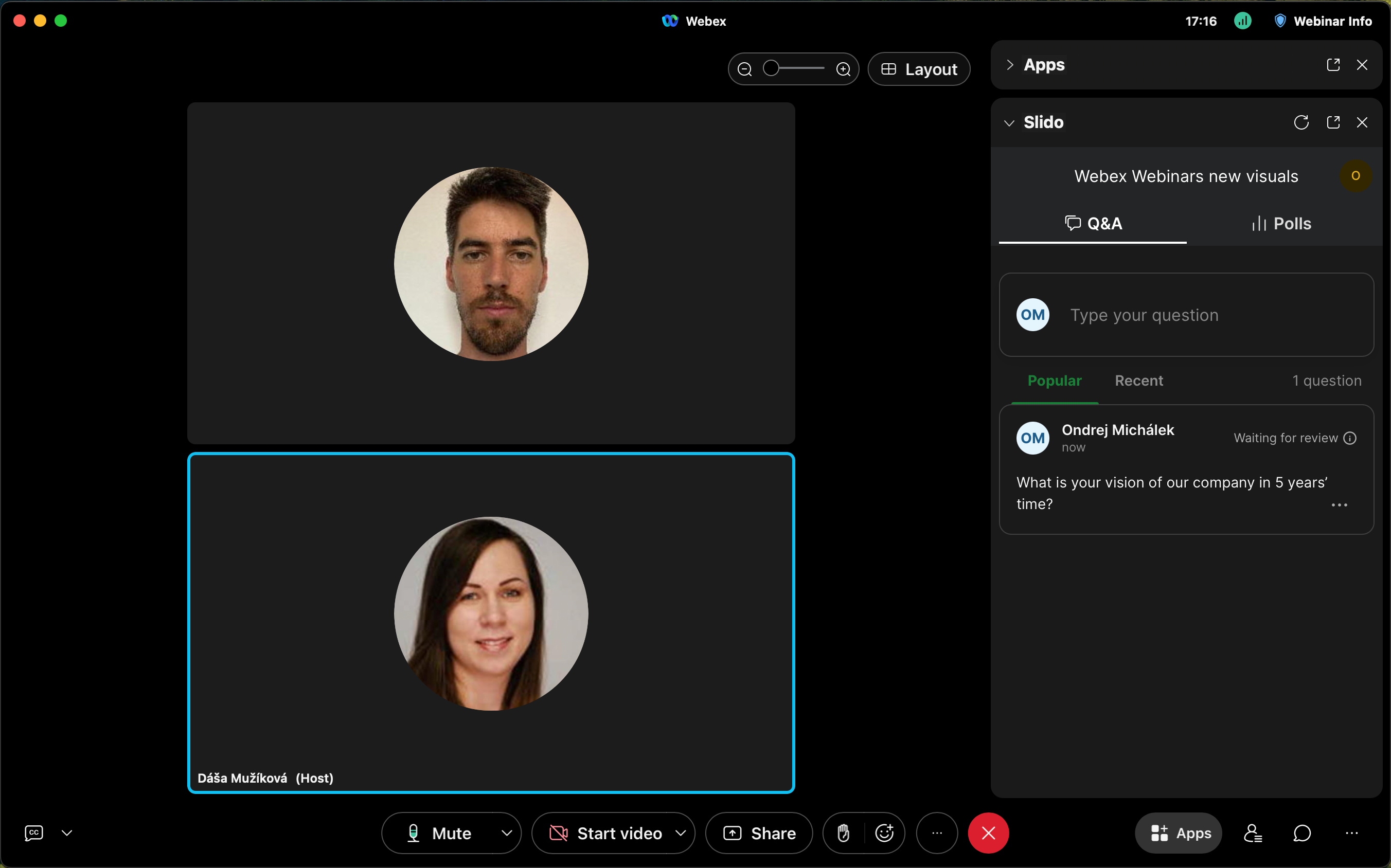
For more specifics on creating and adding Slido polls to Webex, please see our detailed guide.
How panelists can use Slido
When you launch Slido in a Webex Webinar as a host, Slido automatically opens in the Webex sidebar for all panelists. Panelists can then help answer submitted questions in Q&A and run polls during the webinar.
If you haven’t launched Slido yet, one panelist can open Slido from Apps or three-dot menu. As the host, you can overrun the panelist’s slido and add your own.
In case you’d like panelists to prepare polls in advance at slido.com, invite them to your slido as co-hosts before the webinar. This gives them access to set up Slido content ahead of time.
Learn more about Slido and Webex roles.
Using a presentation integration during your Webex Webinar with Slido
If you are using our PowerPoint or Google Slides integration for your Webinar, please make sure you’re logged in and using the same slido in both Webex and PowerPoint or Google Slides.
Learn more about using Slido with Webex and Google Slides or PowerPoint presentation in Webex Adoption library (see the Quick starts section).
Frequently asked questions
- Can I use Slido for webinars with over 10,000 participants?
The full Slido functionality is available in Webex Webinars for up to 10,000 attendees. For bigger webinars with up to 30,000 people, you can use Slido multiple choice polls, rating polls, and Q&A only.
Here are some helpful resources for using Slido in Webex Webinars:
- All about Webex Webinars
- Difference between a running a Webex Webinar in a webcast mode for the audience and without it
Curious about learning more?