



Sometimes it can be useful to run more than one poll at the same time. There are a couple of ways to do this and this guide explains both.
How to start and run multiple polls at the same time:
Use a survey
Available with any paid plan
Creating a survey allows you to group together multiple poll questions and run them all at once.
- Click the + Add button and select Survey
- Give your survey a name
- Add your poll questions
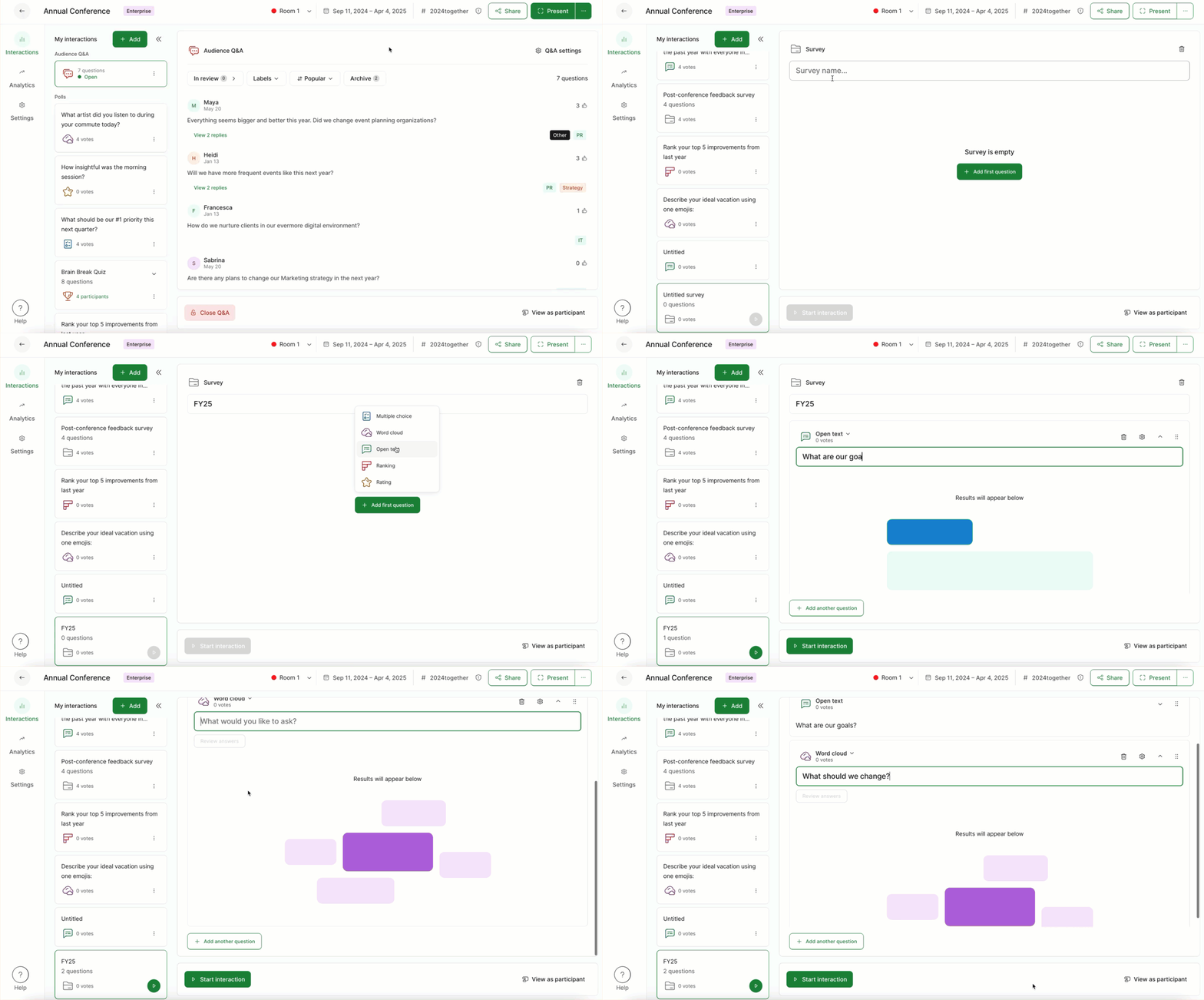
Whenever you run your survey, participants will be presented with all questions at the same time. After they’ve answered everything, they’ll submit all responses with just one click.
If you’re using Present mode, you’ll only be able to display one poll question at a time.
Pro tip: If you need to run more than one survey at once, you can share a direct link to each.
Use multiple rooms
Available only in Professional and higher plans
To start and run more poll questions at the same time, you can create a separate room for each poll or survey.
- Create your multiple rooms within Settings
- Create and start polls in each room
- Encourage participants to answer the polls in each room
Participants can then switch between your different rooms and respond to your polls. See the participant experience below.
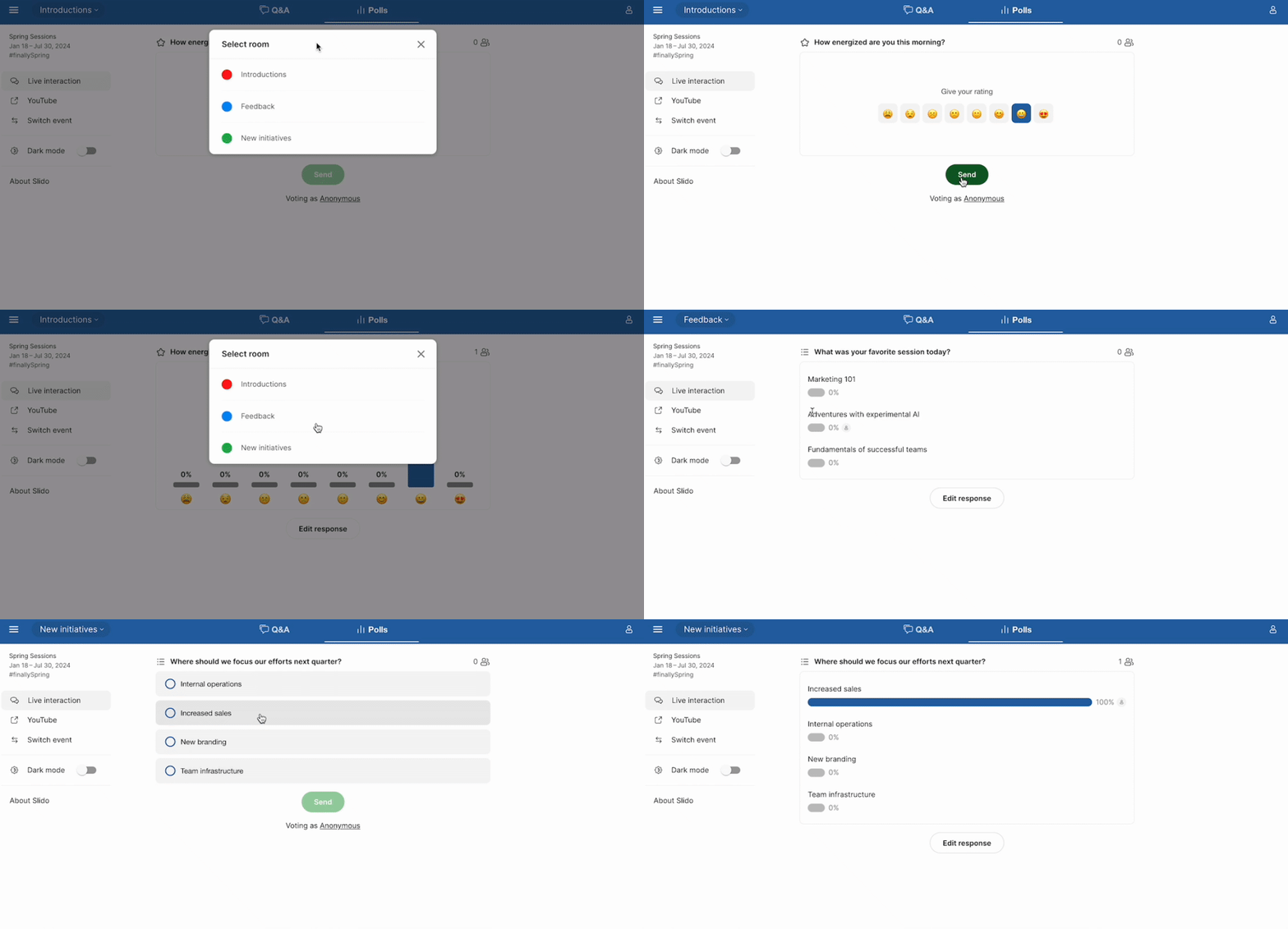
Pro tip: Gather feedback throughout by creating a special room to use exclusively for a feedback survey.
Use more than one slido
Available with all plans
Even when using a Basic plan, there’s no limit to the number of slidos you can create and run at the same time. As long as your slidos aren’t using the same slido code, you can run different polls in each slido.
Keep in mind, though, that each slido will have its own unique slido code and QR code.
Learn more: