



Use a multiple choice poll to learn more about your audience’s preferences, their opinions, or to test their knowledge.
In this article:
Create a multiple choice poll
- Open your slido and click the + Add button
- Select Multiple choice
- Type in your question and answer options
- Hit Start to run your poll instantly or click + Add to create another
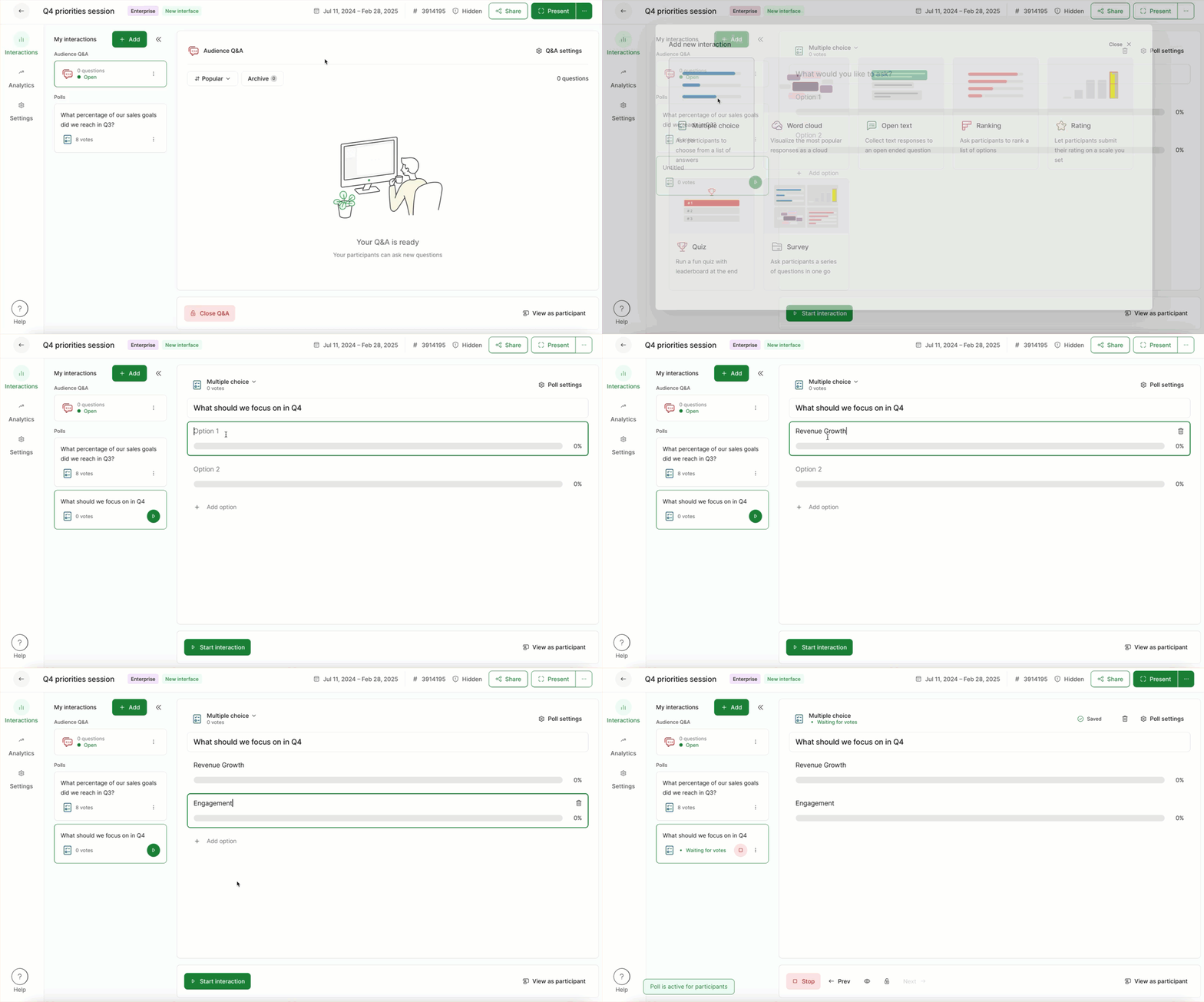
No need to worry about saving your progress. Polls are saved automatically.
Multiple choice poll settings
You can customize your multiple choice poll in a few different ways. Select the Poll settings in the upper right corner to see the below options.
- Multiple options: Add as many options as you like for your participants to answer, but we think "less is more!". Be selective with your choices to help your audience engage more easily and keep the experience smooth for everyone.
- Mark correct answer: Designate which of your answer options are “correct”
- Poll description: Add a description for added context
- Poll results: Choose whether your live poll results will be visible or hidden for participants
- Add image: Add an image to be displayed alongside your poll question
Pro tip:
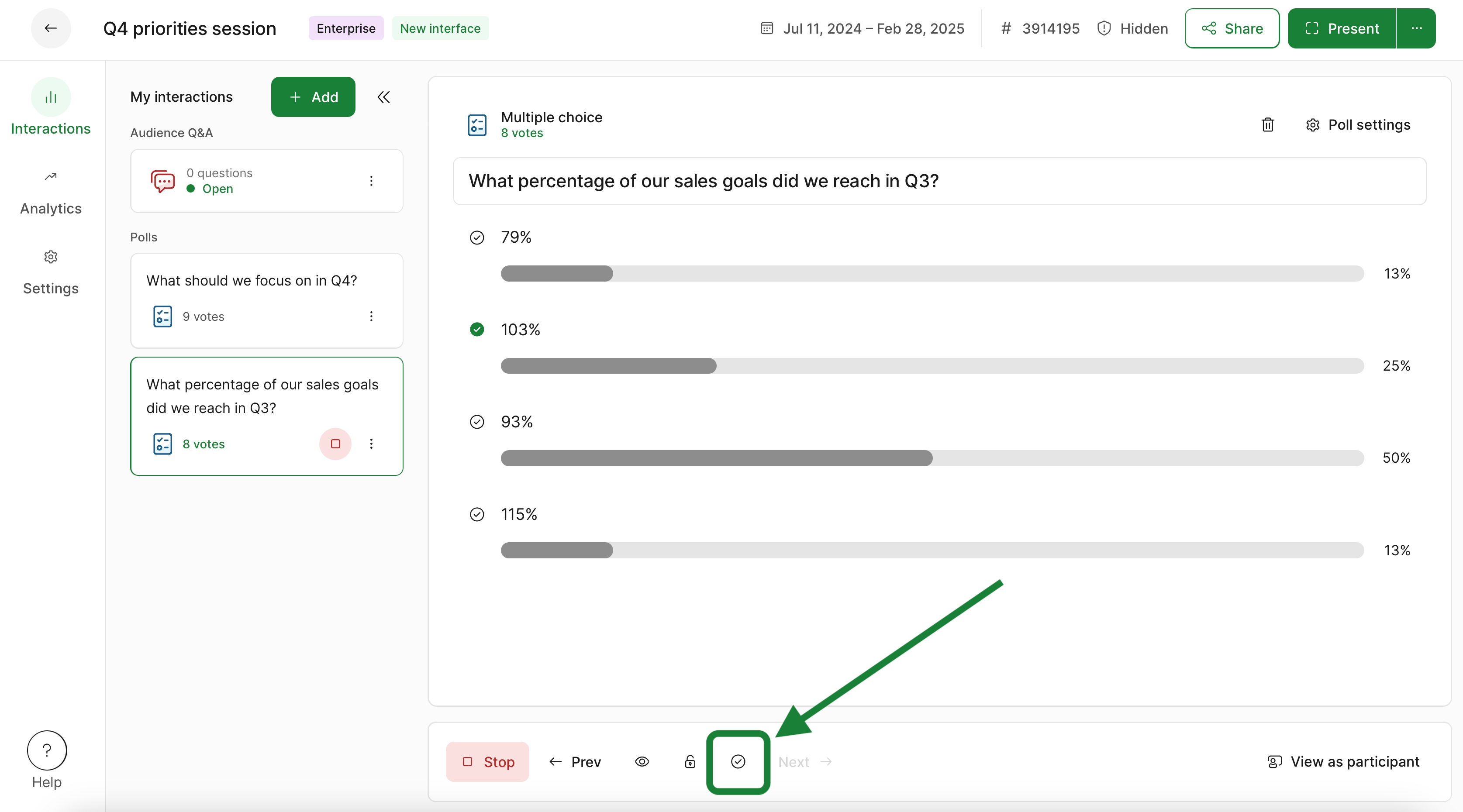
If you mark a correct answer, you can reveal the correct answer(s) to your audience at any time using the control bar. Just click the checkmark icon.
Test your poll and see how it works for participants
To see how the poll works for your participants:
- Start your poll by clicking the green Start button
- Select the View as participant option near the bottom right corner
- Submit an answer as a participant and click the X when finished
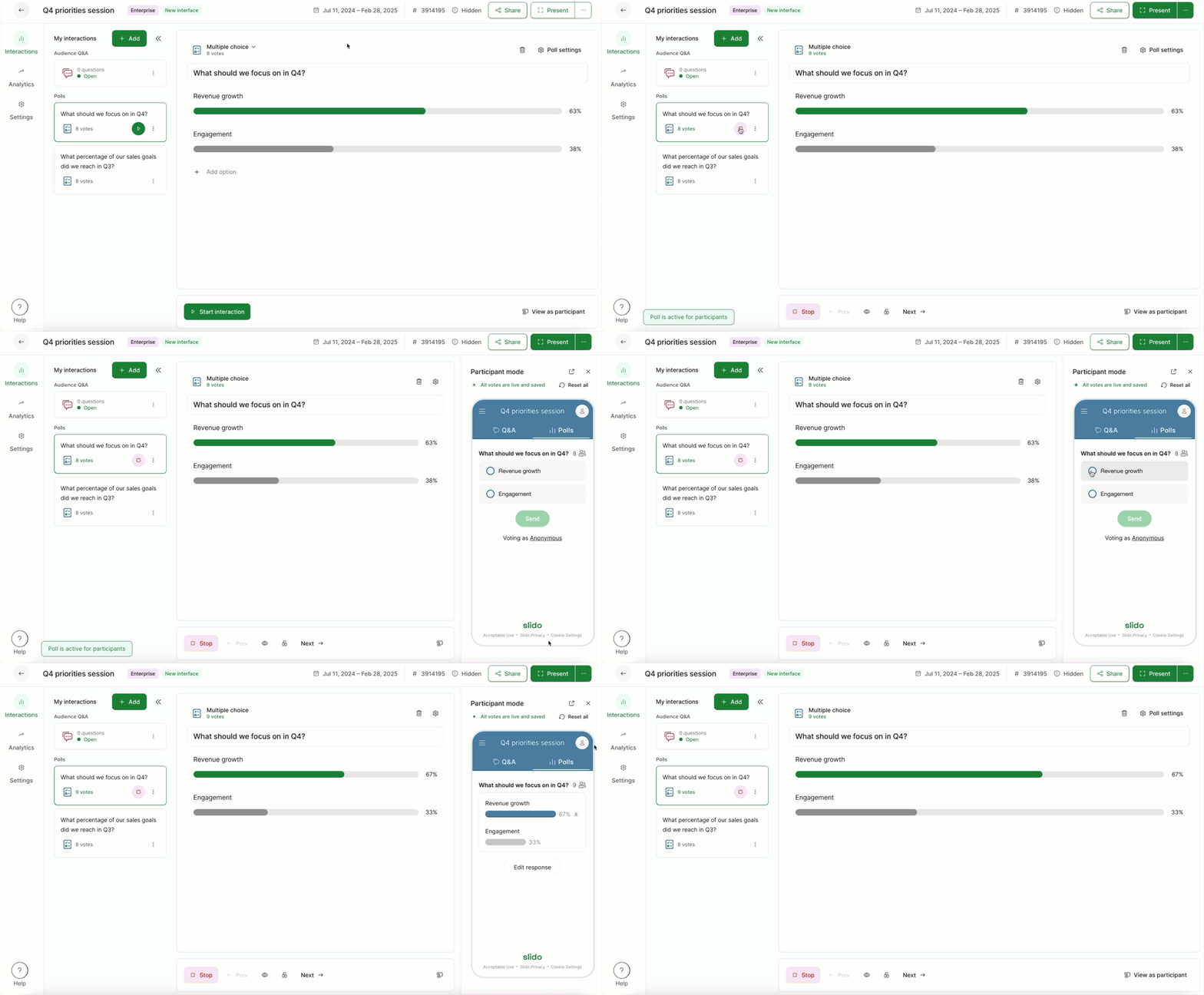
You can delete your testing response by clicking the three-dot menu next to your poll and selecting Reset results.
Run your multiple choice poll
When you’re ready to run your poll for your participants, simply start the poll and open Present mode. You can share your screen while using Present mode and display your poll results live for all to see.
By default, answer options are ordered based on popularity and results are displayed as percentages. However, you can change how results are displayed in event settings.
See below what a multiple choice poll looks like in Present mode.
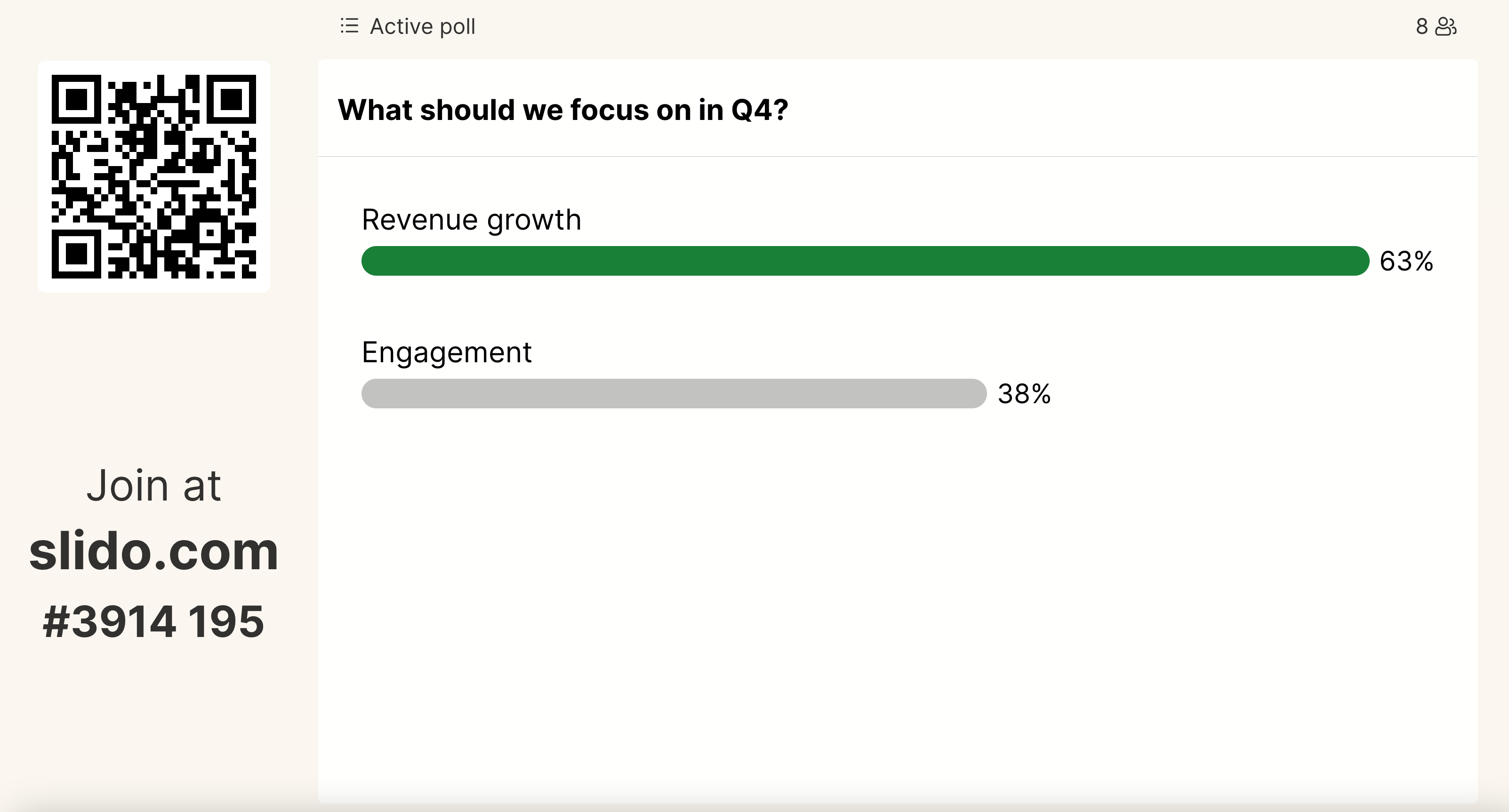
Pro tip: To prevent your audience from getting influenced by other participants’ answers, you can hide the results until you get enough votes. Keep an eye on the vote counter in the top right corner and reveal the final results when you’re ready.
Why don’t my results always add up to exactly 100%?
If you have enabled multiple answers for a multiple choice poll, then there is a high chance that the sum of all results will exceed 100%. For example, if every participant chose all of the available options, then each option would display 100% and the sum of all results would be 100% × number of options available. This is expected and should be quite intuitive.
Learn more: