



Although there are many options for securing your slidos, setting up Participant single sign-on (SSO) offers the highest level of protection. This makes it so every participant joining your slido(s) must sign-in using your chosen SSO method.
Available with Enterprise, Webex and Institution annual plans, or Premium one-time plans
In this article:
Supported SSO methods
Slido supports the following SSO authentication methods for participants:
- Google SSO - If you are using Google Suite at your company, participants can join slidos using their Google login credentials.
- SAML based SSO - You can set up SSO protection for your participants with any IdP that supports SAMLv2.0. The steps in this guide cover all of the most popular identity providers such as Okta, OneLogin, Microsoft Entra ID (formerly called Microsoft Azure) or Auth0.
- Webex SSO - If your company uses Webex, you can require participants to join using their Webex credentials.
Where to set up Participant SSO
To set up your Participant SSO, open up your Organization settings from your profile menu and select the Privacy tab.
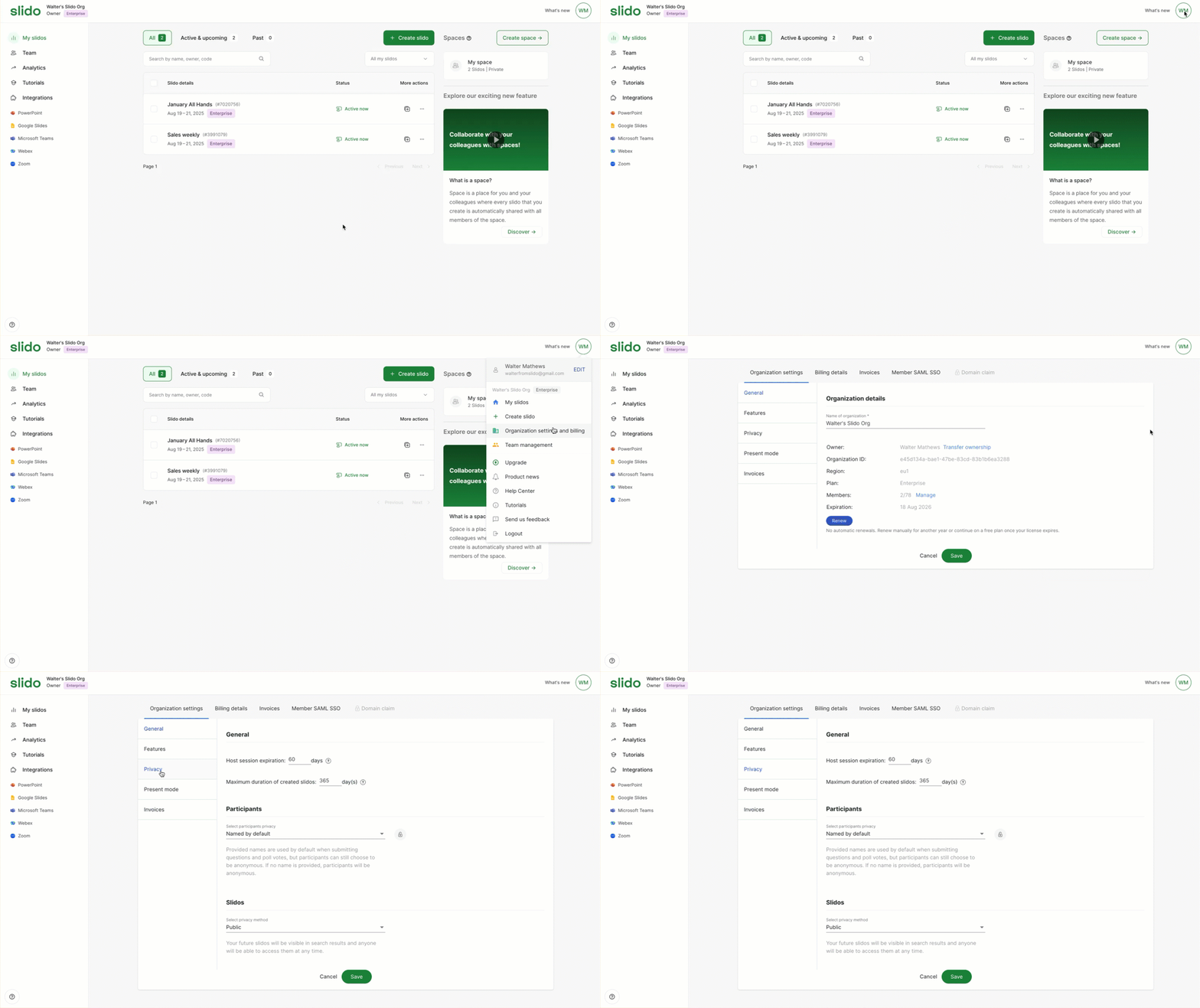
Keep in mind that if you enable Participant SSO for the whole organization, every slido will require participants to join via SSO by default. Members can disable this for individual slidos, unless the account owner locks the setting.
With SSO, your participants can be named or anonymous, depending on the participant privacy setting chosen by the host.
Set up Google SSO or Webex SSO for participants
After opening the Privacy tab of your Organization settings, follow the below steps:
- Find the Slidos section and change the method to Protected
- From the authentication method drop-down menu, select Google SSO or Webex SSO
- Enter your company domain and select Save
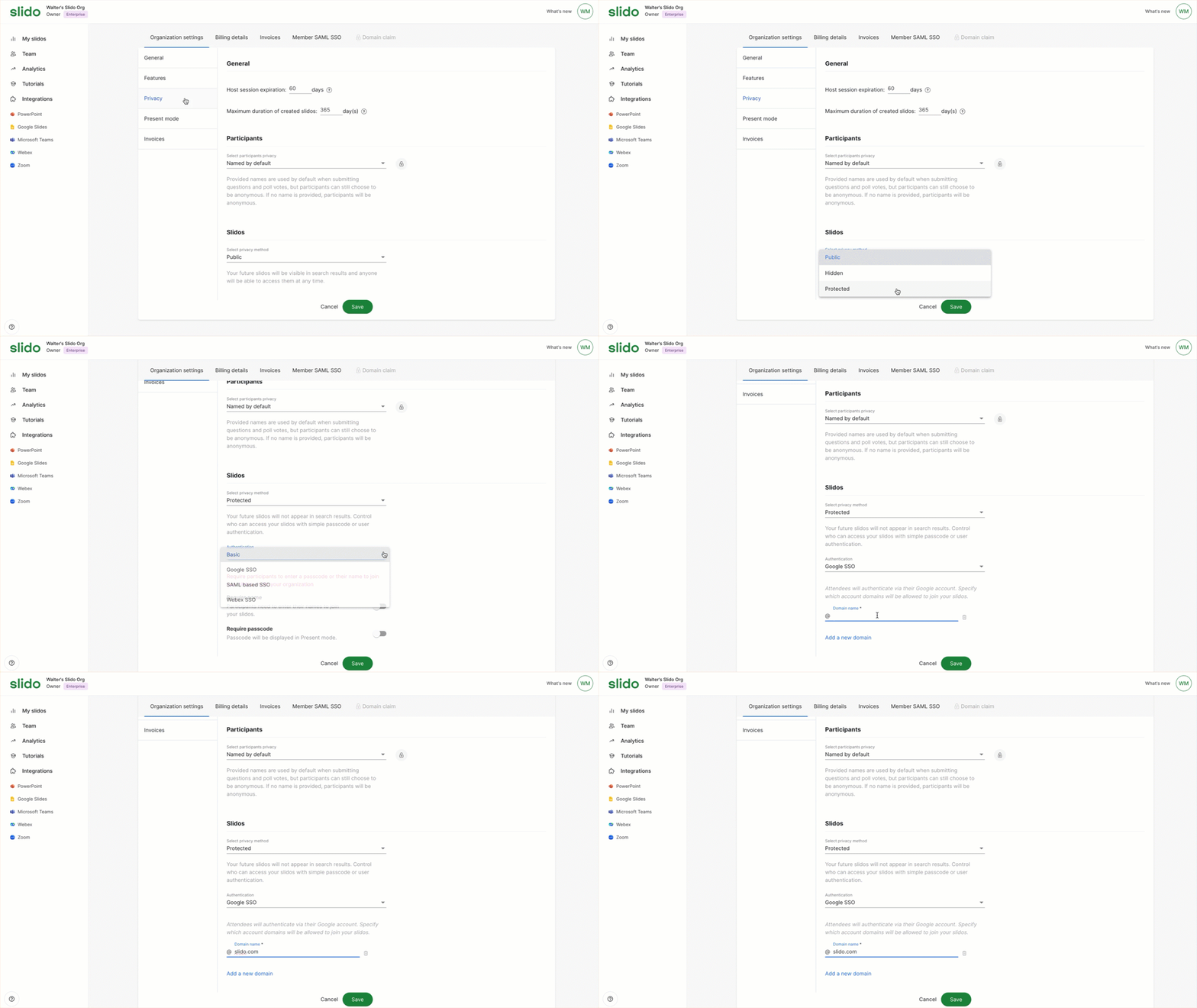
Although the gif above shows Google SSO, the process is the exact same for Webex SSO.
Set up SAML-based SSO for participants
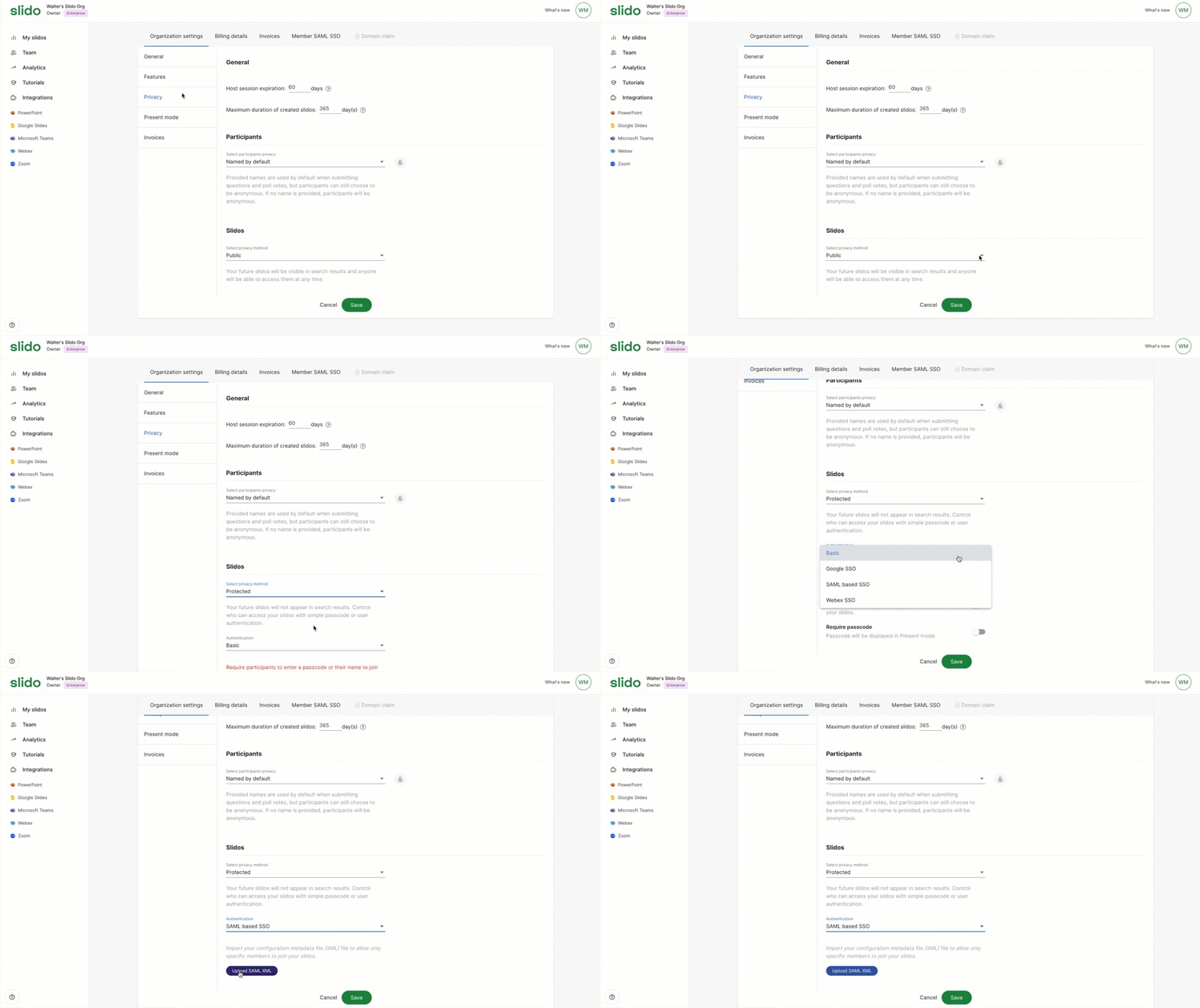
After opening the Privacy tab of your Organization settings, follow the below steps:
- Find the Slidos section and change the method to Protected
- From the authentication method drop-down menu, select SAML based SSO
- Upload your SAML XML file (metadata)
- Hit Save
Need help creating your XML file?
The steps for creating an XML file will vary based on your identity provider (IdP). However, you can find these steps in our specific provisioning guides for OneLogin, Okta, Microsoft Entra ID (formerly called Microsoft Azure), or Auth0.
If you need more assistance, please contact your IdP.
Changing the privacy settings
Only Slido admins and account owners can upload the SAML XML file into the organization settings. Once this is set on the organization level, end-users won’t be able to work with the SAML XML file anymore, as it will be automatically propagated from the organization settings.
Apply SAML SSO to all existing slidos (optional)
Slido admins and account owners can enforce SAML SSO on all slidos in the organization (including all past and future slidos), improving privacy for your organization.
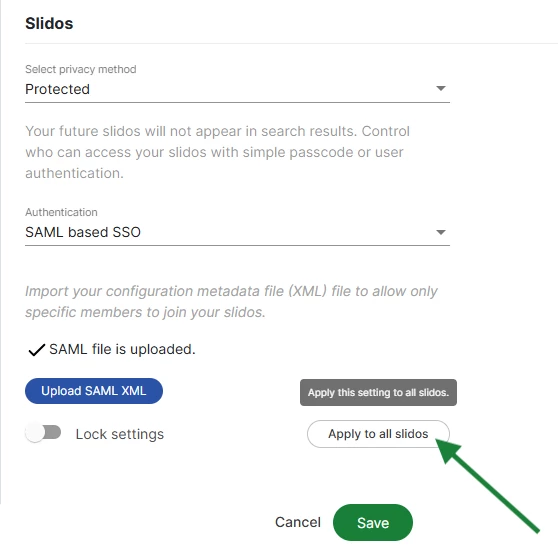
Applying Participant SSO to all slidos still allows hosts to disable this on an individual slido level. If you wish to enforce your Participant SSO for all slidos within your organization, choose the Lock settings option.
SAML SSO configuration details
Slido authentication process is based on the email as the unique user identifier. Here's the required NameID format:
urn:oasis:names:tc:SAML:1.1:nameid-format:emailAddress
Display name is based on the following SAML attributes in this order:
- cn
- displayName
- name
- firstName, lastName (both must be set), e.g. firstName=John and lastName=Doe then display name=John Doe
- email (user part of email address), e.g. john.doe if the email was john.doe@email.com
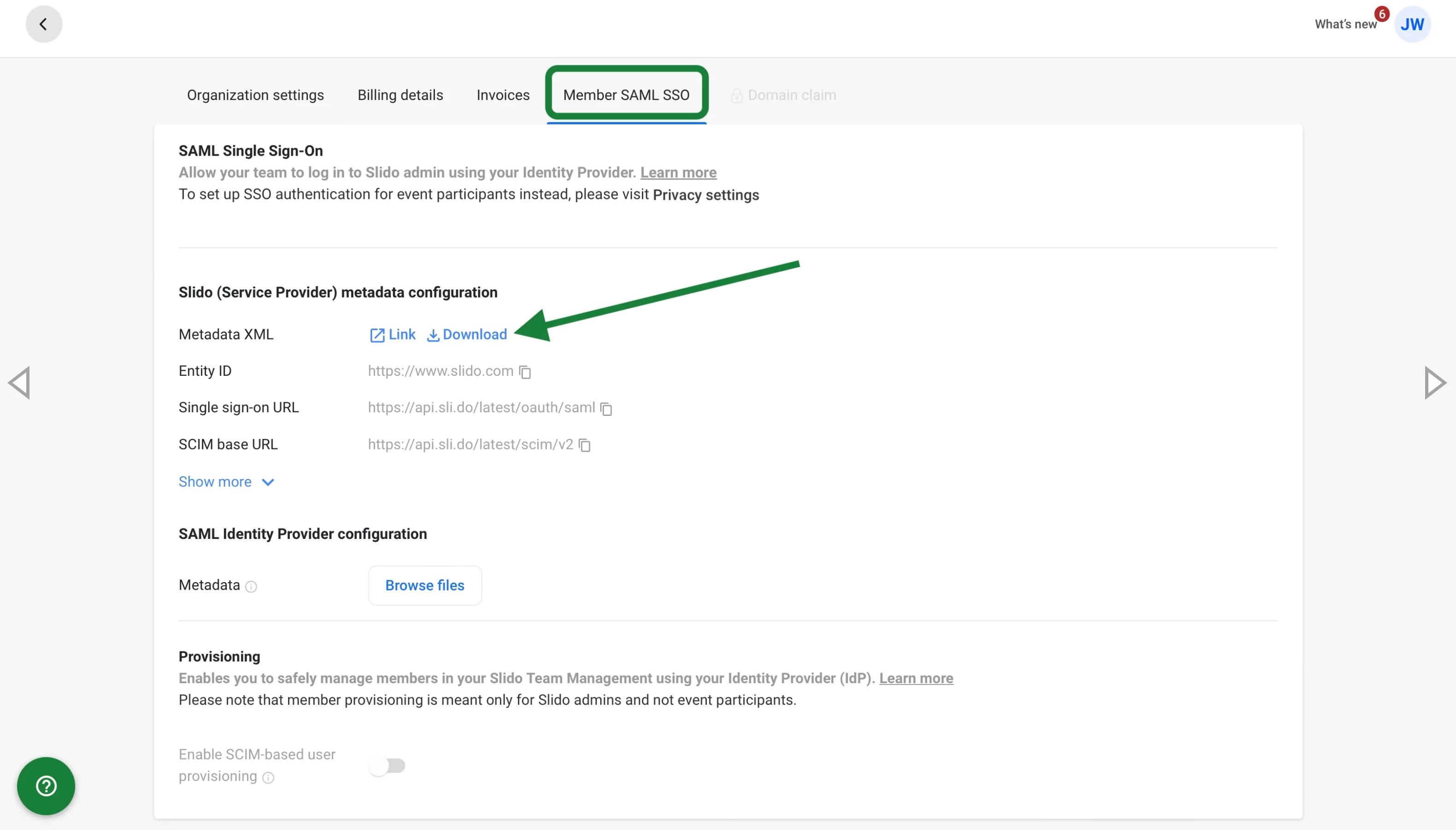
This information is included in Slido SAML metadata. You can download it directly from the Member SAML SSO tab under Organization settings. At the moment, the Organization or Company is not supported as a SAML attribute.
FAQs
Can participants still ask questions anonymously when there is SSO set up for the slido?
Yes! This helps to keep your data private without any compromise on the level of the audience engagement.
Learn more about making anonymous questions the default setting, as well as other Participant privacy options in our dedicated guide.
We usually use Slido for internal meetings, but there will be participants from outside the company at our upcoming event. Will they be able to engage via Slido?
Sure! Unless the Participant SSO option is locked on an organization level, you can disable the SSO login for a specific slido in its Settings > Privacy > Require authentication > Google/Webex/SAML SSO.
If the option to disable SSO login is grayed out, that means a license owner or admin has locked the requirement for your organization.
Can I test the participant SSO setup?
Slido does not provide any sandbox environment for testing. But you can always upload your XML file to a single slido and test with a colleague. Just create a testing slido and go to Settings > Privacy > Require authentication > SAML SSO. Then upload your XML file. Now you can have your colleague try joining the slido and test the experience.
Curious about more?