



Slido offers different colors and themes to use with Present mode. Depending on your plan, you can choose from one of our unique themes, or set up a custom color scheme or background image.
In this article:
Choose a theme from our library
Available in all plans
Slido has 30+ themes to choose from to customize your Present mode. See the steps below for setting this up.
- Open up Settings
- Select Customization > Present mode
- Choose your theme and select Save
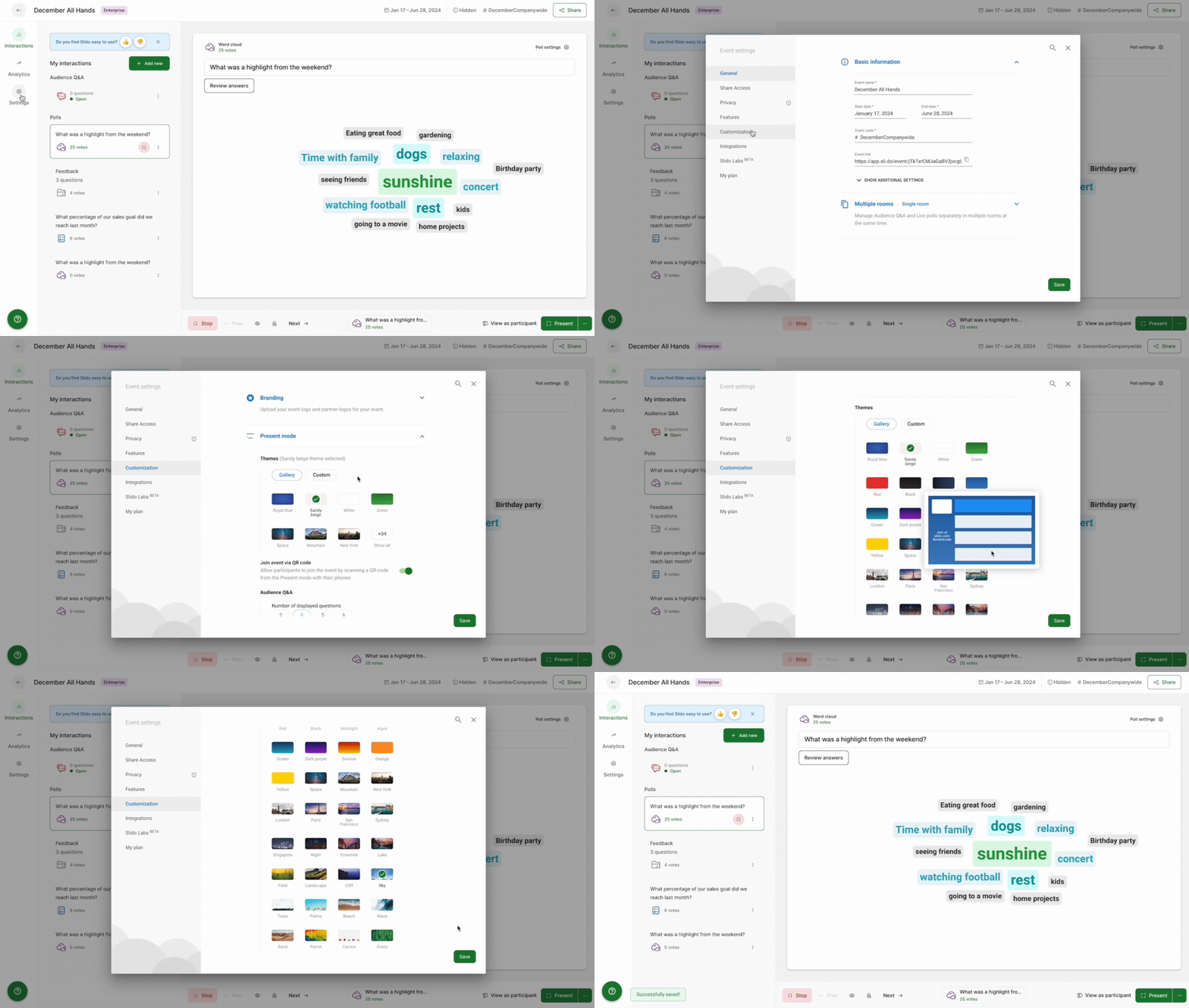
Note that the theme will only reflect in Present mode. Participant mode has separate customization options.
Add custom colors or a background image
Available in Professional and higher plans
Select the Custom option to choose specific colors for the different Slido elements. Or if you’d rather, you can upload a custom background image to use as your theme. Hit Save whenever you’re done and you’ll be all set.
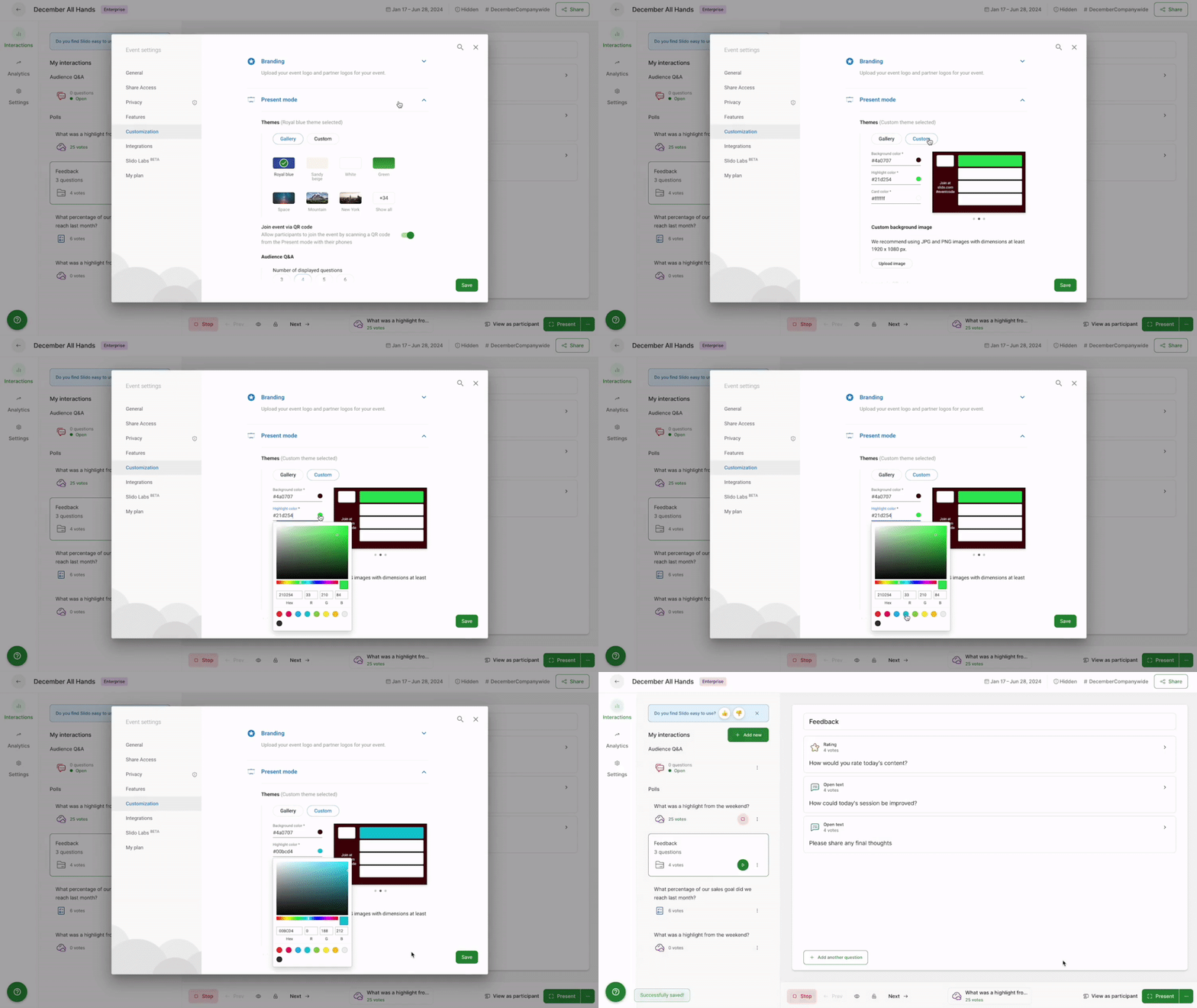
To learn more, check out our Branding and custom colors guide.
Curious about more?