

Sometimes you might want to use the same poll question more than once. You can easily duplicate a Slido poll (or polls) in just a few clicks.
This is perfect for when you want to ask the same question(s) multiple times throughout your slido. It’s easy and it keeps all of the responses separate.
In this article:
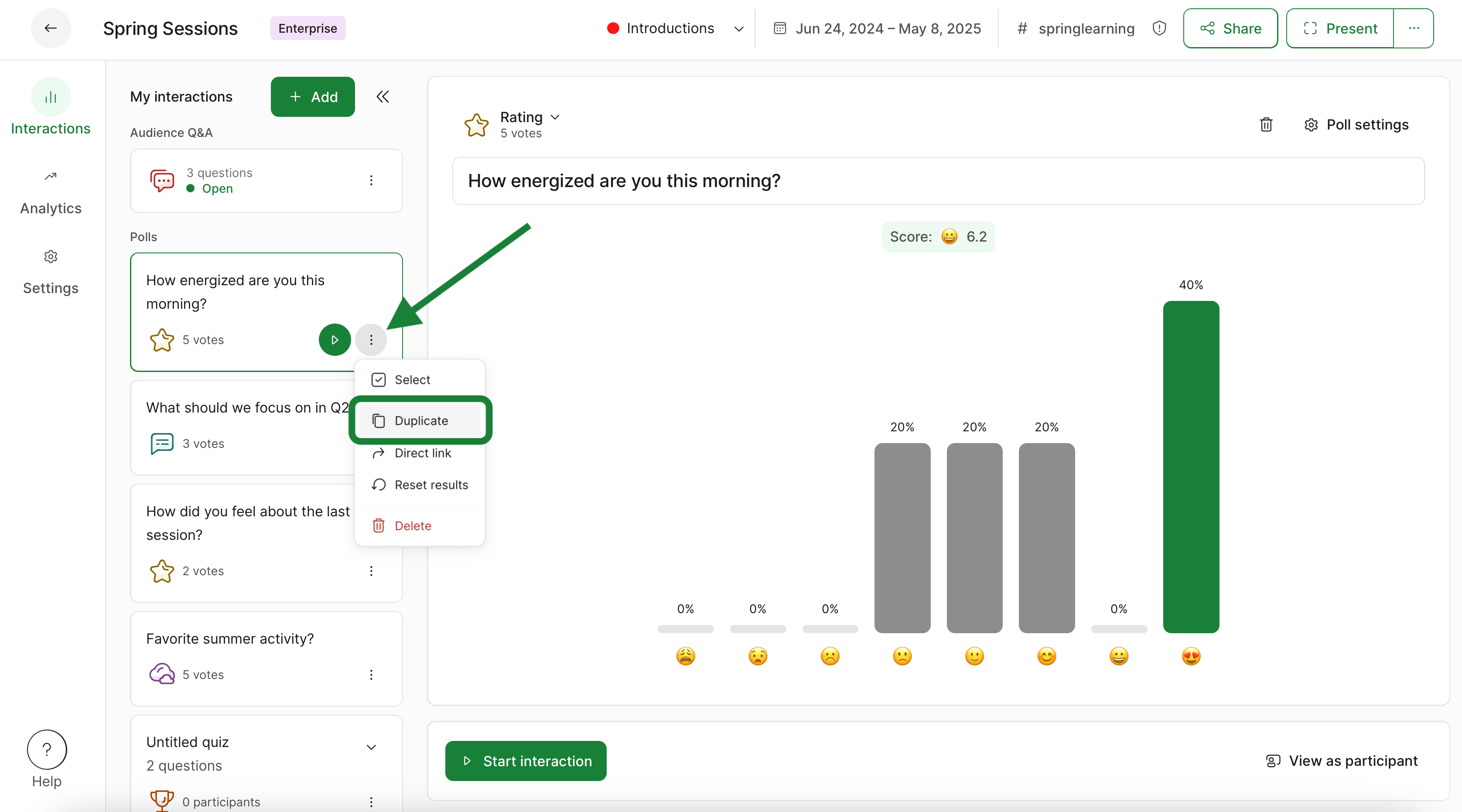
Duplicate a single poll
- Click the three-dot menu next to the poll
- Select Duplicate
Duplicate multiple polls
- Click the three dot menu next to one of the polls
- Then click Select
- Tick the box next to any other polls you’d like to duplicate
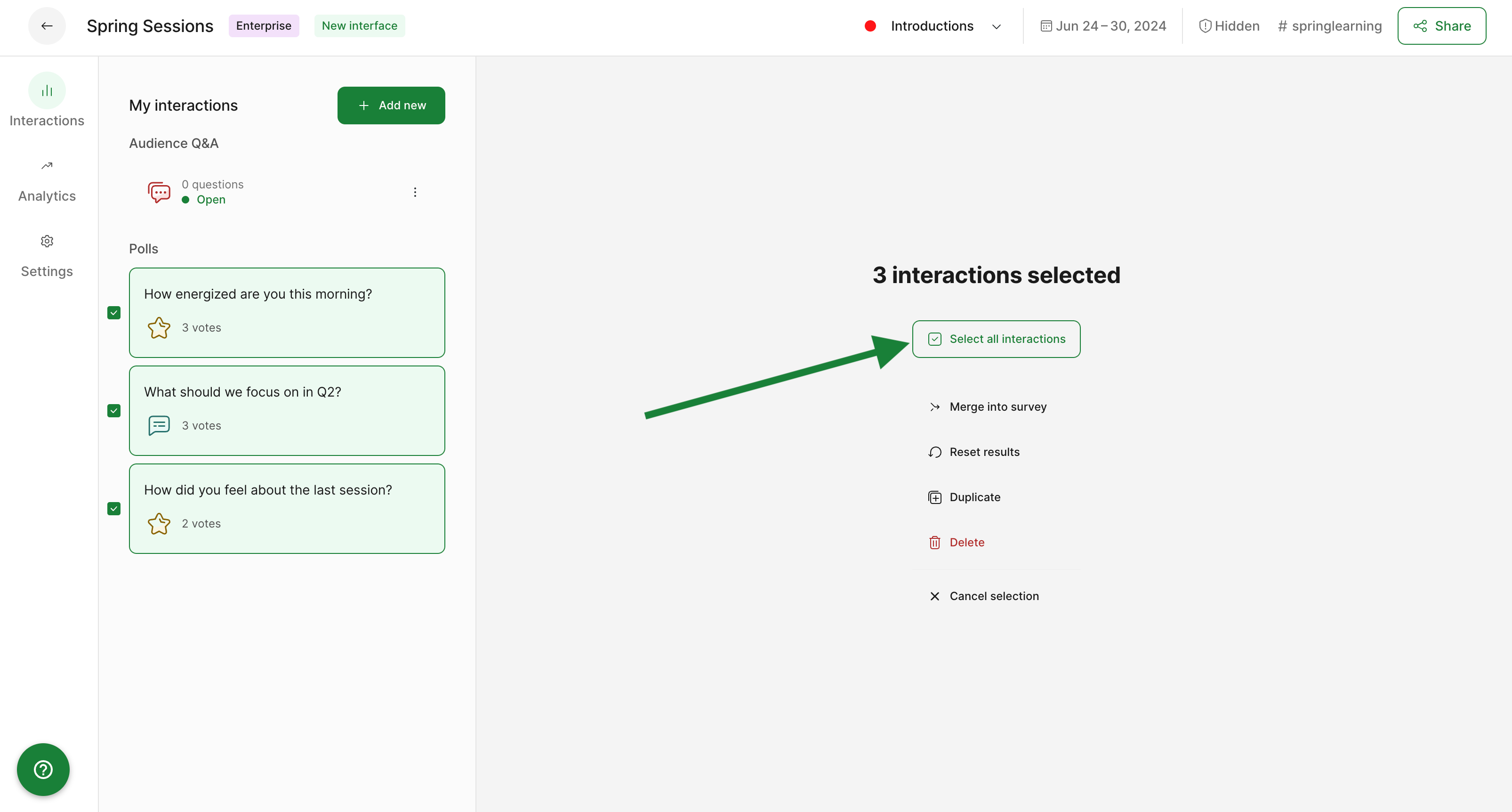
- Select the Duplicate option and confirm
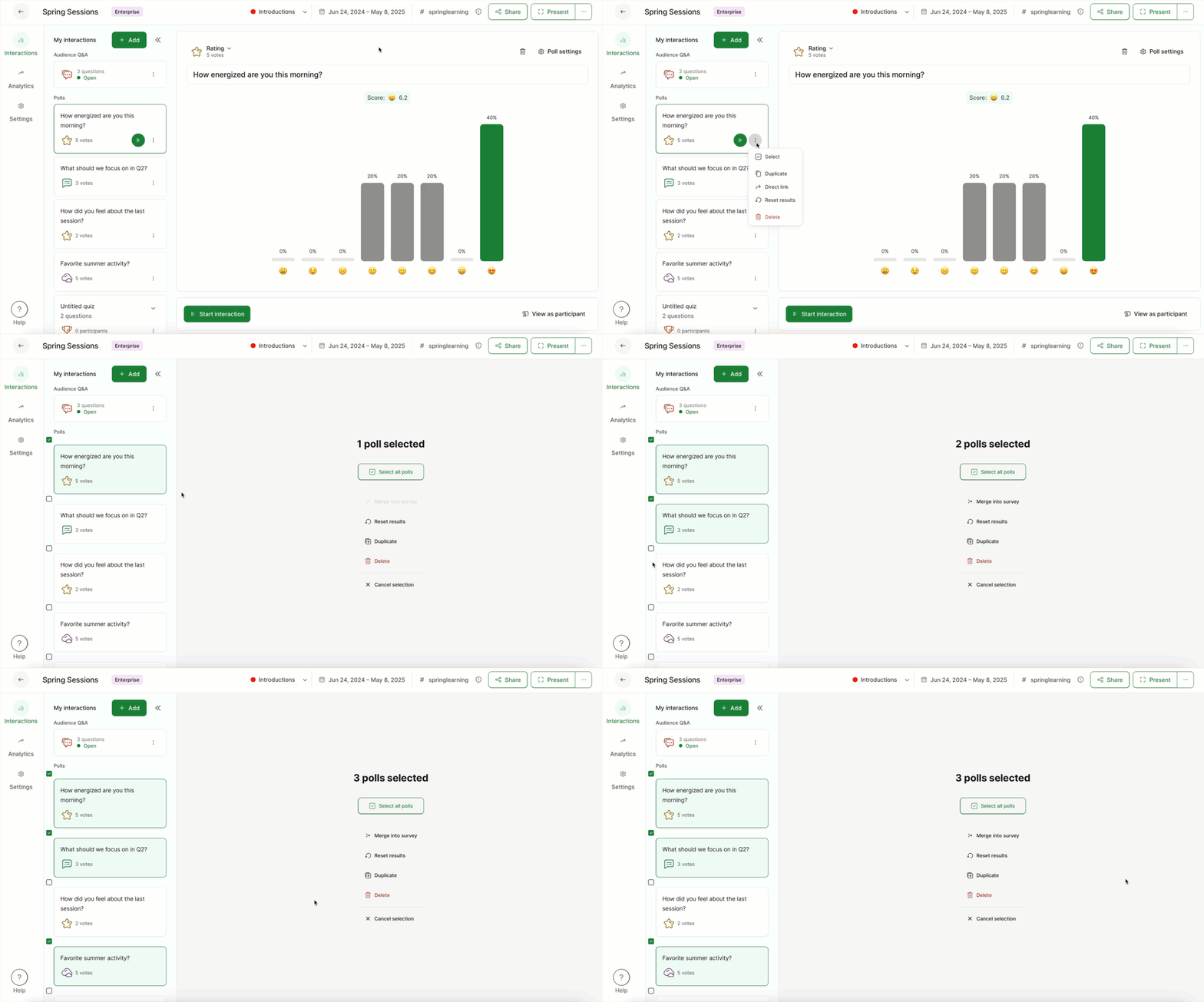
Pro tip: If you wish to duplicate all of your polls, click the Select all interactions option – then hit Duplicate.
Duplicate a poll into different rooms
This option is only relevant if you’re on a Professional or higher plan and are using the Multiple Rooms feature.
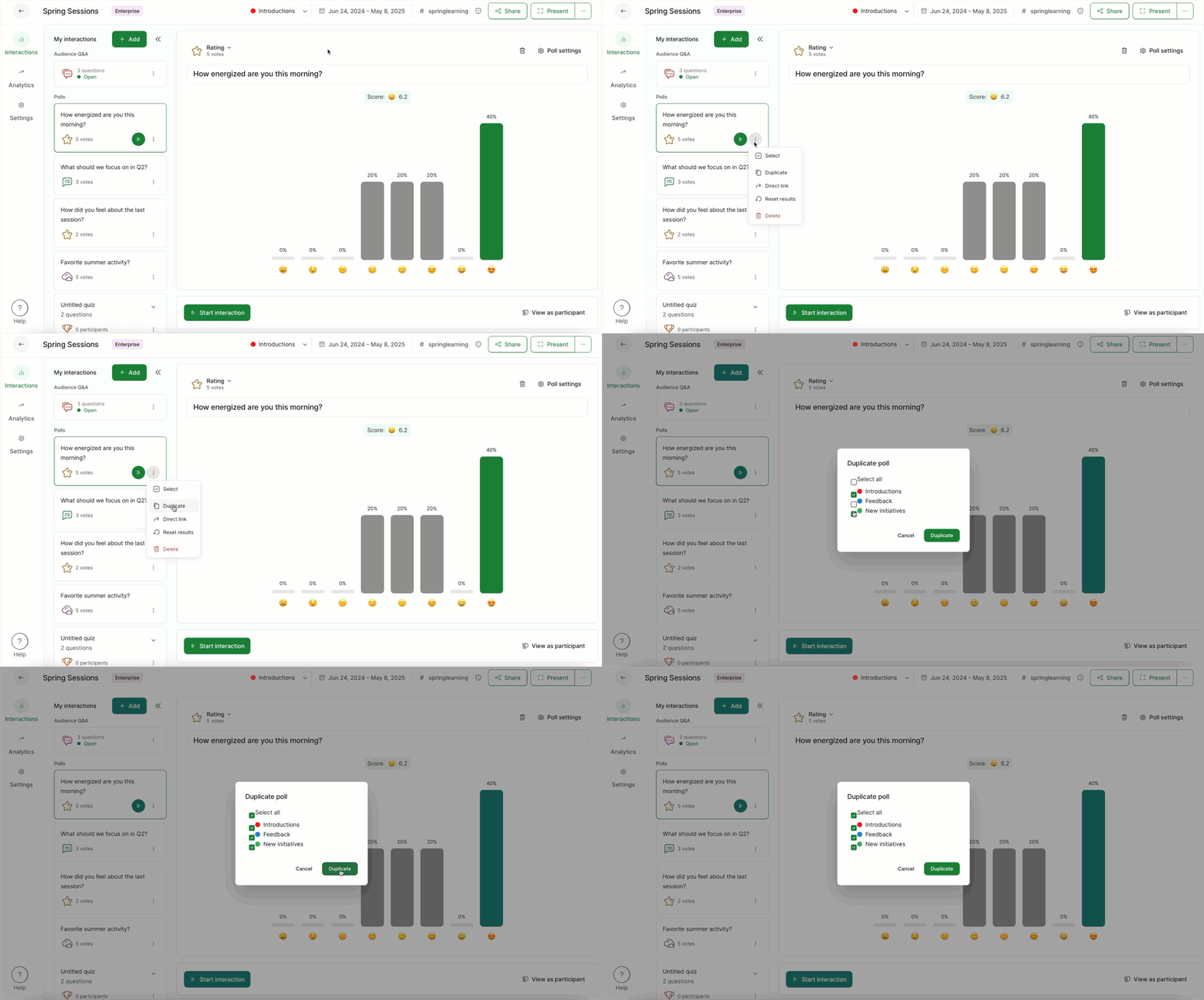
- Click the three dot menu next to one of the polls
- Then click Duplicate
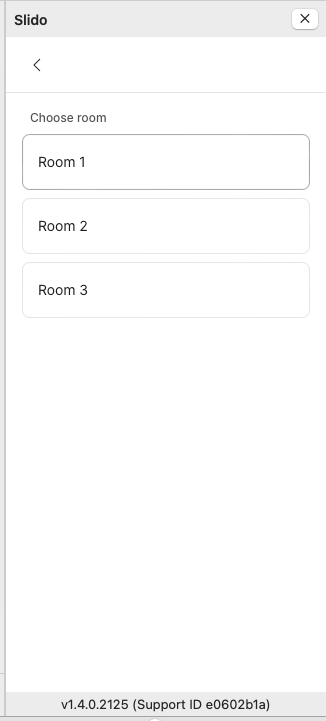
- Select the rooms you want to duplicate into
- Select the Duplicate button
Duplicate multiple polls into different rooms
Just like above, this option is only relevant if you’re on a Professional or higher plan and are using the Multiple Rooms feature.
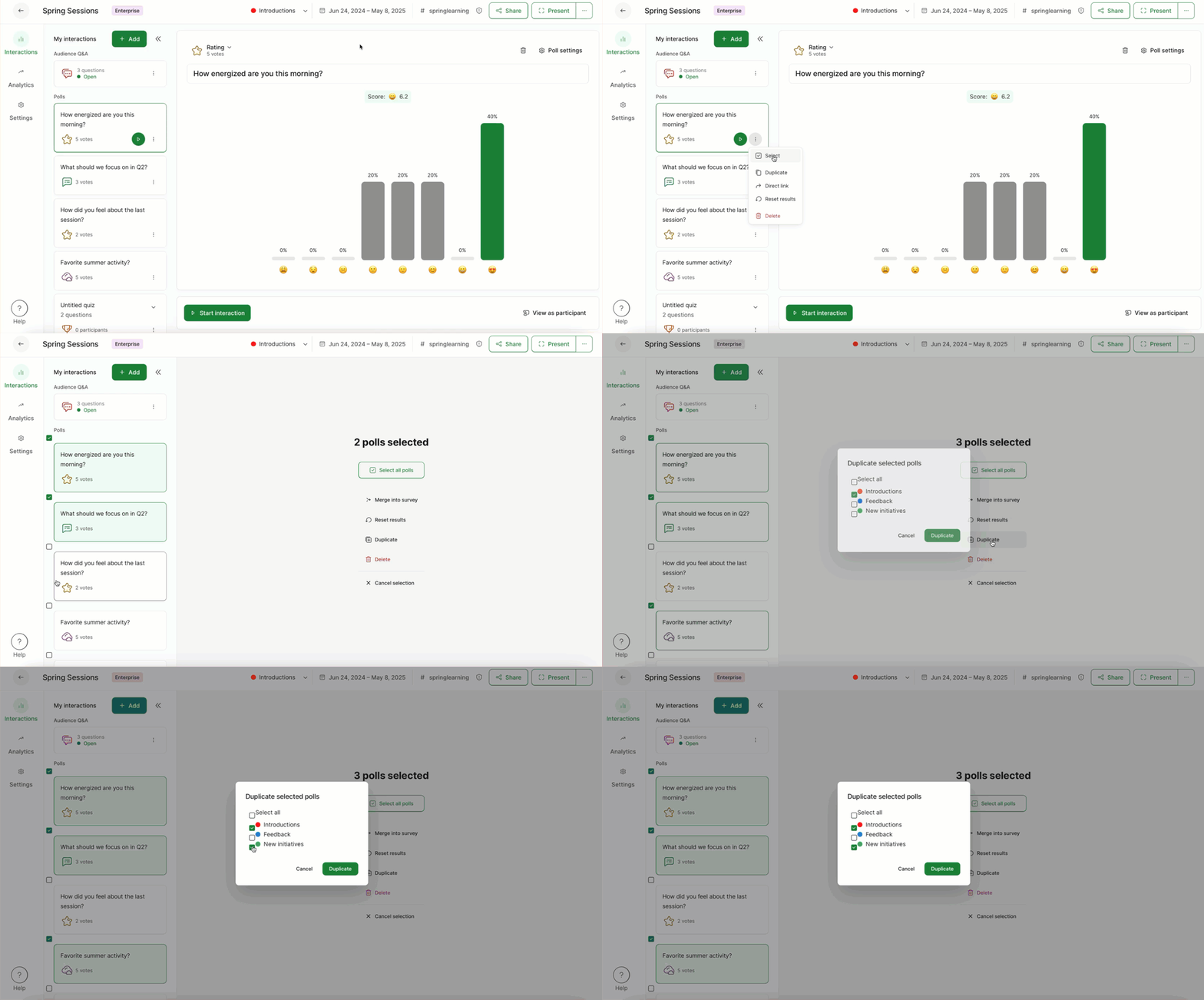
- Click the three dot menu next to one of the polls
- Then click Select
- Tick the box next to any other polls you’d like to duplicate
- Select the rooms you want to duplicate into
- Select the Duplicate option and confirm
Duplicated polls will always appear at the bottom of your My interactions list.
Duplicate a poll into a different slido
Sometimes you may want to use the same poll again in a different slido. To do so, open up a new slido and then:
- Select Templates in the upper left corner
- Click the My Polls tab
- Select or search for a poll or quiz you created previously
- Click Use poll to add it to your slido
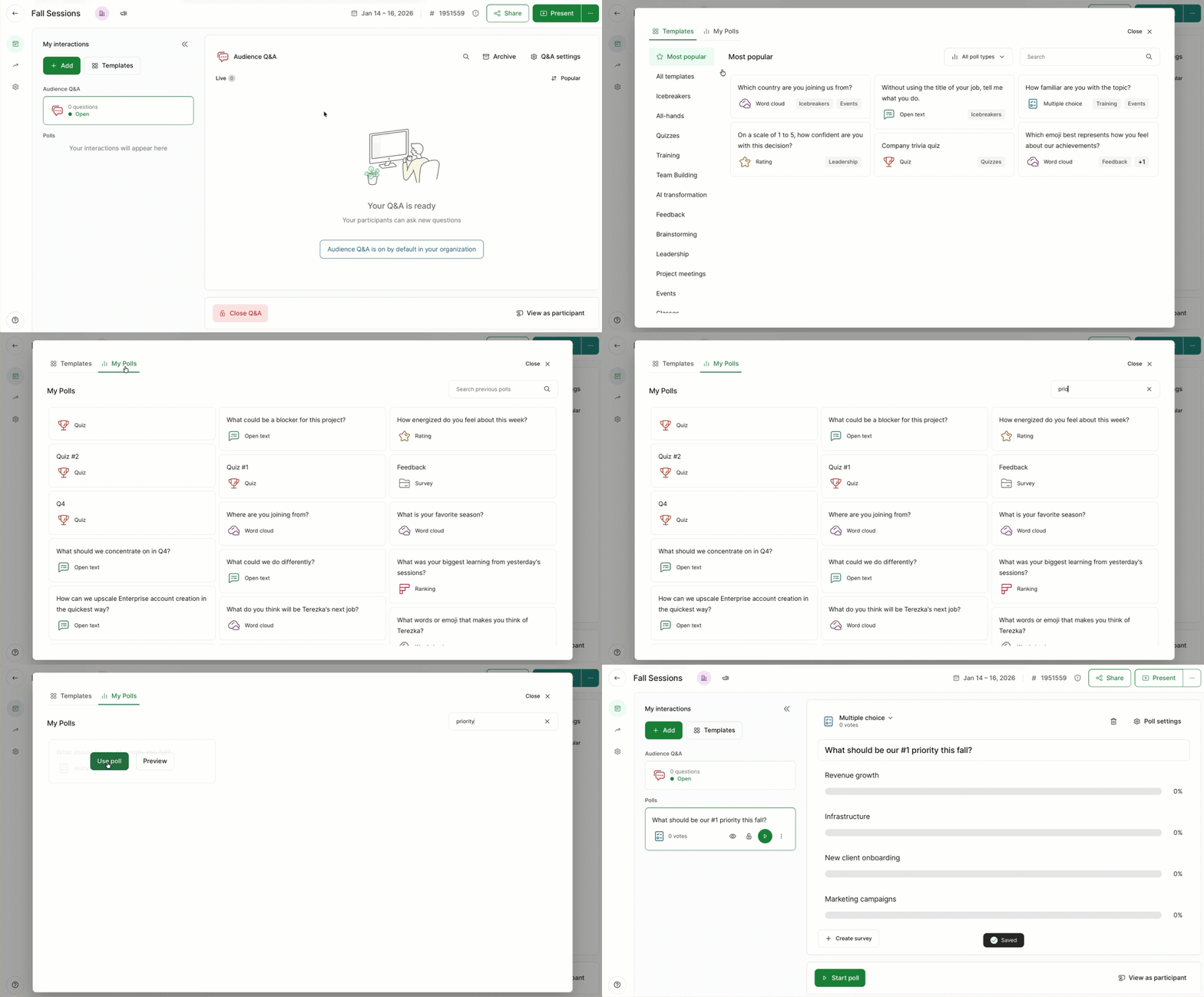
Here you can search and find any poll that you’ve created in any other slido – and add it to a new slido in seconds!
Learn more: