



Use a Slido quiz to test for knowledge or simply add a little fun to your meeting or event. You’ll be surprised how a bit of competition can help keep your audience’s attention.
Slido also has an AI Quiz feature available in our PowerPoint and Google Slides integrations.
In this article:
Create your quiz questions
To create your quiz, make sure you’ve created an account at slido.com and are logged in. Then select your slido and follow the below steps:
- Use the + Add new button to create a new interaction and select Quiz
- Give your quiz a name (e.g. “Quarterly Sales Quiz”)
- Click + Add first question and enter your question and answer options
- Mark the correct answer using the checkmark on the left
- Select + Add another quiz question to add more questions
All quiz questions are multiple choice. You’ll always need to include at least two possible answer options and mark at least one of them as being correct.
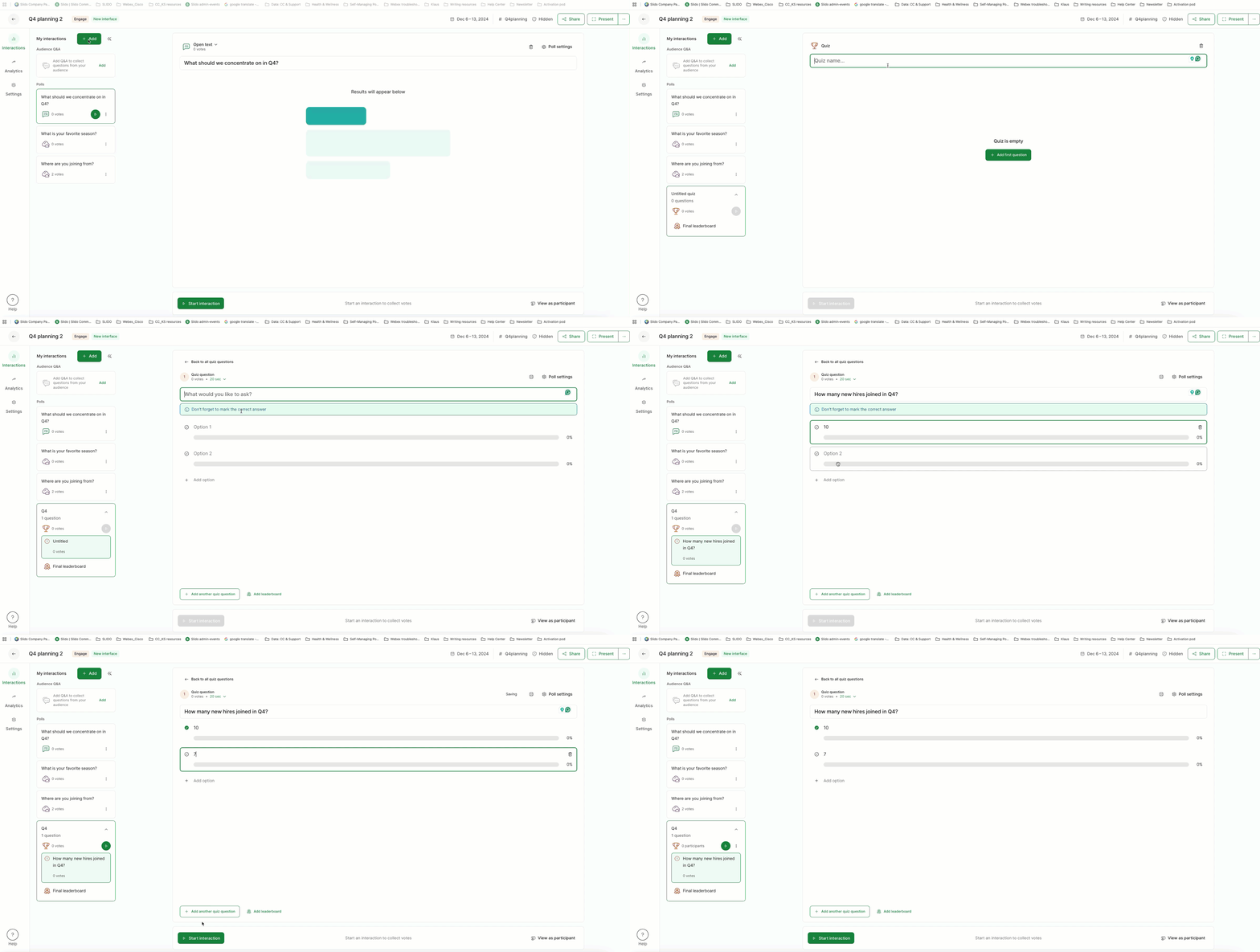
You can even choose to have multiple correct answers. But if you do this, participants will need to select all correct answers in order to receive credit for the question.
Quiz timer
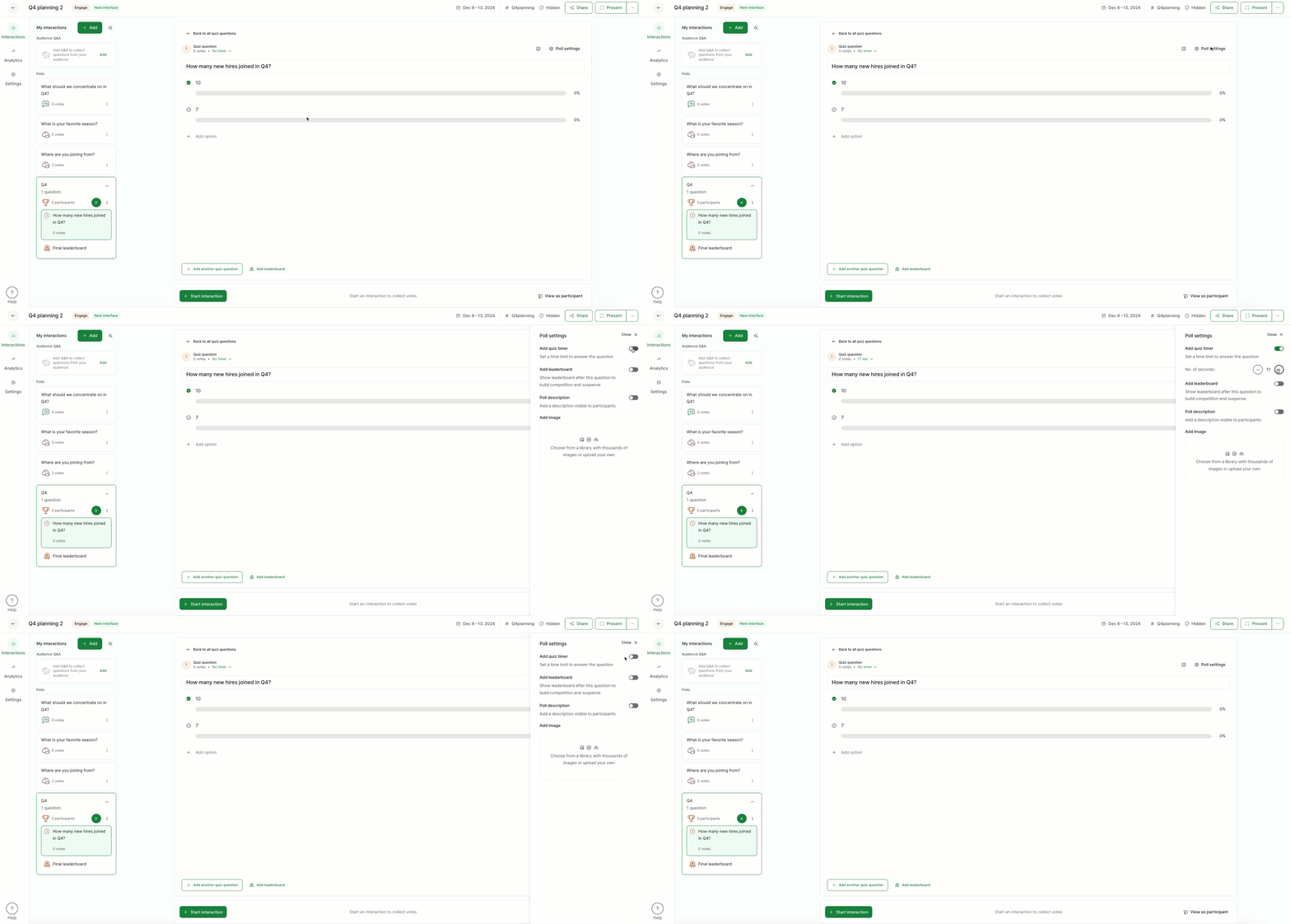
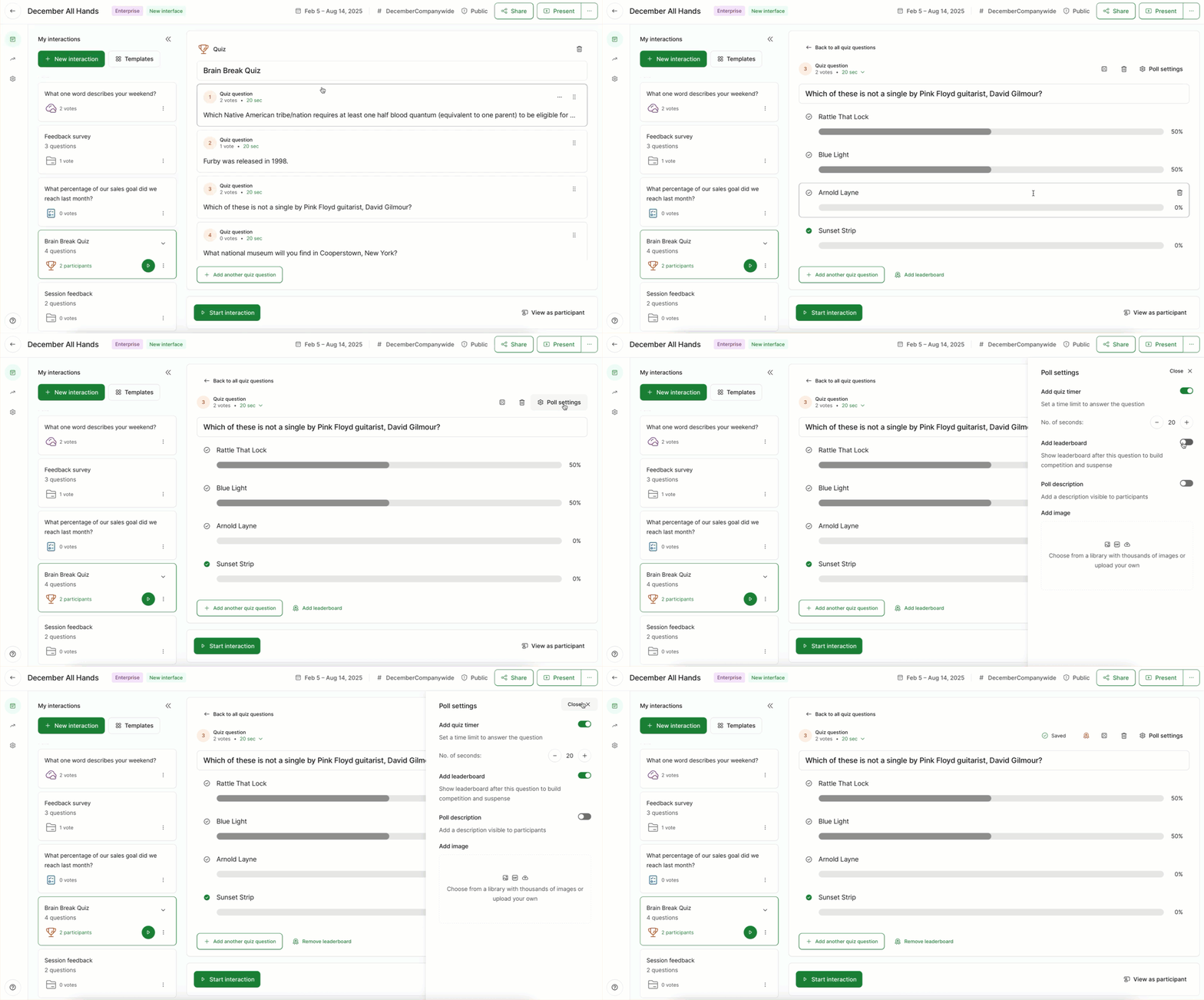
Every quiz question will default to having a 20-second timer. You can edit or remove this by clicking on the timer near the top of the question…
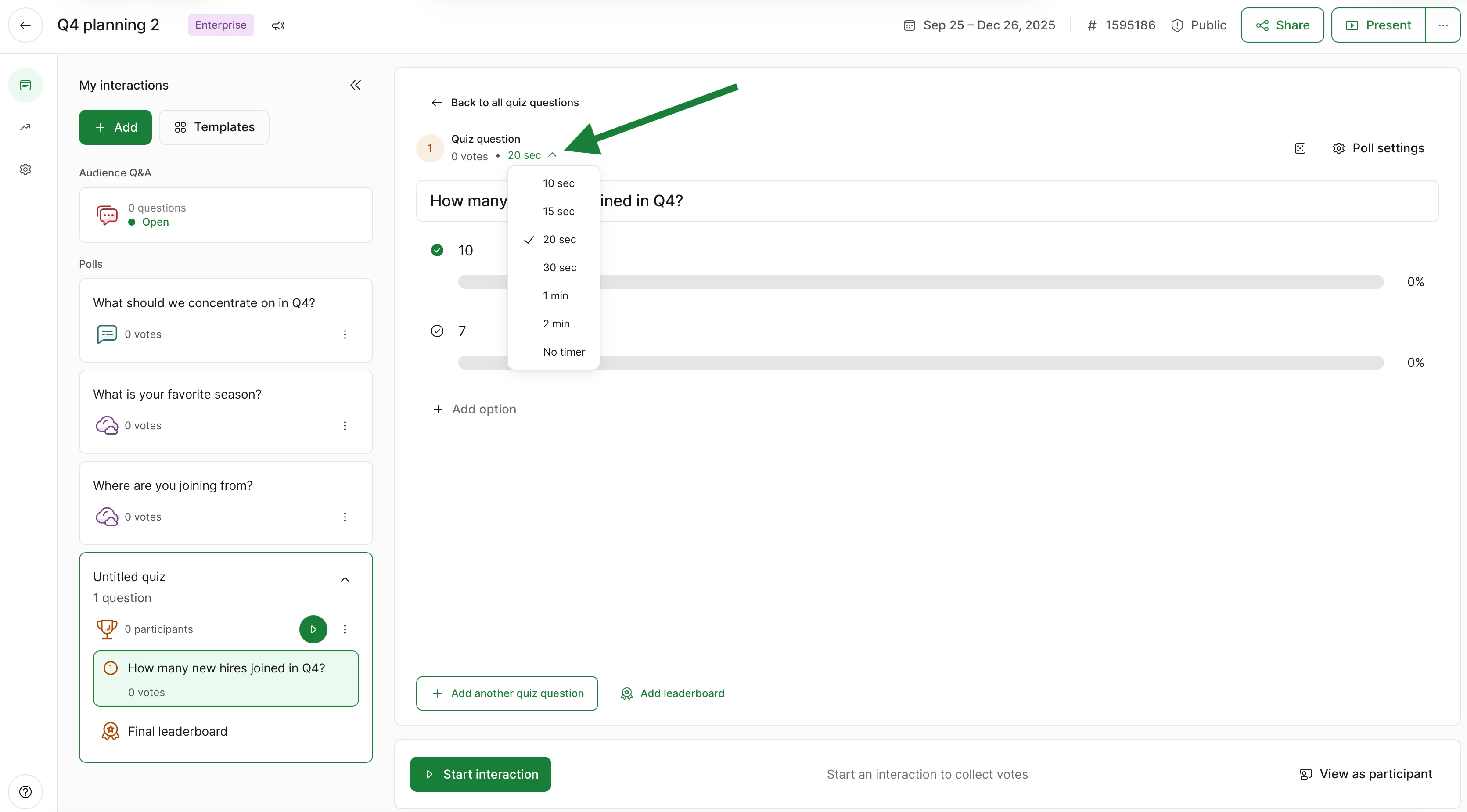
...or you can change it from the Poll settings as seen below.
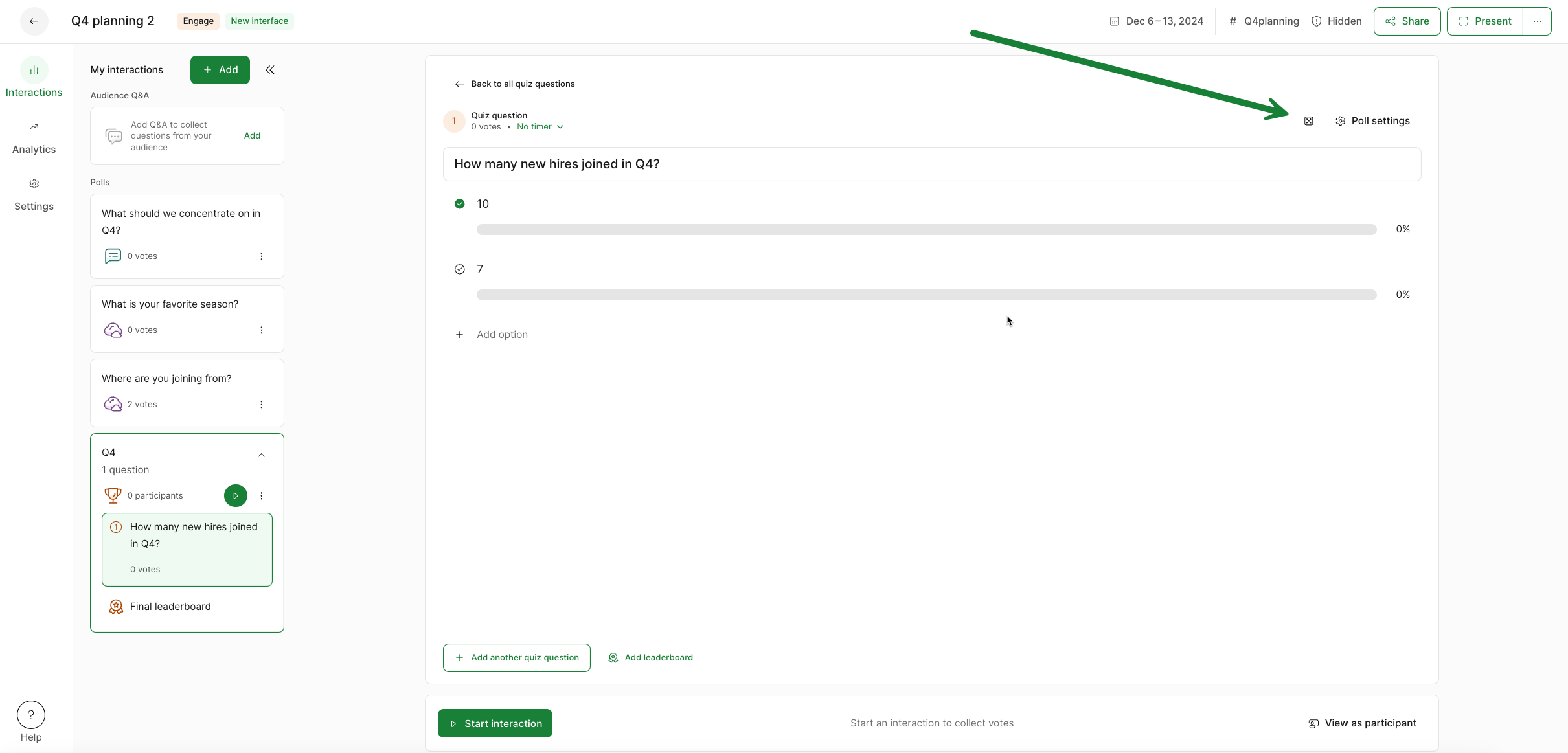
Random quiz question
If you’re running a quiz for fun and are running out of question ideas, you can add a random question with a single click. Just select the Random question icon and you’ll be all set.
There is a hard limit of 100 questions per quiz to ensure smooth performance. However, we recommend 30 questions or less to prevent audience fatigue.
Edit your quiz
You can edit your quiz or add more questions at any time. To do so, start by selecting the quiz from your My Interactions list. Here you can:
- Edit the timer for each question
- Add another question
- Edit an existing question by simply clicking it (changes will save automatically)
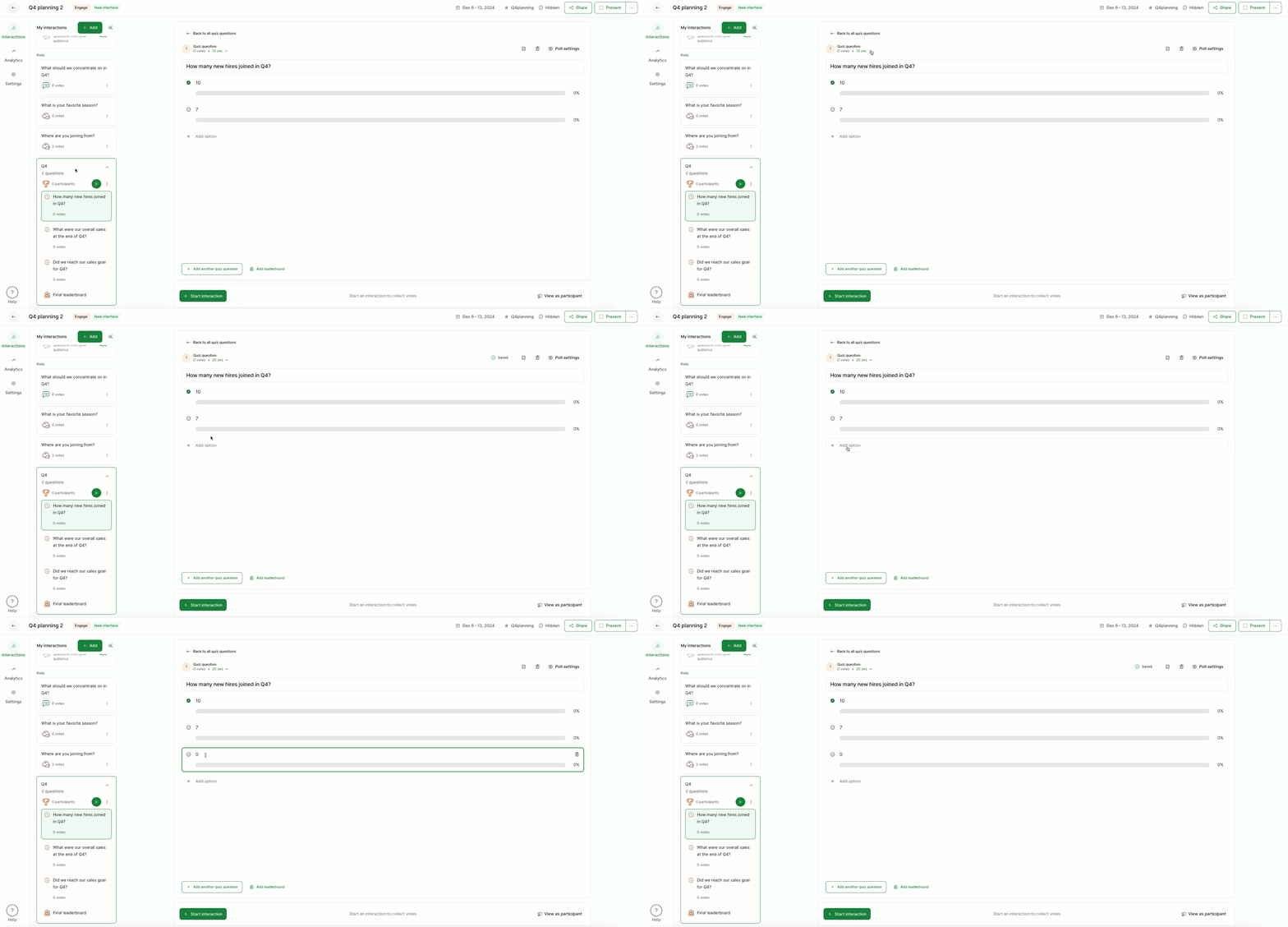
Editing your quiz questions
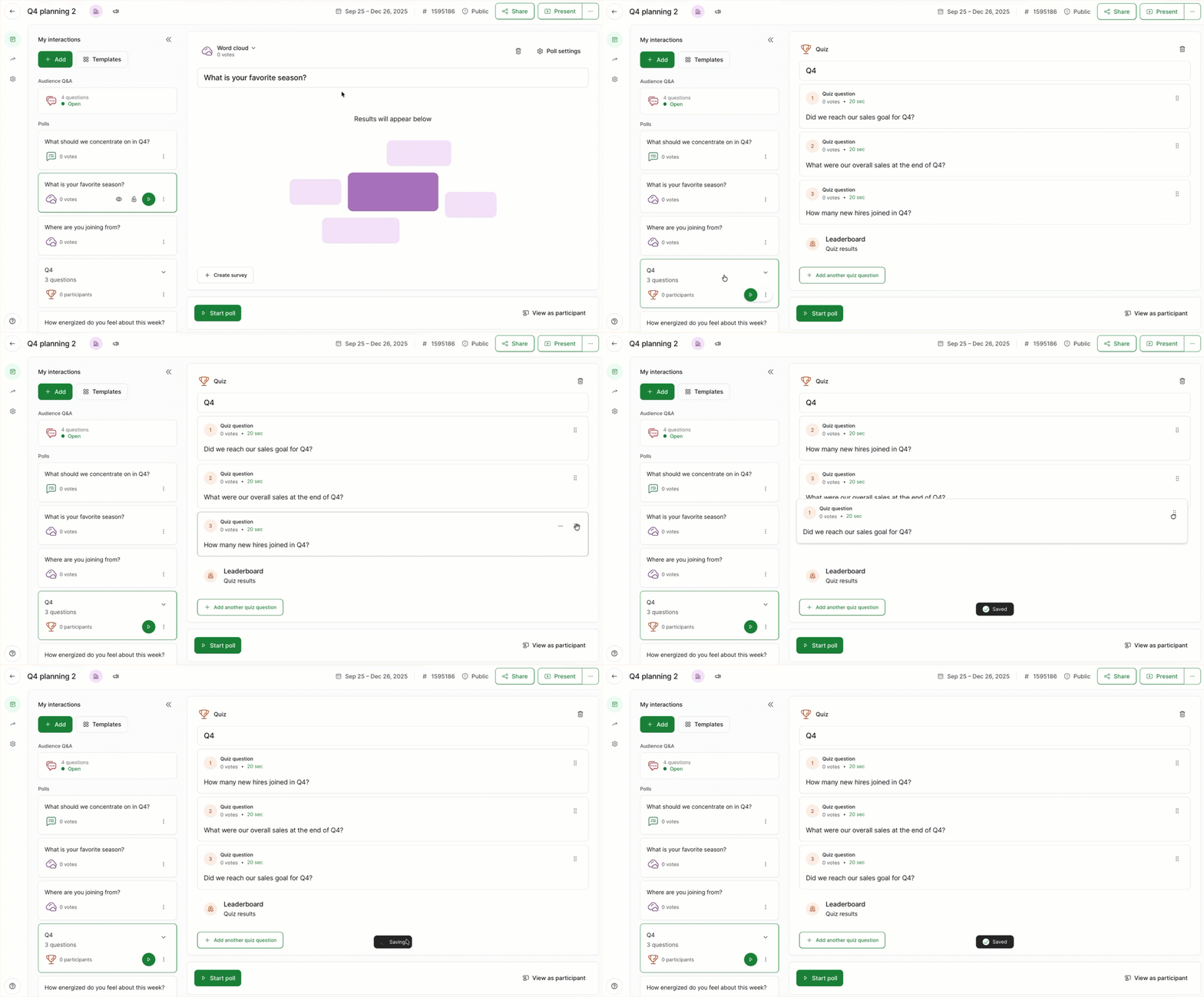
You can also easily edit the order of your quiz questions. To do so:
- Select you quiz
- Find the vertical dots on the far right side of each question
- Click these dots to drag and drop questions however you see fit
Start the quiz so participants can join
Once you're all set, click the Play button or Start poll to start your quiz.
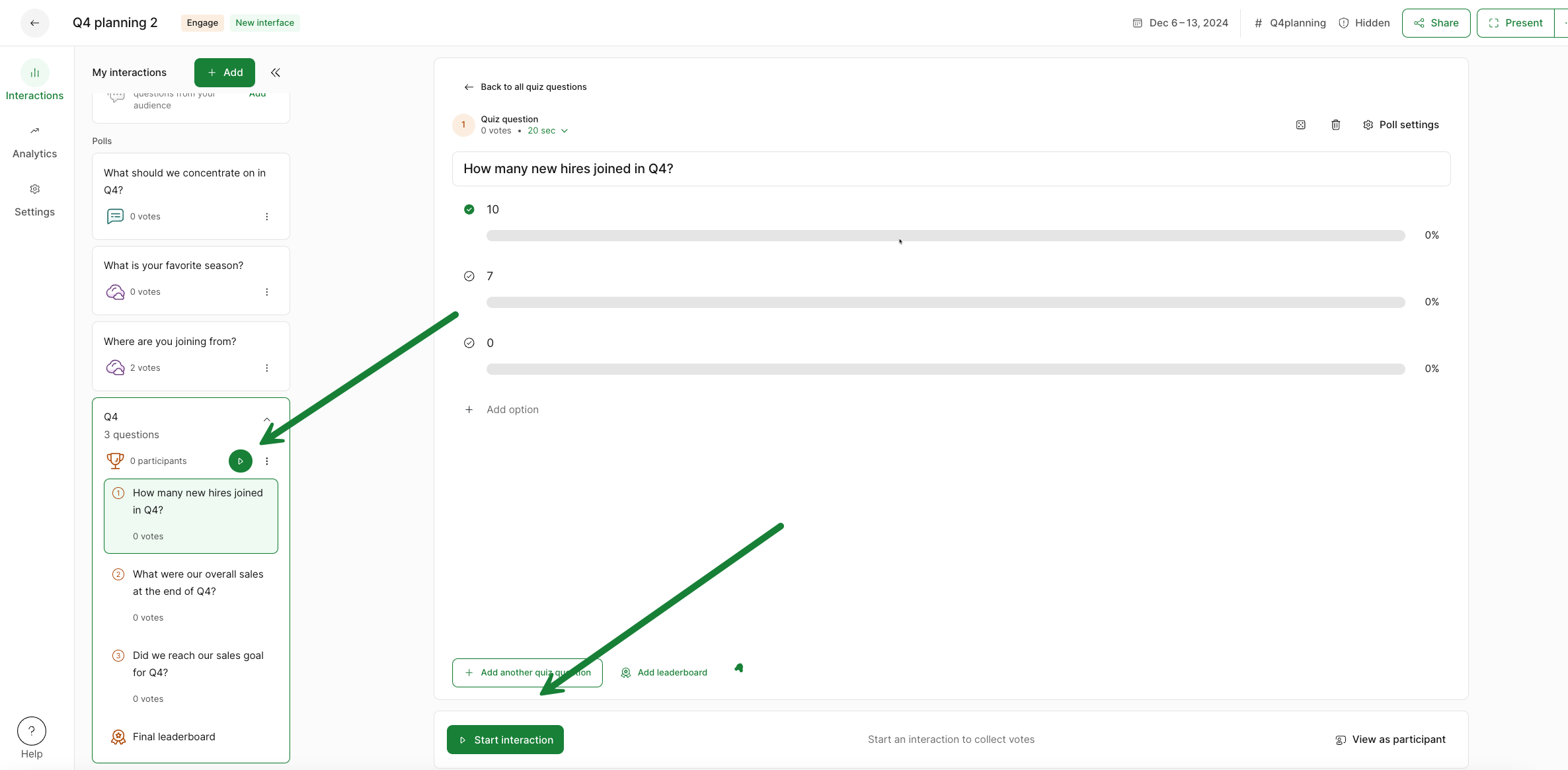
Before jumping to the first question though, make sure and give your participants time to join the quiz.
Joining a quiz is different from joining a slido. When a quiz has started, participants who have already joined the slido will be automatically prompted to join the quiz by entering their name - no extra setup is required. This name is what will be displayed at the end of the quiz if they finish in the top five.
Here’s what participants see when they’ve already joined the slido, but then a quiz is started.
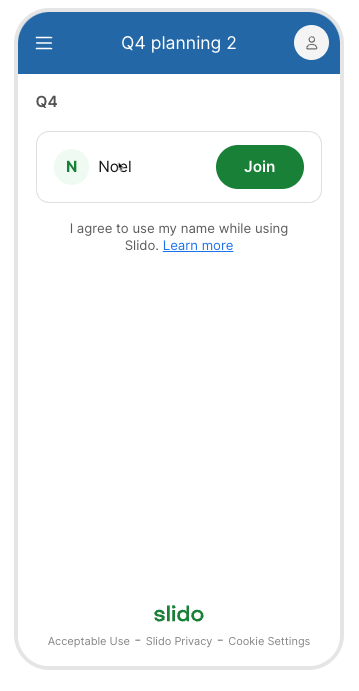
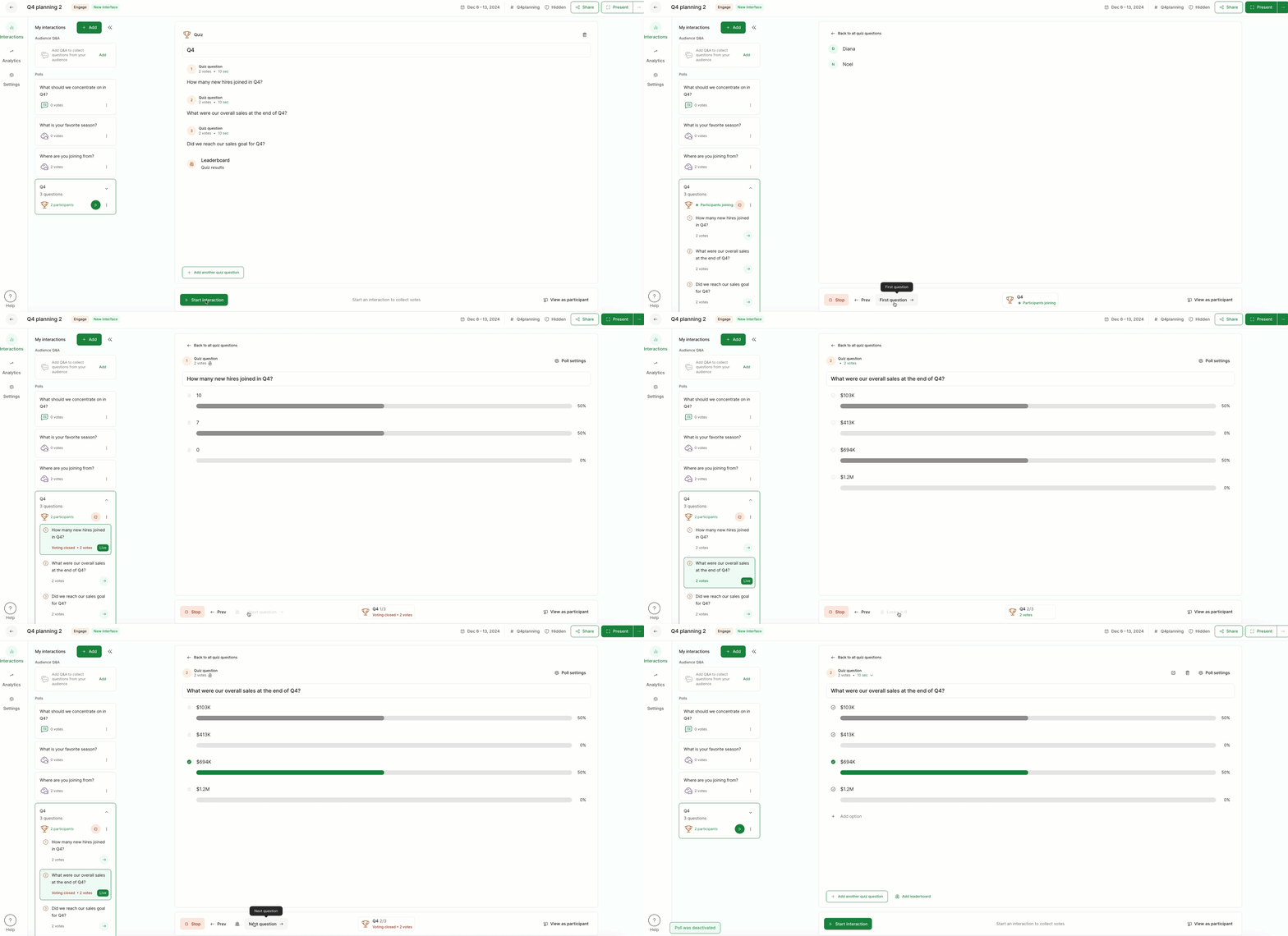
And as a host, you’ll be able to track how many people have joined the quiz. Then whenever you’re ready, you can begin by starting the first question
Run the quiz
After beginning with the first quiz question, use the control bar below to move forward. Click Lock voting to display the results and then click Reveal answer whenever you’re ready. Then continue your quiz by selecting Next question.
If you’re using the quiz timer, voting is locked and results appear automatically when the time is up.
Want to skip a question?
The current question is highlighted and marked as Live on the left. But you can use the green arrows to start and run any quiz question at any time.
Display the leaderboard
Slido quizzes will automatically generate and display a leaderboard after the final quiz question. The leaderboard displays the top five participants in Present mode, while at the same time telling every participant how they finished on their own devices.
Quiz participants are automatically ranked based on the number of correct answers they chose and how quickly they responded.
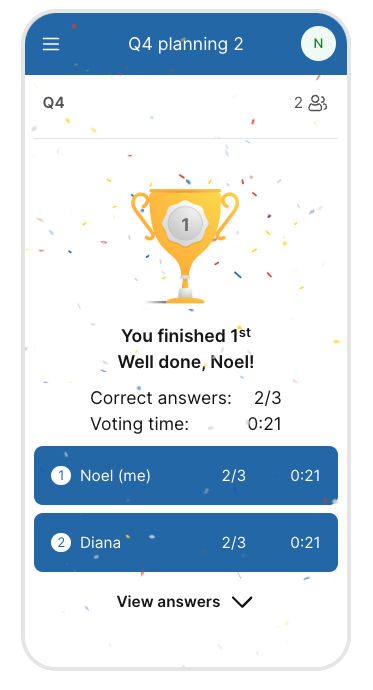
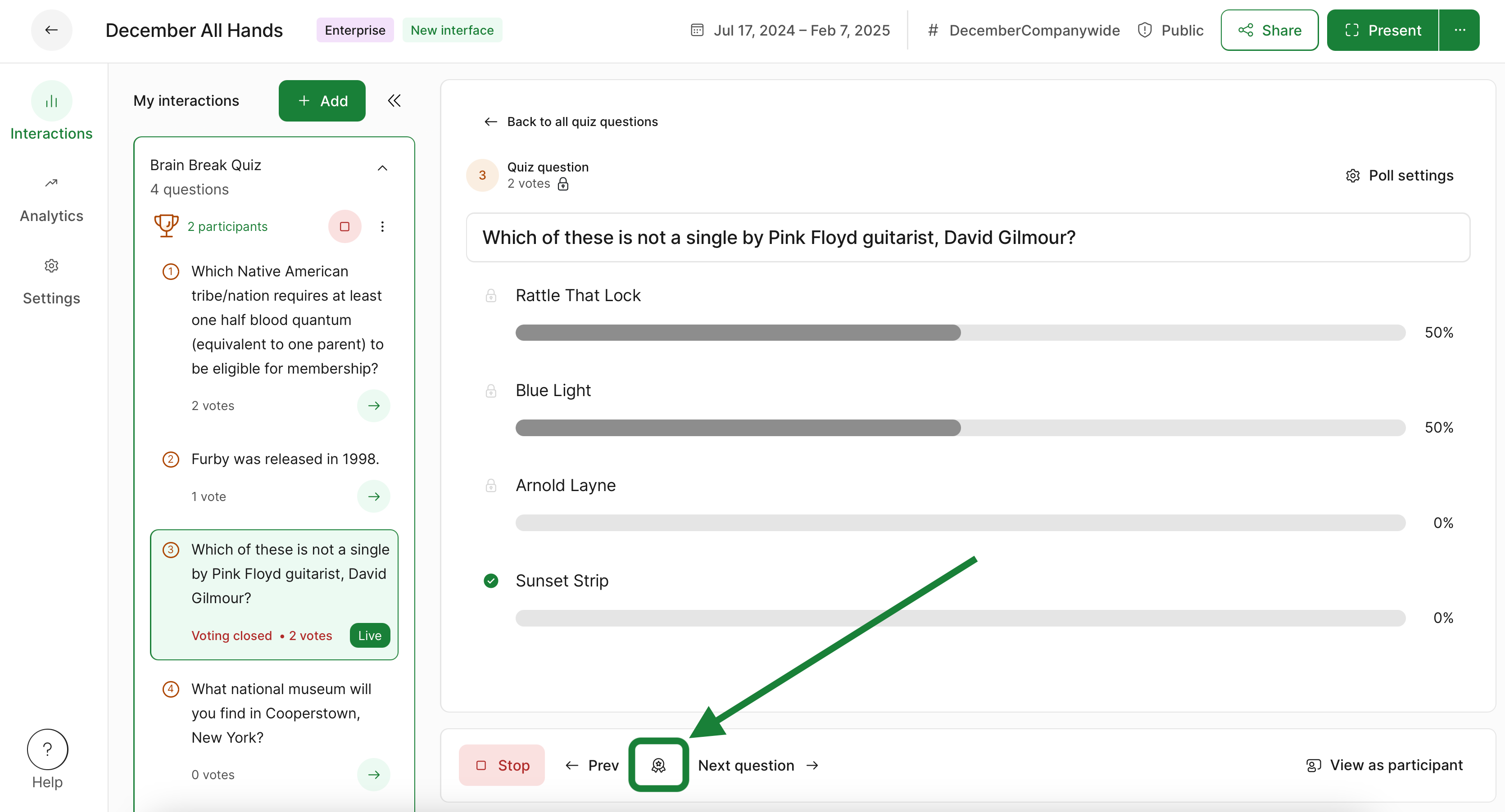
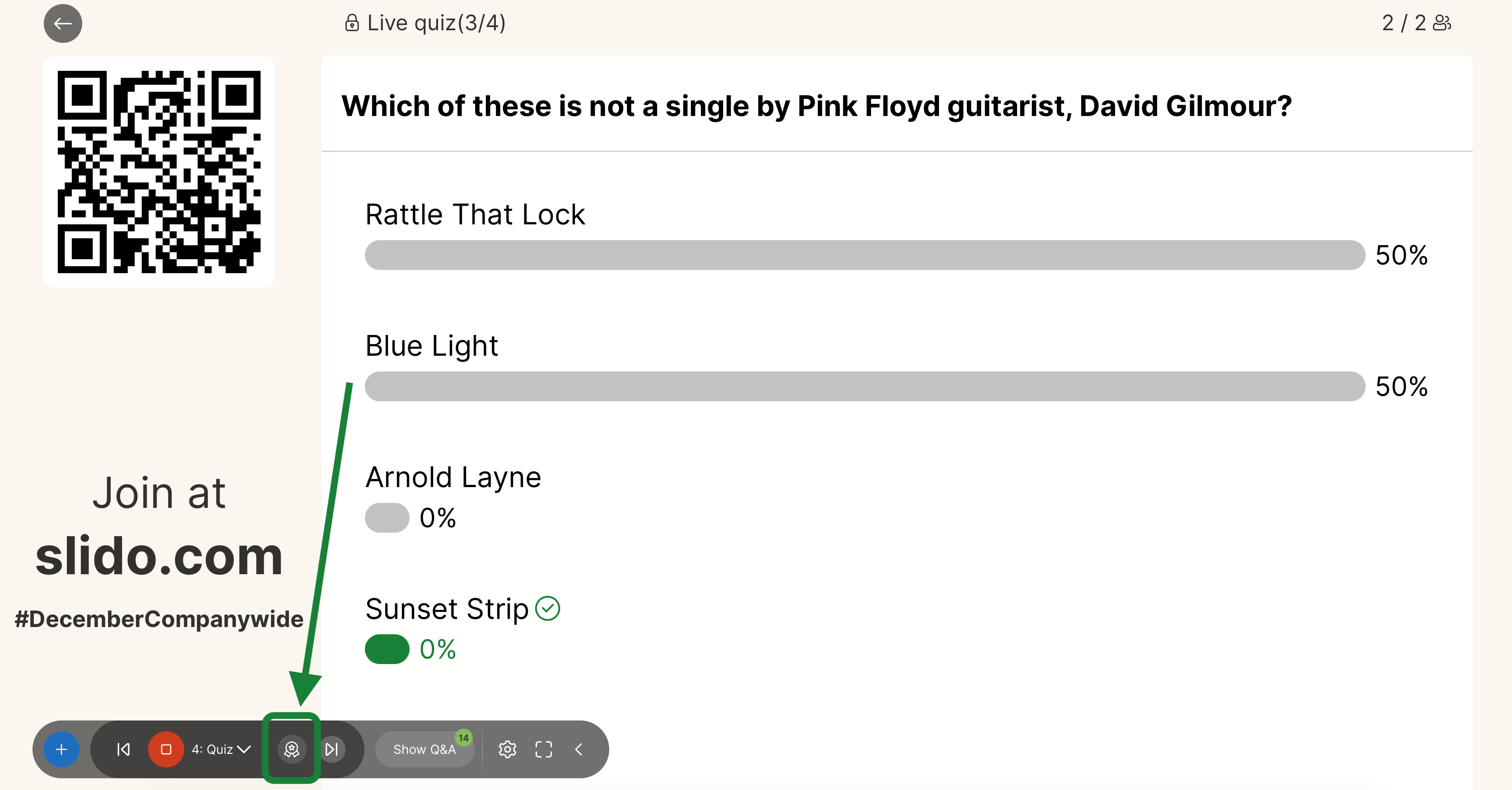
You can also display the leaderboard after any question during your quiz. This lets participants know how they’re doing and helps encourage friendly competition.
The leaderboard can be displayed from the Control bar in your Host mode…
...or from the control panel when using Present mode...
...or you can schedule the leaderboard to display after any quiz question. Just click on a question, open its Poll settings, and select Add leaderboard.
Useful tips
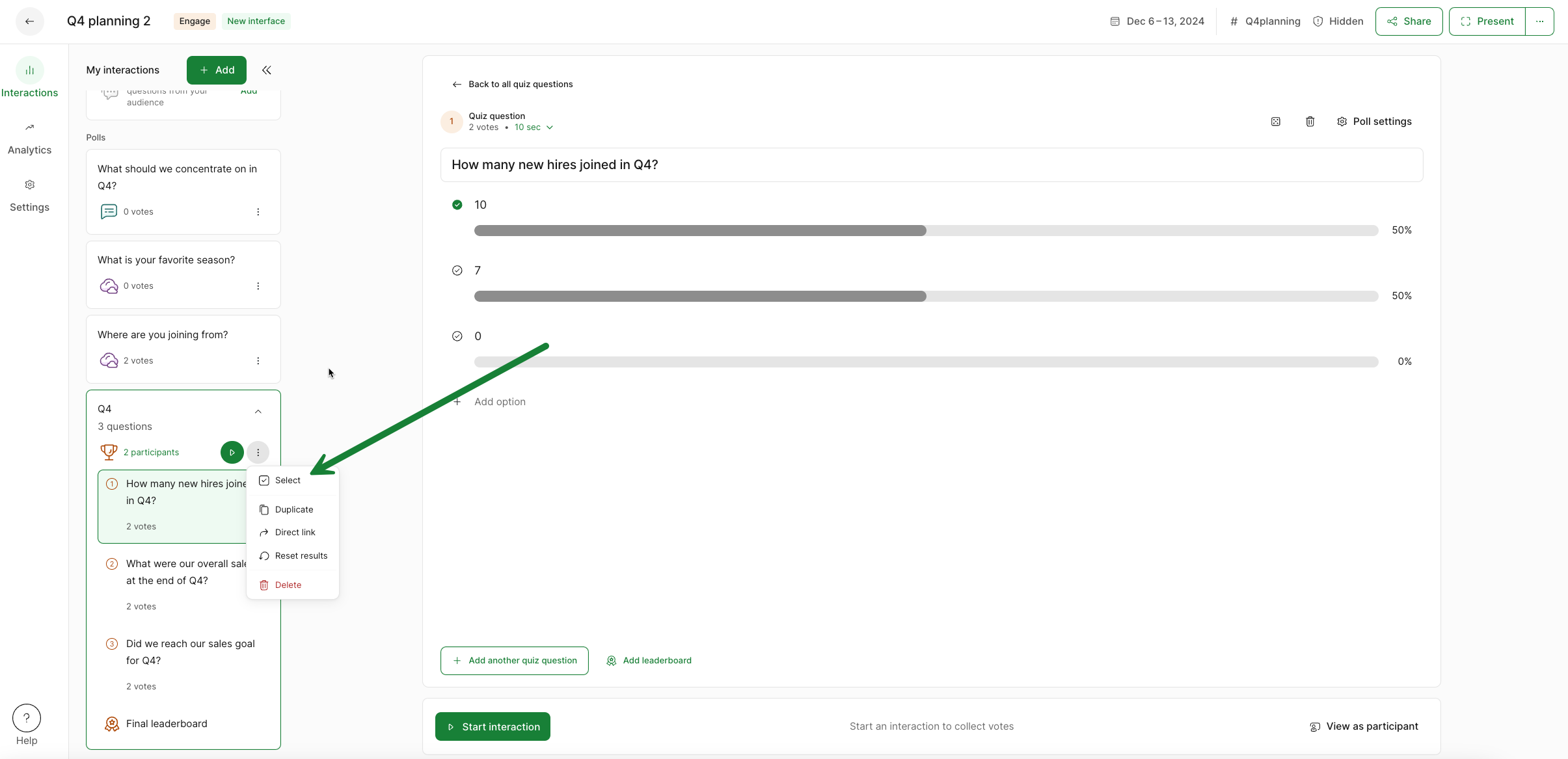
- Test beforehand and reset your results: It's good practice to test things out before your live event. Once you're finished with testing, click the three dot menu next to your quiz and select Reset results. This allows you to start fresh!
- Need to see your entire leaderboard?: As mentioned above, the quiz leaderboard will display the top five participants. However if you’re using a paid plan, you can download your full quiz leaderboard as part of your slido’s exports.
- Run your quiz throughout a presentation: Slido integrates with both PowerPoint and Google Slides. This allows you to space your quiz questions throughout your presentation and run them automatically while presenting. Learn more about all of our integrations in our Integration Hub.
- Participants names are always collected automatically: At the start of every quiz, all participants will need to enter their name regardless of whether you turned on any authentication for your slido. So you will always be able to see how your participants placed in the quiz in your Slido Analytics and Exports.
- The Slido quiz does not currently support competing as a team: Everyone joins and competes individually, with the leaderboard showing top individual scores at the end. As a workaround, if you do form teams you should nominate one person to submit the answer through a single device.
The quiz can only be run live, during a meeting or event - each question needs to be controlled by the slido host and therefore it cannot be run asynchronously before or after a meeting or event.
Learn more: