



Surveys allow you to ask multiple poll questions at the same time. Use them before or after your meeting to learn about your attendees’ expectations and/or experiences.
Available in all paid plans
In this article:
Create a Survey
Begin your survey just like any other interaction in Slido. Click the + Add new button, select the Survey option, then give it a name.
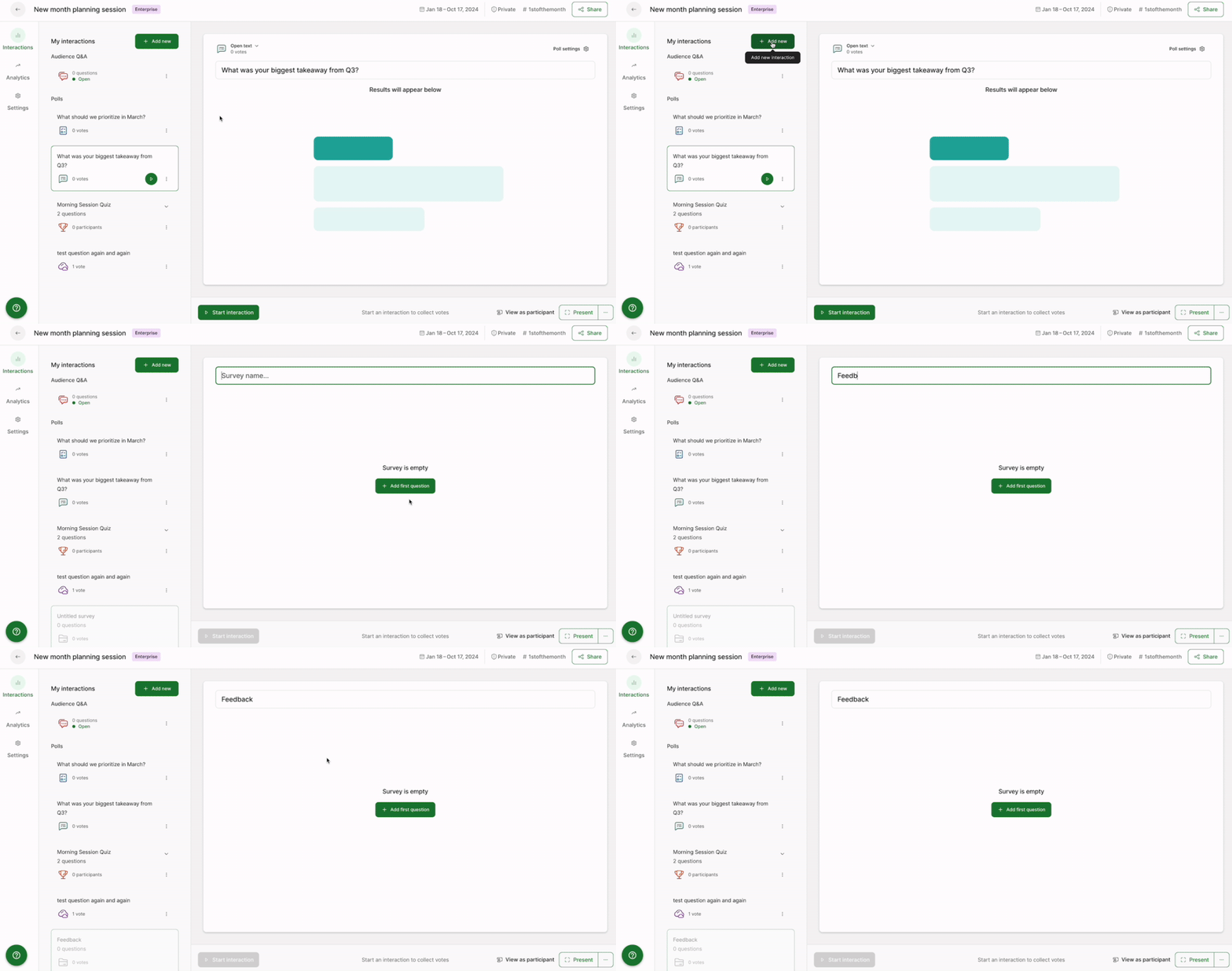
If you have an existing poll that you would like to turn into a survey, choose it from the My interactions panel and then select the + Create survey button.
Select + Add first question to begin creating your poll questions. Then continue adding as many as you need by selecting the + Add another question button.
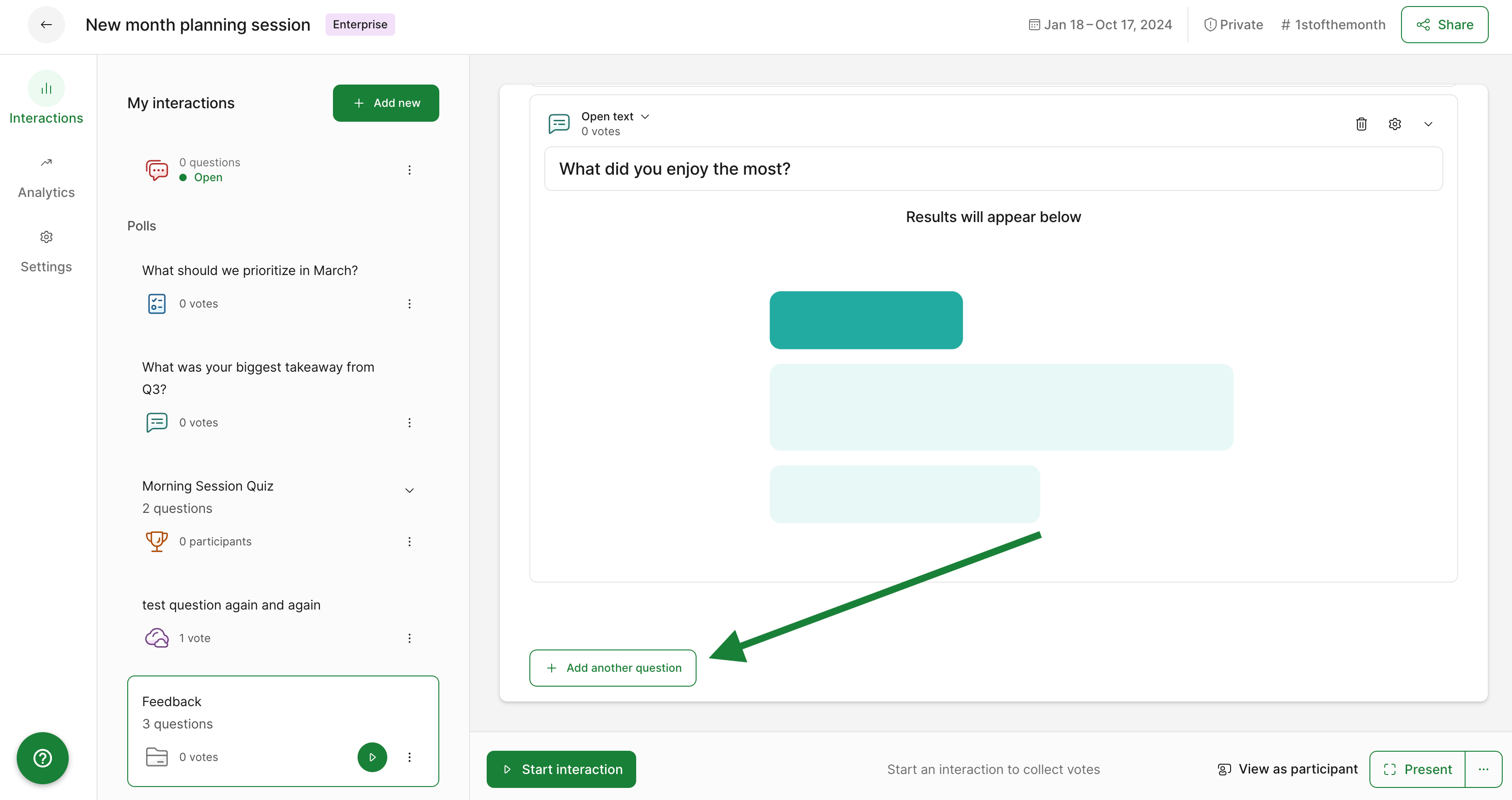
Surveys begin saving automatically after two poll questions are added. After that, any changes made will save automatically as you go.
Pro tip: You can merge polls you’ve already created into a survey. Learn more in our specific guide.
Edit and reorder poll questions in a Survey
At any time, you can edit your polls how you see fit. You can also rearrange the order of the polls when your survey isn’t live.
- Select your survey from the list of interactions
- Rearrange your polls using the drag icon on the far right
- Click on any poll you’d like to edit and make your changes
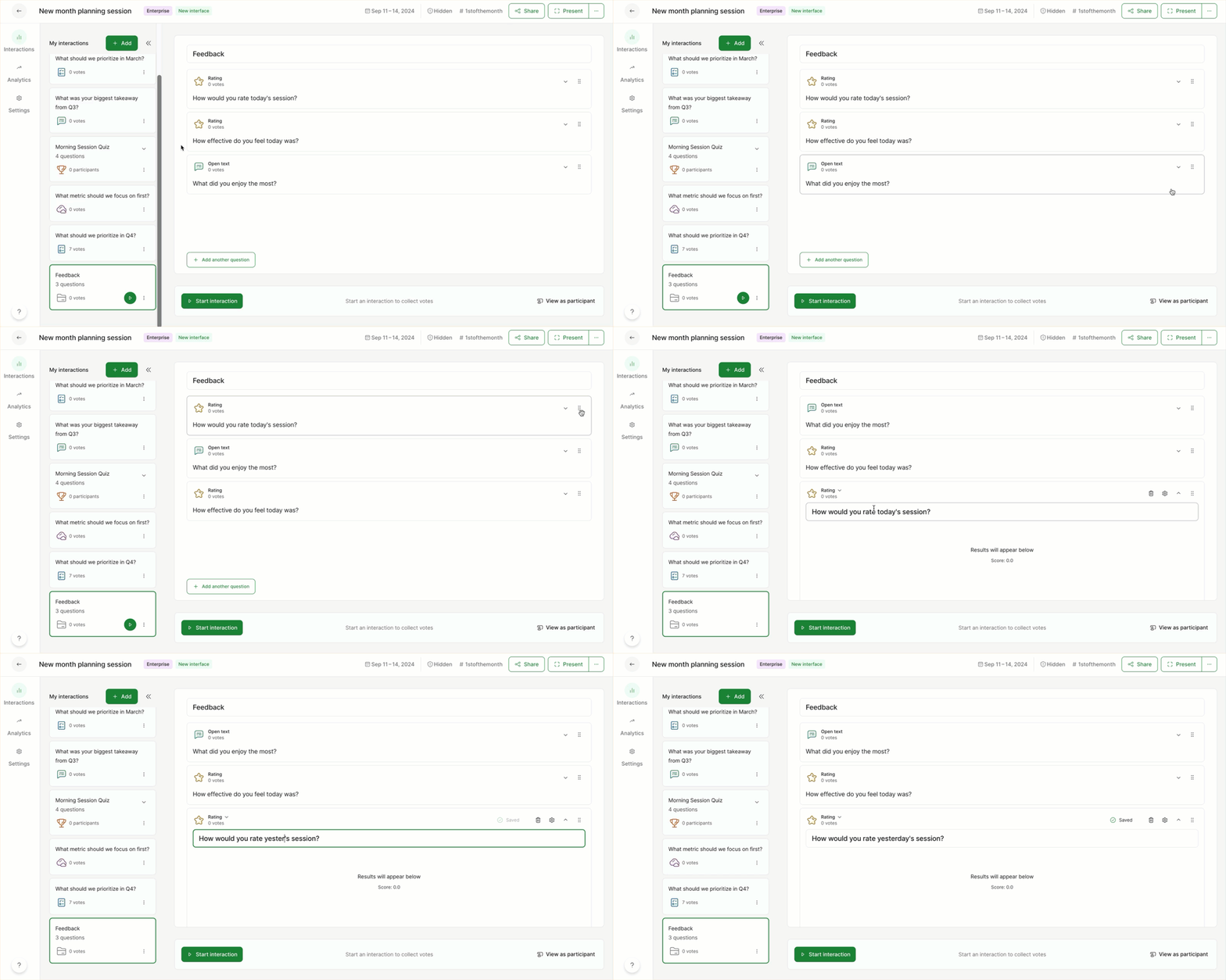
Changes take effect immediately, even when the survey is live.
Make a survey question require an answer
Depending on your survey, you may wish to have some of your questions require an answer – making them mandatory. See the steps below for doing this with any and all of your survey questions:
- Click on any of your survey questions
- Select the gear icon to bring up your settings
- Tick the toggle for Required question
- Close the settings and select another question if you wish
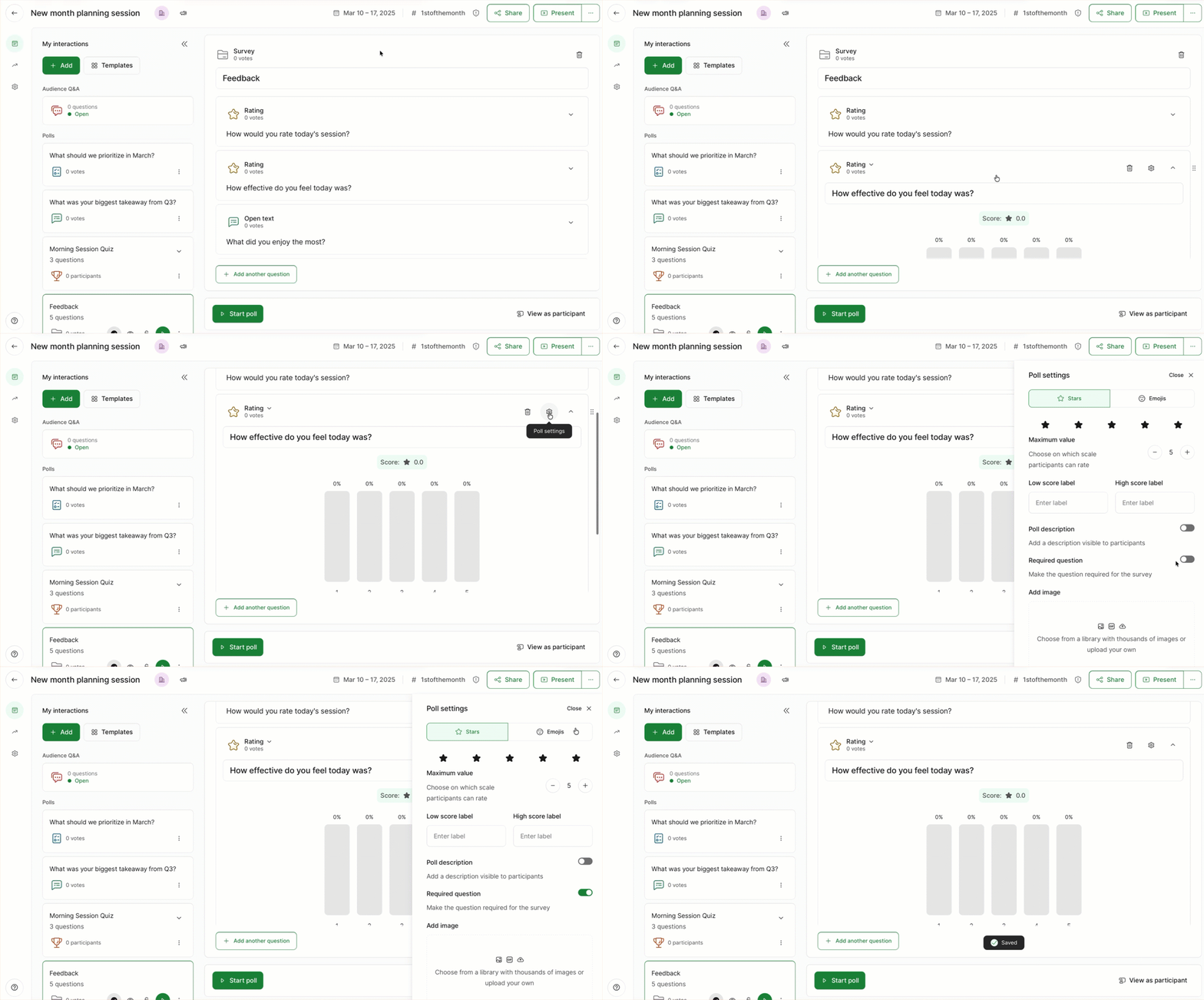
Any question(s) you’ve marked as required will have to be answered in order for anyone to successfully submit their survey.
Start a survey
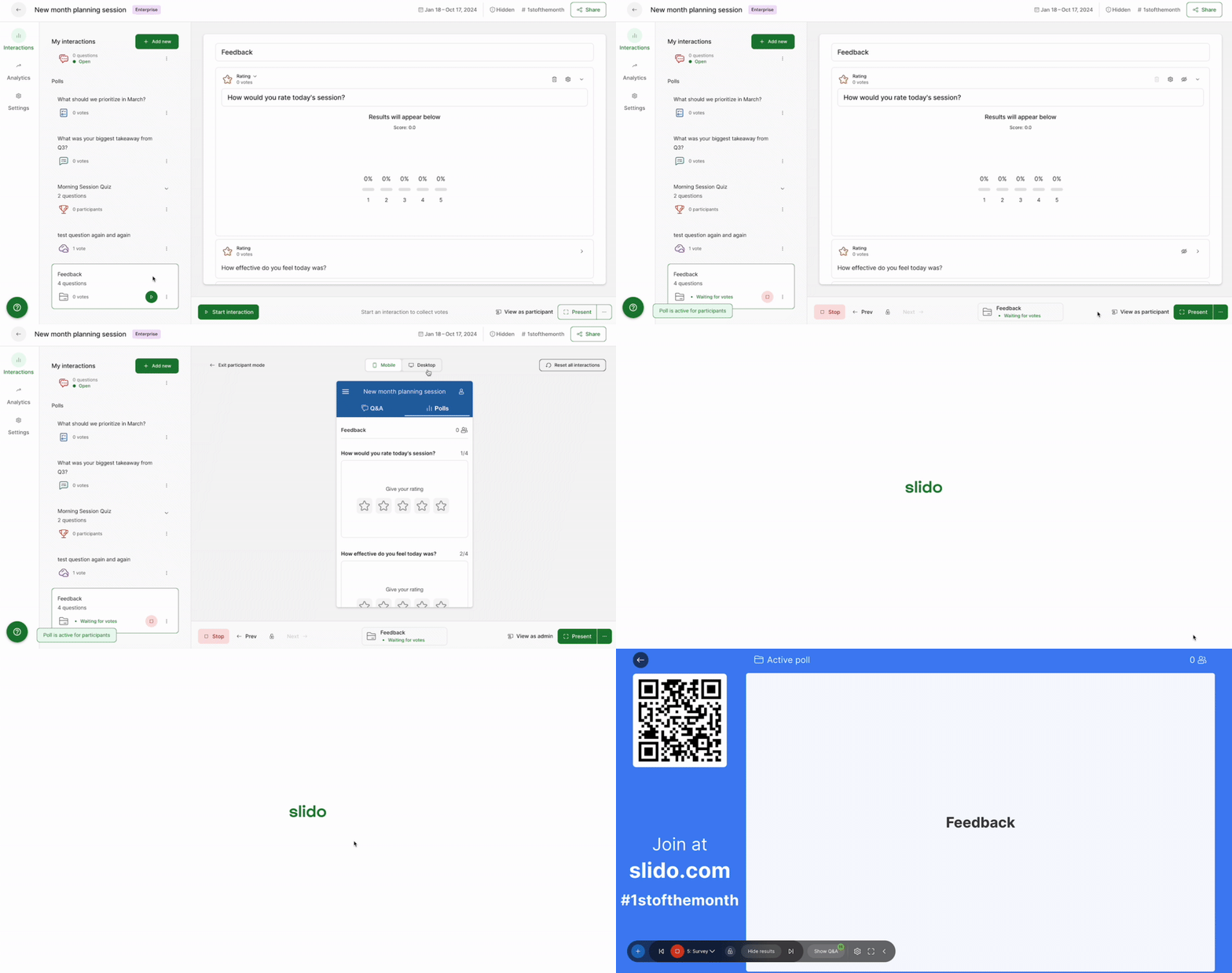
To start or run your survey, click the play icon next to it. The survey will then show up on participant devices as well as the Present mode.
- Click the View as participant option at anytime to see exactly what participants are seeing
- Open up Slido’s Present mode by clicking the green Present button in the bottom right corner
Share a link to your survey
You can also share a direct link to your survey. Send out a survey before a meeting to learn what your participants really want to talk about – or send it afterwards to collect their feedback.
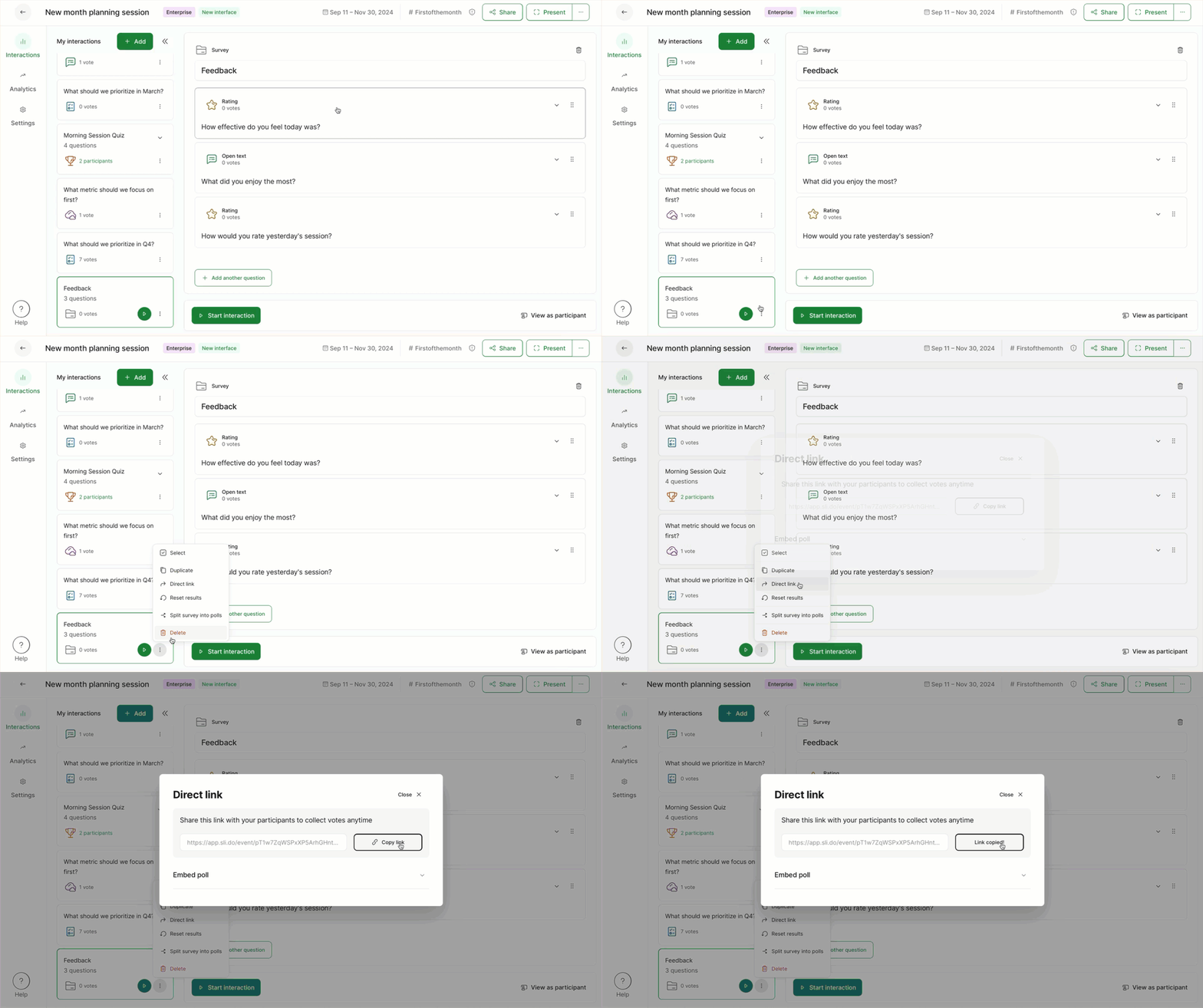
To share a direct link to your survey:
- Find your survey under the My interactions list and click its three-dot menu
- Select the Direct link option
- Click Copy link to copy the link to your clipboard
Display survey results
Display the results from your survey one poll at a time with a simple click.
- Make sure your survey is started by clicking the green play button
- Click the arrow icon next to an individual poll to display its results live for participants to see
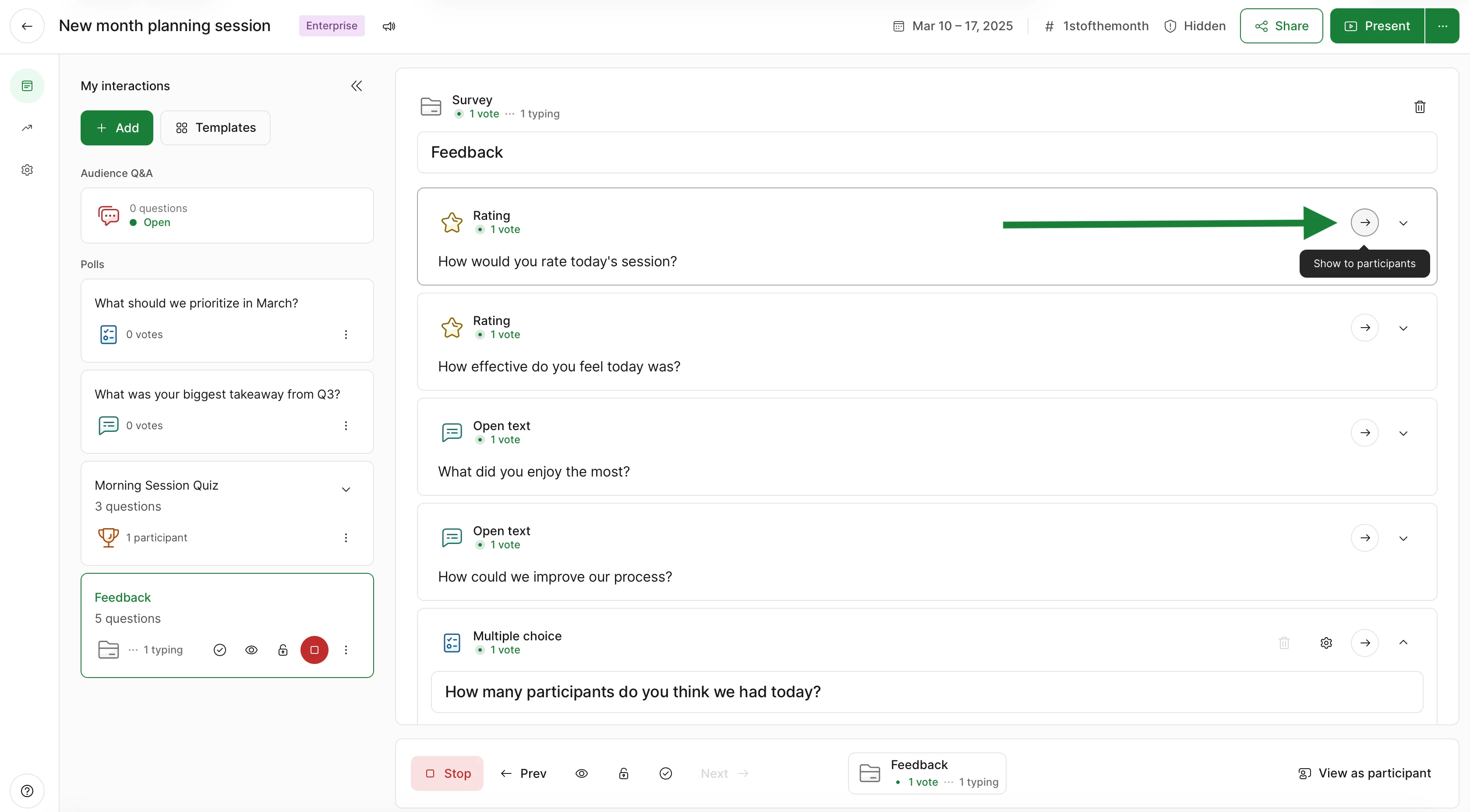
Please note that initially no results are displayed by default. You must click the arrow icon for any results to appear.
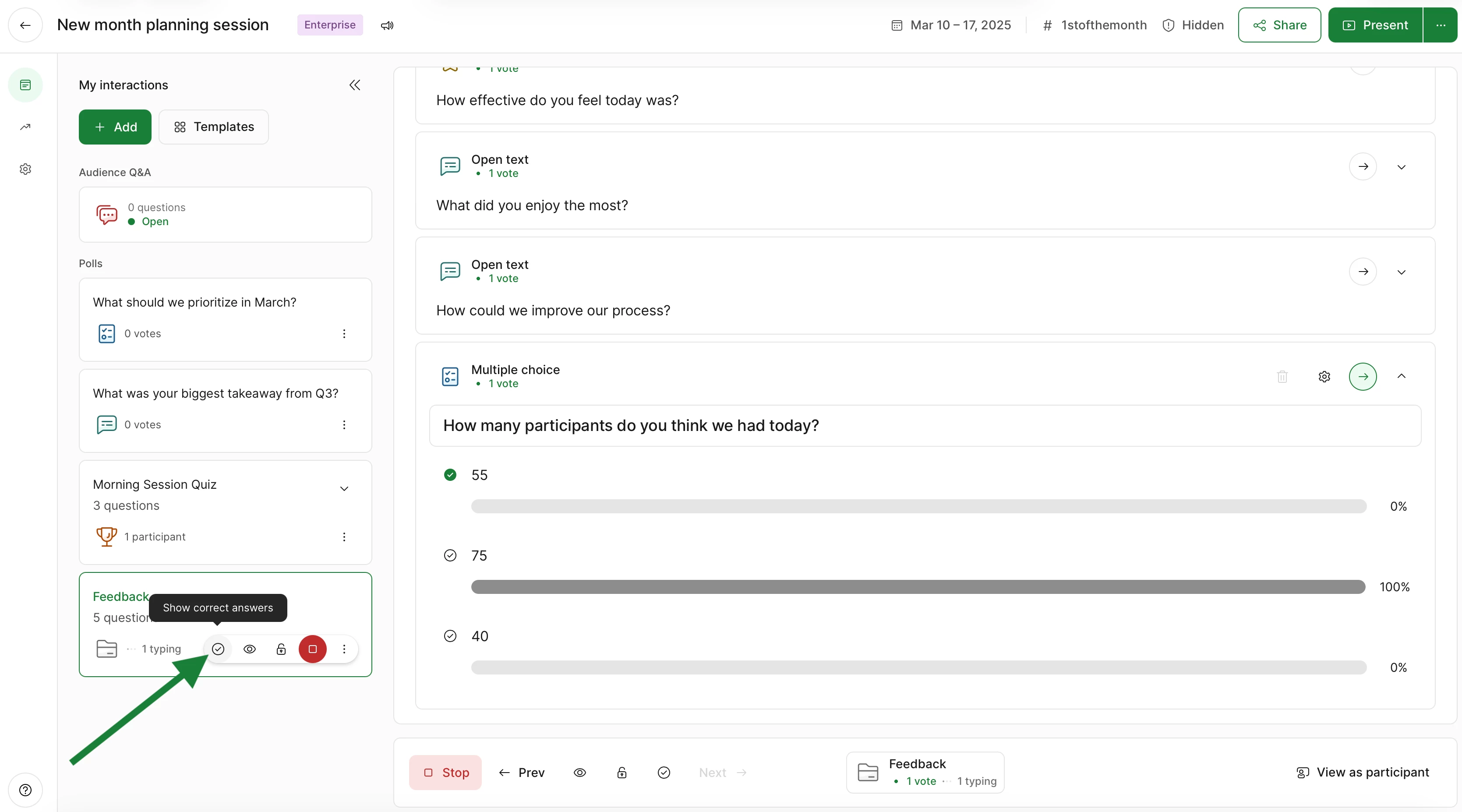
If your survey includes a multiple choice poll with a correct answer, you’ll still use the arrow icon to display the results. But if you want to show the correct answer, click the checkmark icon on the left of your screen.
Curious about more?