



With our paid plans, you can benefit from advanced features, unlimited polls and quizzes and have a bigger audience to interact with your slido. Check out our pricing page for the overview of all our one-time plans and annual licenses.
Even if your slido starts in a few days or weeks, you can upgrade online already today. You'll get the access to the paid features immediately, so you can test and set up everything prior to the day. We'll send you the invoice via email right away and you'll also find it in your account.
Slido doesn't store your credit card information. Our invoices also serve as receipts.
In this article:
Got questions before the purchase? Check the following articles to get your answers:
Buy online
The easiest and fastest way to buy or renew one of our plans is to do it online. You have the option to purchase either a single slido or you can choose from our annual packages. Please see our pricing page to compare features and cost between plans.
To purchase online:
- Log in to your account at www.slido.com
- Find your slido or create a new one and open it
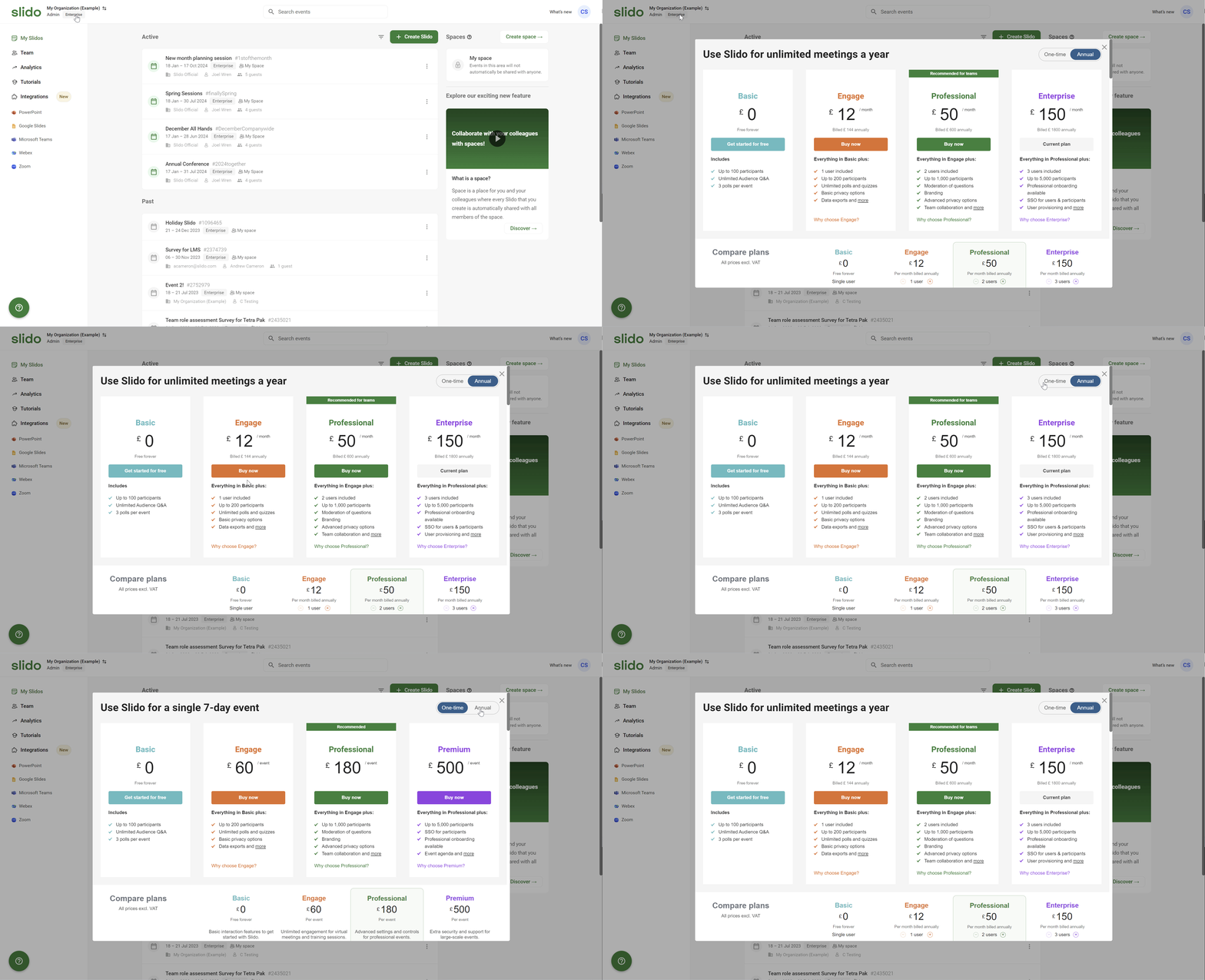
- Click the Upgrade badge in the upper left corner
- Choose your preferred plan and click Buy now
Once you fill in your billing details, you can pay with any type of credit card.
Slido is based in Central Europe. Please make sure your credit card is authorized for international purchases as your payment may be blocked otherwise. If your payment fails, please contact your bank or credit card company to confirm the purchase.
Get your invoice
Once you successfully finish your payment, your invoice and order details will be attached to the email we send within a few minutes after the upgrade.
You can also find your invoice in the Organization settings - Invoices. It can take up to 15 minutes for your invoice to appear there.
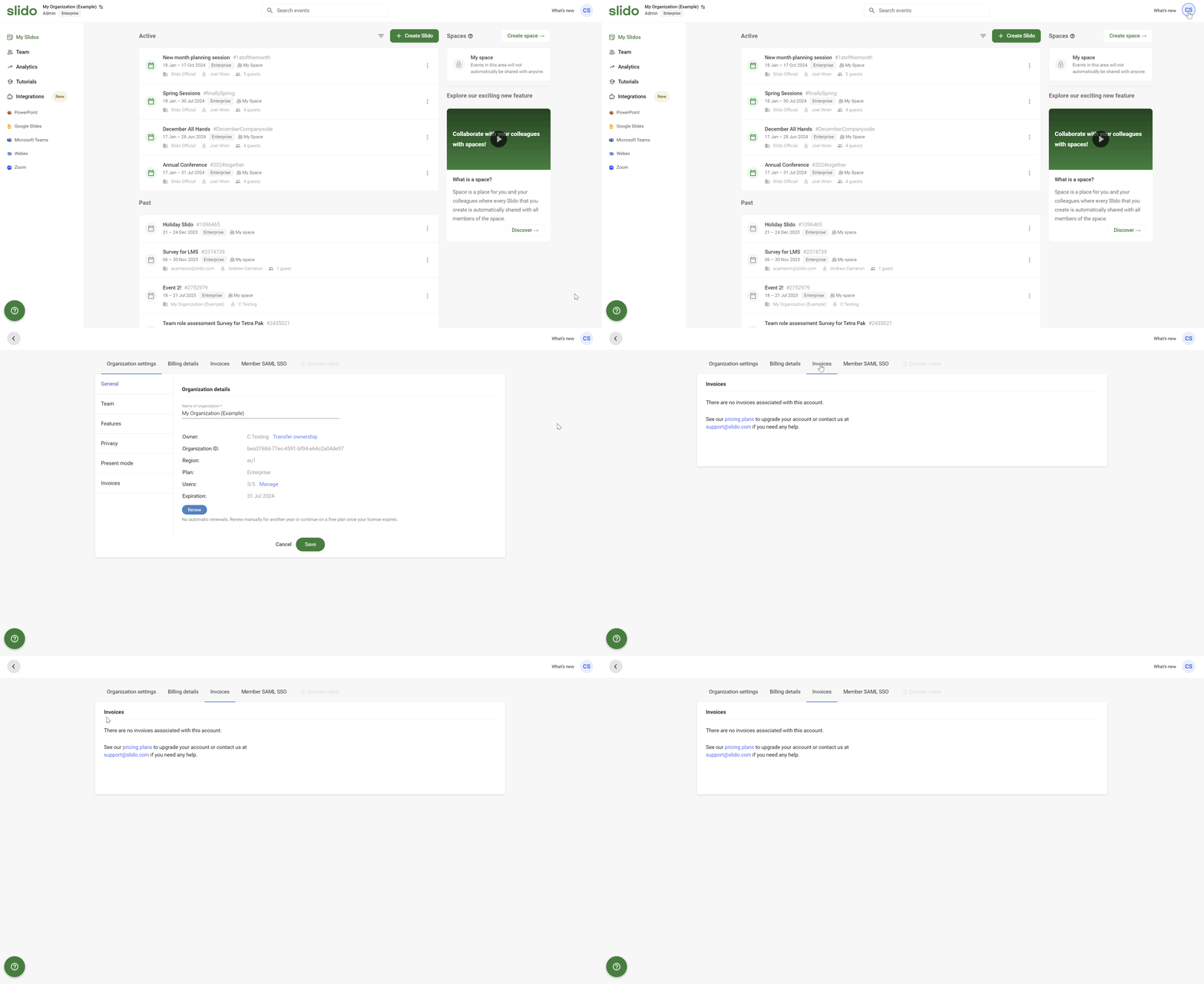
If you don’t receive your invoice via email, it may have been blocked by a spam filter or company network restriction. If that’s the case, you can still go to your Organization settings and download it from there.
Change your plan
Annual customers can upgrade to a higher plan directly within their account. To do so:
- Log in to your Slido account
- Click your current plan icon in the upper left corner
- Select a new plan in Pricing and click Buy now - the cost will be automatically adjusted on a pro-rata basis.
- Review the new license and final price
- Select Continue to payment
Note that annual upgrades will only apply to newly created slidos.
If you need to change the number of additional members, downgrade your plan or upgrade from a one-time plan to an annual license, please send us an email at support@slido.com.
What does the crown icon mean in Slido?
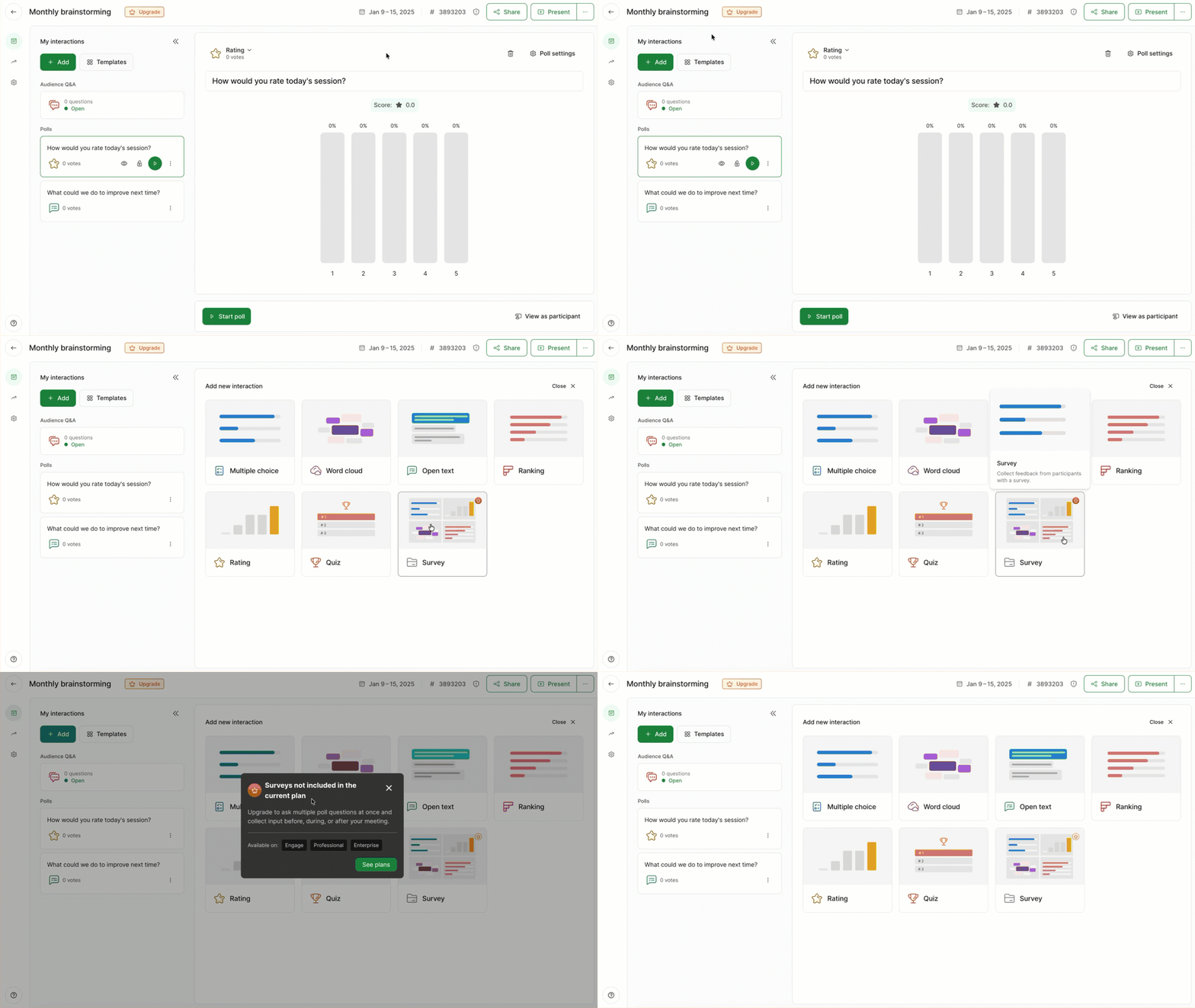
The crown icon in Slido references an upgrade to a higher plan. You may see it on the upper left corner of your screen, where you can click to upgrade at any time. Or you may notice it next to a particular feature that is locked for you – unless you were to upgrade your plan.
Price quotes, invoices and renewals
Are you procuring Slido for your organization? Check out our procurement guide for more detailed information.
- Requesting a price quote
Fill out our price quote request form to get a quote for any of our plans.
- Pricing currency
Depending on location, Slido plans are purchased in USD, CAD, AUD, GBP, EUR, or YEN.
- Purchasing via invoice
If you wish to purchase our Professional plan with 7+ additional members, Enterprise plan or you are experiencing difficulties with online payment, we can issue an invoice and process your plan upgrade immediately for instant access. Make sure you've signed up for Slido with your work email address and fill out our invoice request form.
We will then upgrade your account and send you the invoice in return. During the week, we aim to sort out every request within a couple of hours. - How to pay your invoice
The due date for our invoices is 14 days after issue (30 for the United Kingdom). You can pay using a credit card or bank transfer.
For credit cards, click the button at the bottom of your invoice. Once on the payment page, click the Pay with credit card option.
For wire transfers, use our billing details located in the upper left corner of your invoice. And please use your invoice number as payment reference for the transfer.
- How renewals work
We don't store credit card information, so we won't charge you automatically once your annual license expires. Before your license expiration date, we'll remind you via email and you'll be able to renew directly from your account. See our license renewal guide for more information.
Refund policy
Slido’s annual plans are paid upfront and in full for the entire year. However, these plans also come with a 30 day Money Back Guarantee. This means that you can purchase the annual license of your choice, experiment with all its additional features and if it doesn’t fit your needs, we’ll provide a full refund.
Slido’s Money Back Guarantee is available in all regions and applies to first-time purchases
Requesting a refund
If Slido doesn’t offer a feature that’s critical for you, or if there’s another reason why it doesn’t fit your needs, simply ask for a refund within 30 days as per our Money Back Guarantee.
Send an email to support@slido.com with the following information in mind:
- Only the license owner can request a refund so please make sure the refund request comes from the license owner’s email address.
- Put Refund request in the subject line
- Share your feedback with us (what you liked about Slido, what didn’t work for you, etc.)
We welcome any and all feedback as it helps us improve the experience for all members and participants. We appreciate you being as specific as possible.
Once we receive your email, our support team will handle your request as quickly as possible. Once completed, you’ll get a credit note confirming the refund was issued and your funds will return back to your account within a few days.
If you do not qualify for our Money Back Guarantee or you purchased a one-time slido that was canceled, send an email to support@slido.com and our team will gladly take a look. We evaluate these license cancellation and refund requests on a case-by-case basis.
Curious about more?